
Quick answer
Export audio from your library, then import it into TuneTrace on the new iPhone. Note playlist order, playback positions and settings beforehand so you can recreate them afterward.
Sharing and export require the corresponding unlock. Check the access shown in the app.
Step by step
4 stepsRecord the playlists you want to keep
Note track order and important names. If you also need the original long recordings, save separate copies of those, not just the songs cut from them.

Find songs, playlists, and recordings in the Library Export audio in batches
Open the song list’s menu, choose “Select”, select tracks and tap “Share”. Save them to iCloud Drive or another location you can access.
Import on the new iPhone
Make sure the files have synced and downloaded, then import them into TuneTrace. Recreate playlists and restore your preferred speed and resume settings.
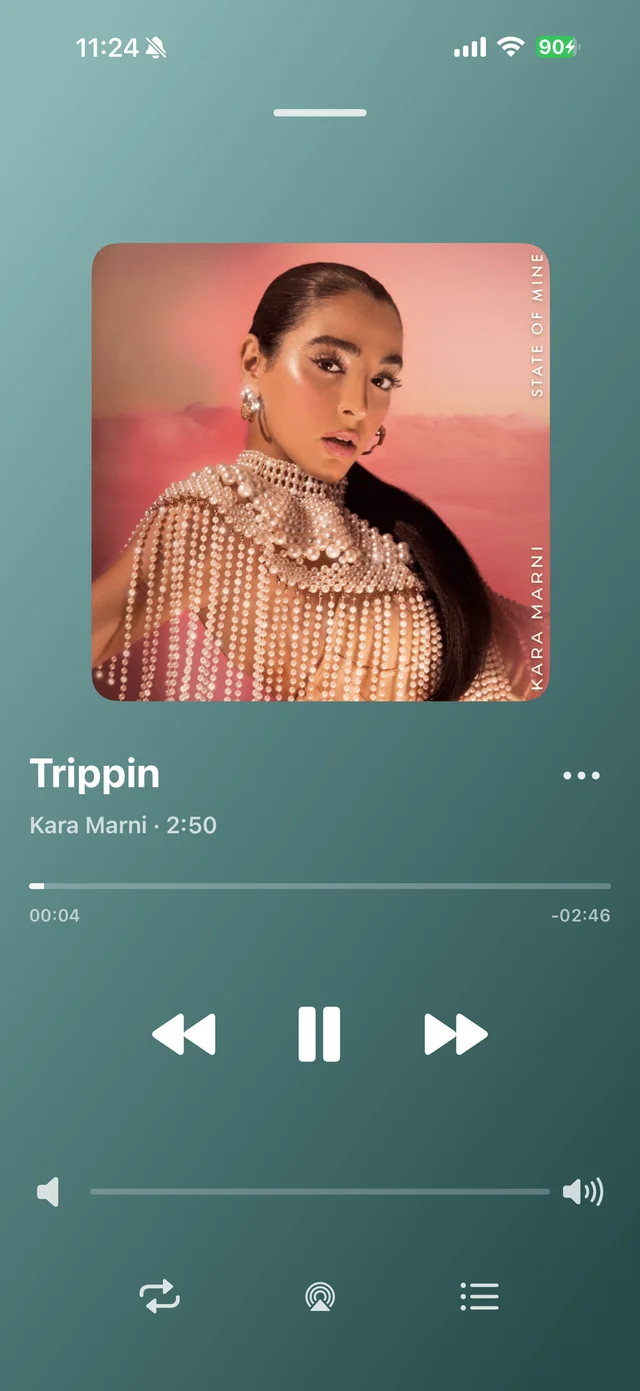
Playback progress, volume, and the player menu Check the copies before clearing the old phone
Compare track counts and listen to beginnings, endings and important long recordings. Keep the original data until the copies are confirmed usable.

Common questions
Will playlists and playback positions restore automatically?
Audio exports do not back up playlist order or playback progress. Note those separately and recreate them on the new phone.
Will reinstalling recover my songs?
Local songs without a backup may be lost. Export the audio before uninstalling.