
Quick answer
Import ordinary audio files from TuneTrace’s Library. MP3 and M4A are common starting points. WAV, FLAC and other formats depend on encoding and system support, so try one complete file before importing a batch.
Step by step
3 stepsMake sure you have the actual audio
Preview it in Files. Check that it is not a ZIP, webpage, video or service-specific cache. Finish or repeat the download if the file looks incomplete.
Try importing one file
Tap Library’s top-left import button and choose the audio. If it is unavailable or fails, read the message rather than just renaming the extension.

Find songs, playlists, and recordings in the Library Listen before importing the rest
Check the beginning, middle and end. For incompatible encoding, use a trusted converter to create an ordinary MP3 or M4A, then try importing again.

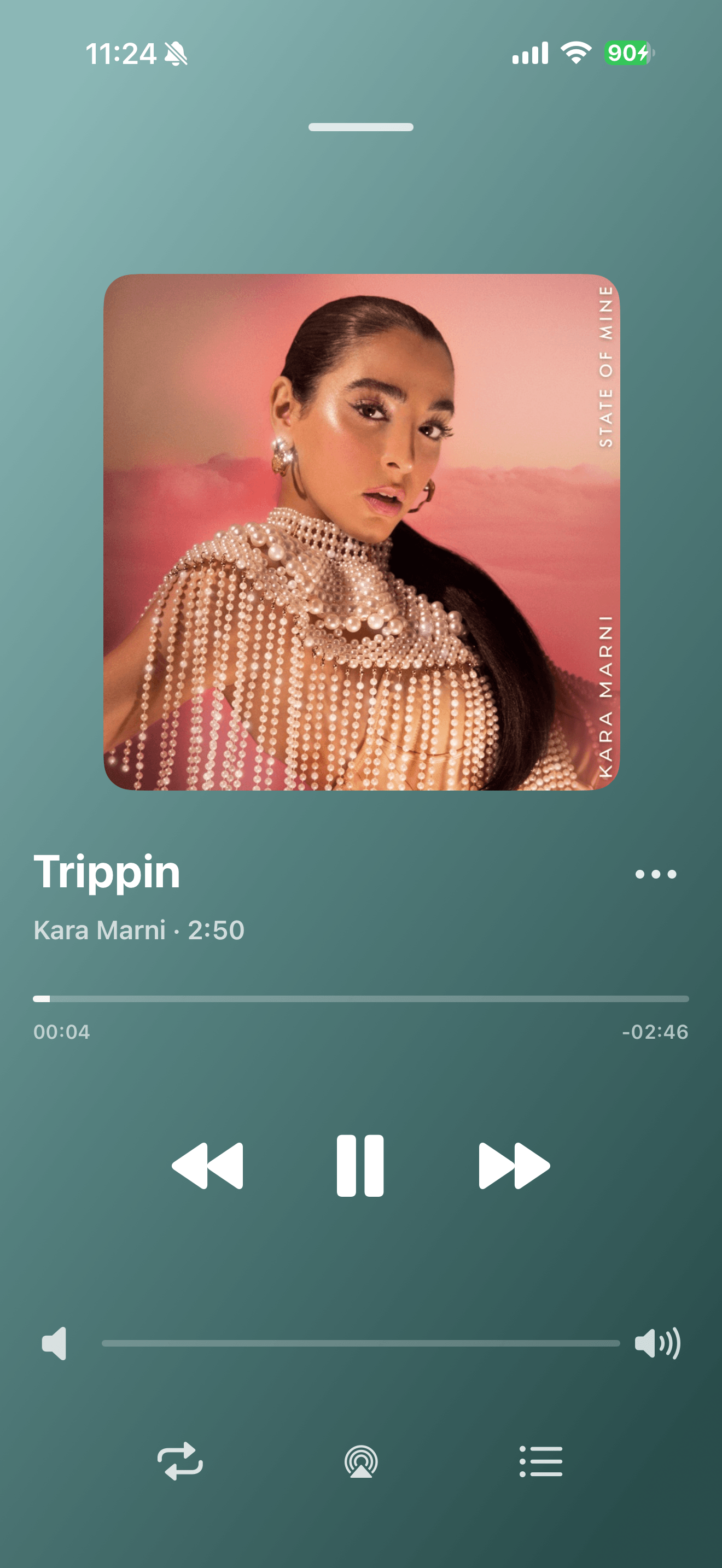
Playback progress, volume, and the player menu

Common questions
Does a .flac extension guarantee it will import?
No. The file must be complete and use a compatible encoding. Try one file first.
Will conversion improve the sound quality?
Conversion can improve compatibility, but it cannot restore detail missing from the original audio.