
Quick answer
Import a performance recording, split it by song, and save named tracks. Arrange them in a playlist and keep different performances without needing song identification.
Step by step
5 stepsImport your recording
Record the performance with Voice Memos or another microphone recorder and save it to Files. Use TuneTrace’s “Import Audio” for the full recording; its app-audio recording does not replace live microphone recording.
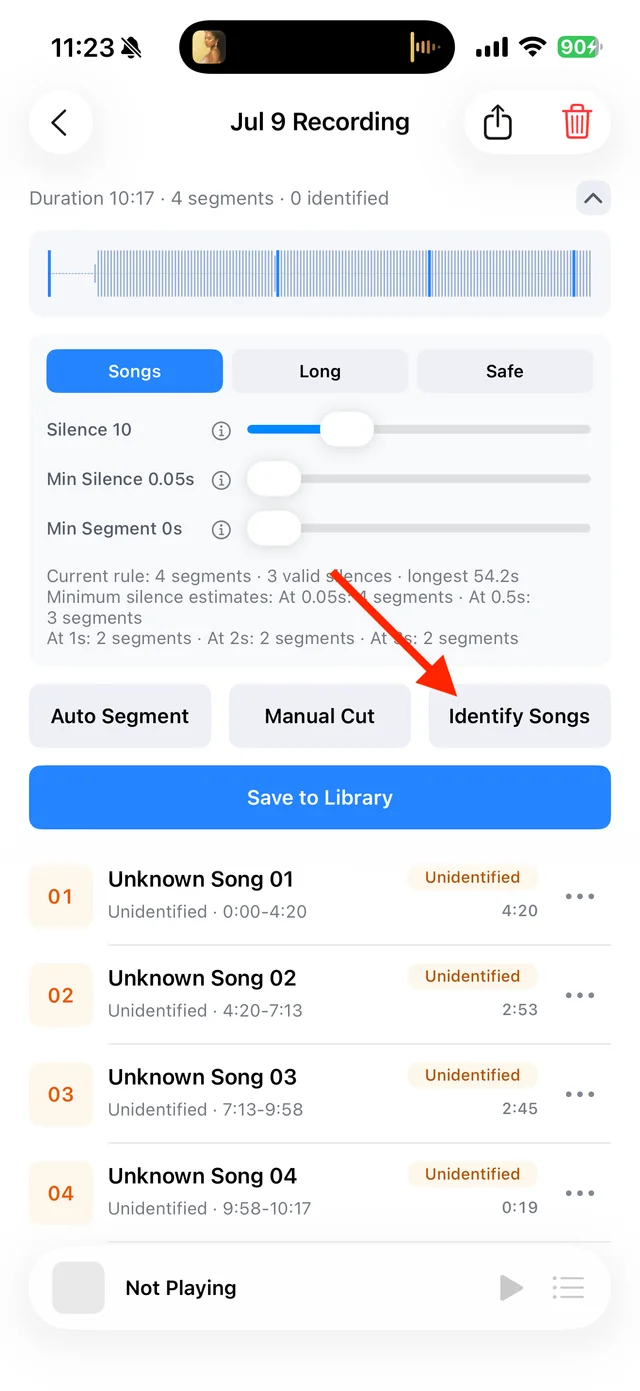
Split, identify, and save audio on the recording page Split by performance
Use “Manual Cut” between songs. Keep announcements or applause with the appropriate track if wanted, check the transitions, and save.
Name and save the tracks
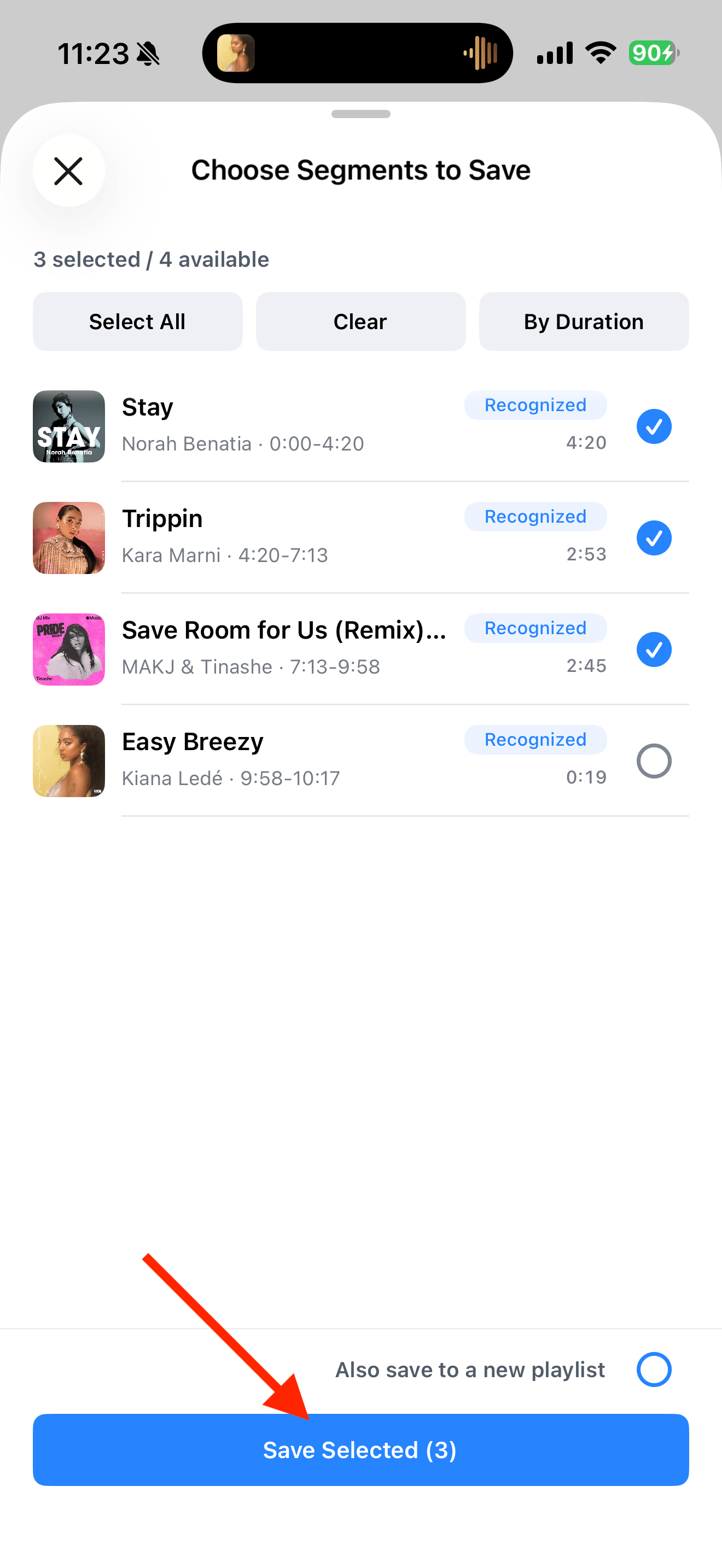
Use “⋯” → “Rename” for titles such as “01 Nocturne · Live 2026-10-10”. In “Save to Library”, select the tracks to keep.
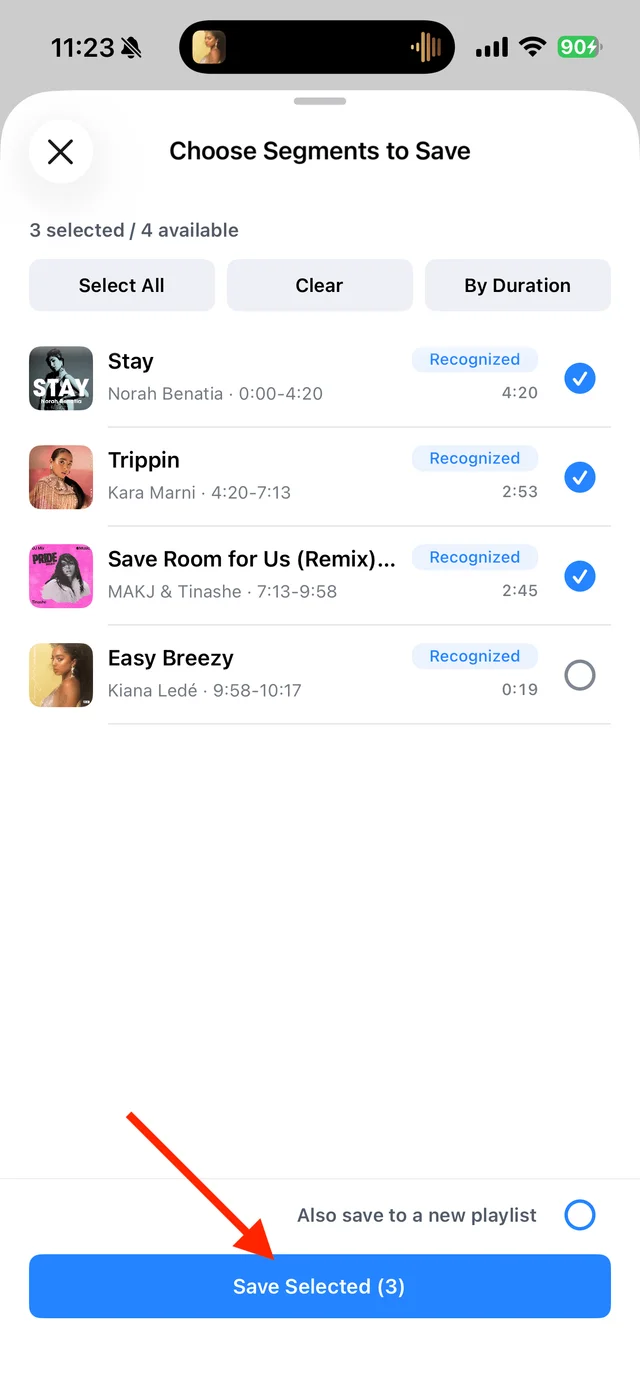
Select the tracks you want to keep and save them Arrange the performance playlist
Create a playlist with the performance name and date. Add the tracks and use “Reorder” to match the performance order.

Find songs, playlists, and recordings in the Library Add details and artwork
Use “Details and Source” → “Edit Info” to add the performer’s name and a photo. Listen to every beginning and ending to check that nothing is missing.
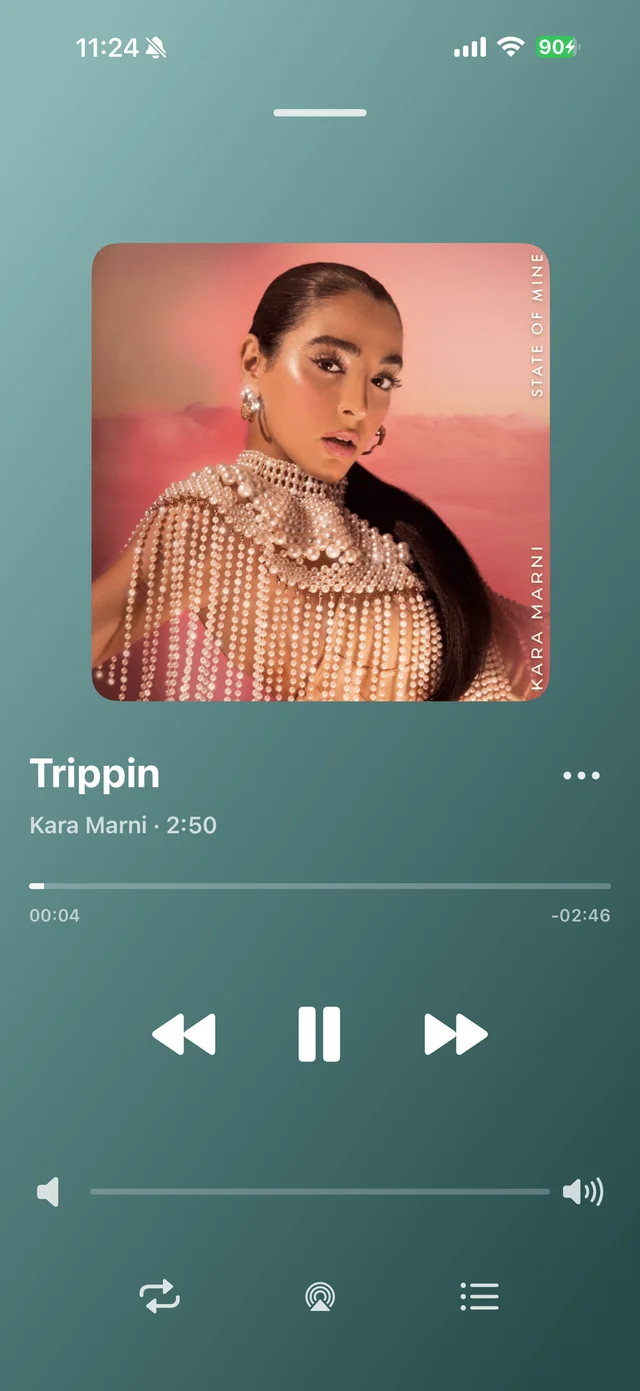
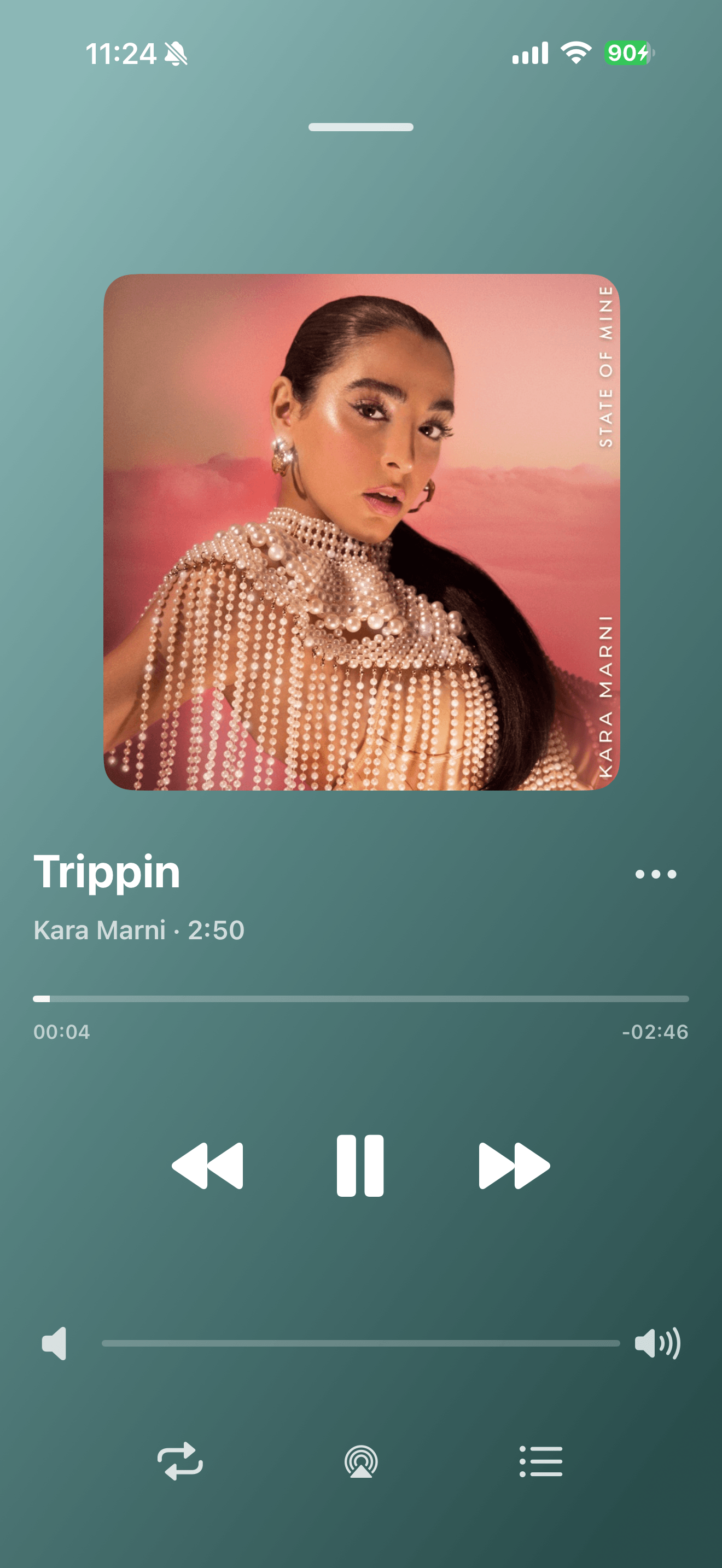
Playback progress, volume, and the player menu
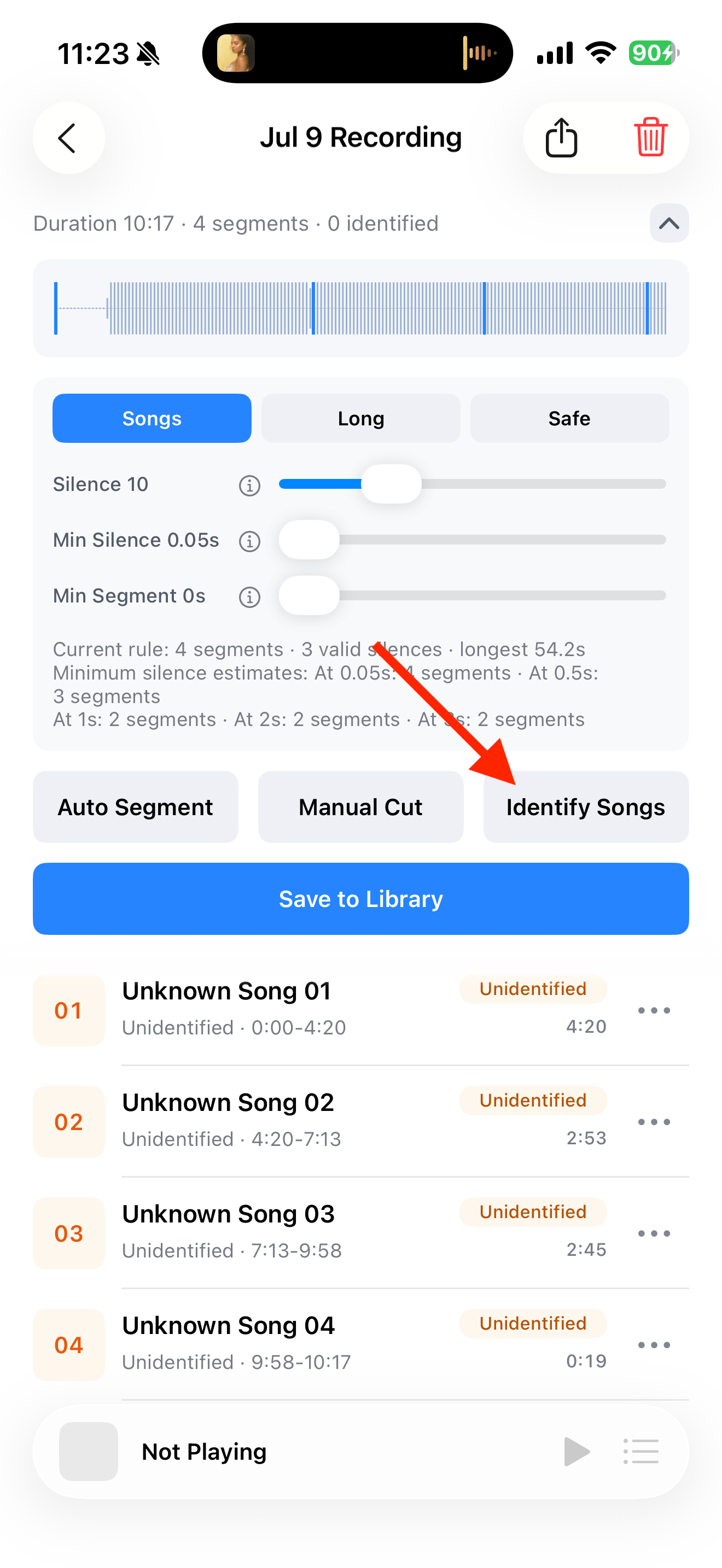

Common questions
Does this publish an album to a music service?
No. It creates a local playlist in TuneTrace, arranged in performance order.
What if my original song cannot be identified?
Enter its details yourself. A missing online match does not prevent saving or playback.
Can I share the recordings?
Use “Share/Export” to export the files. Availability depends on the access shown in the app.