
Quick answer
Open “Details and Source” → “Edit Info”, tap “Change Artwork”, choose an image, and save.
Step by step
3 stepsOpen the information editor
Find the saved track in your Library and open “⋯” → “Details and Source” → “Edit Info”.

Find songs, playlists, and recordings in the Library Choose an image
Tap “Change Artwork” and choose a photo. An image with a clear, centered subject usually works well at small sizes.
Save and check the player
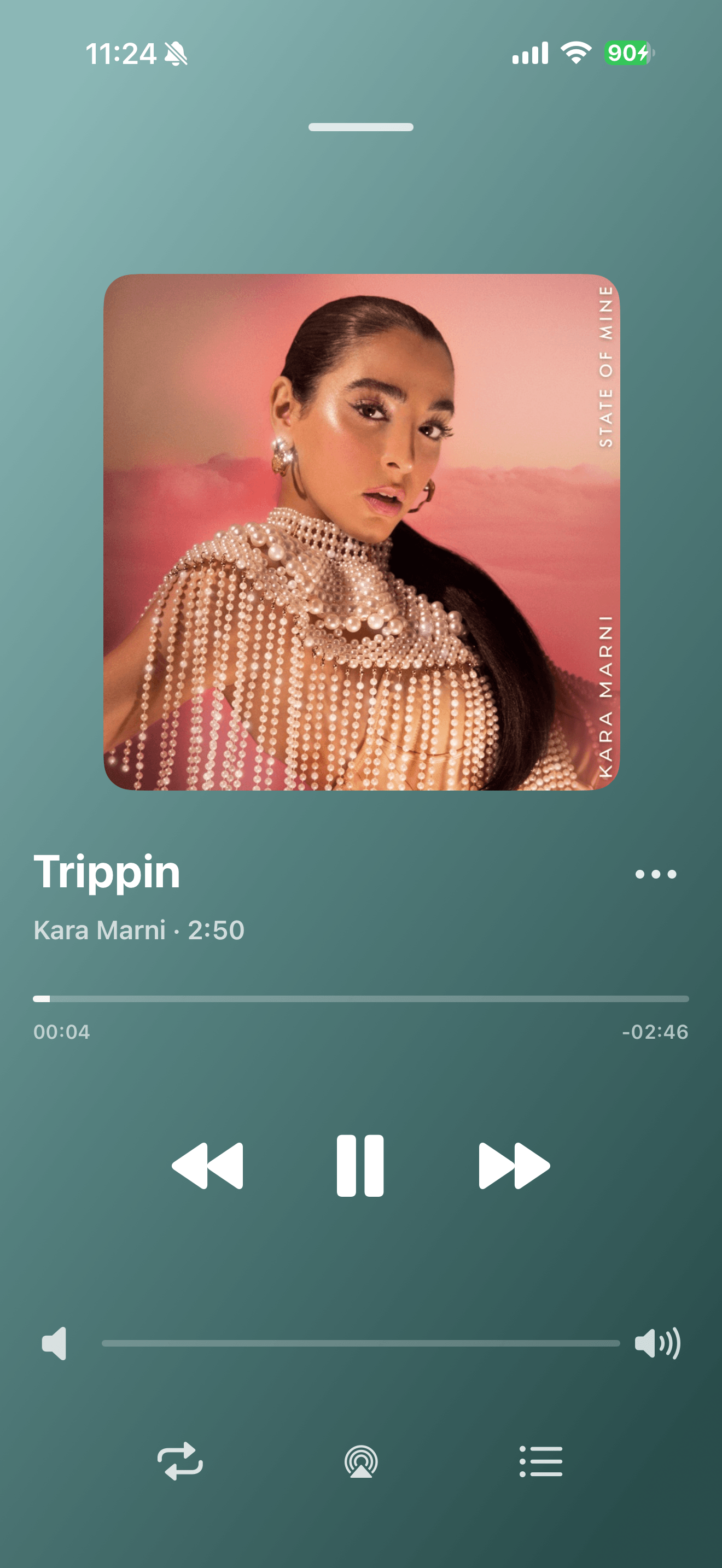
Save the changes and open the player to check the artwork. Use “Clear Artwork” in the editor if you want to remove it.
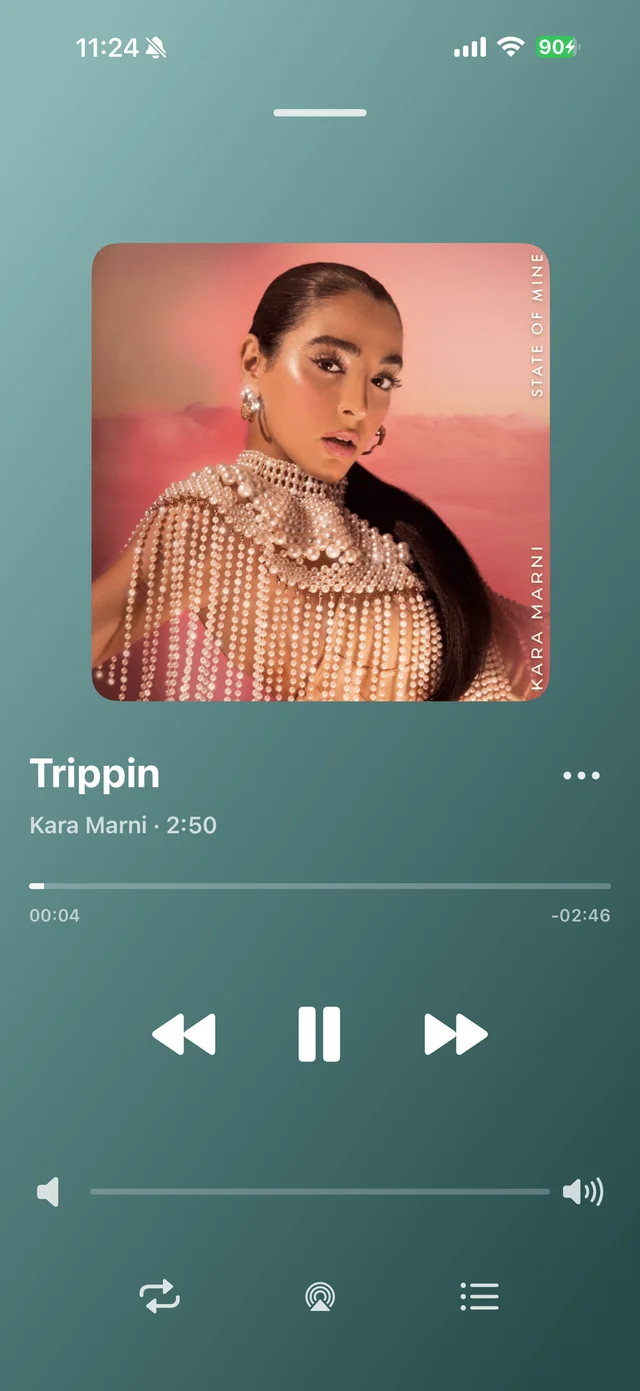
Playback progress, volume, and the player menu

Common questions
Does changing artwork affect the recording?
No. It only changes the track’s displayed information.
Can identifying the song again change my artwork?
Yes, a new match may update it. Avoid identifying that track again if you want to keep custom artwork.