
Quick answer
Open “⋯” → “Details and Source” → “Edit Info”, update the title and artist, and save. For lessons, use the chapter as the title and the speaker as the artist.
Step by step
3 stepsOpen the right track
Find the audio in your Library, listen to confirm it, then open “⋯” → “Details and Source” → “Edit Info”.

Find songs, playlists, and recordings in the Library Enter useful details
Keep the main title short and add a version label if needed. For a lesson, try “Topic · Lesson 01” and use the speaker’s name as the artist.
Save and search
Save the changes and search for the new name in your Library. Review your selection before identifying songs again, since new matches may update custom details.
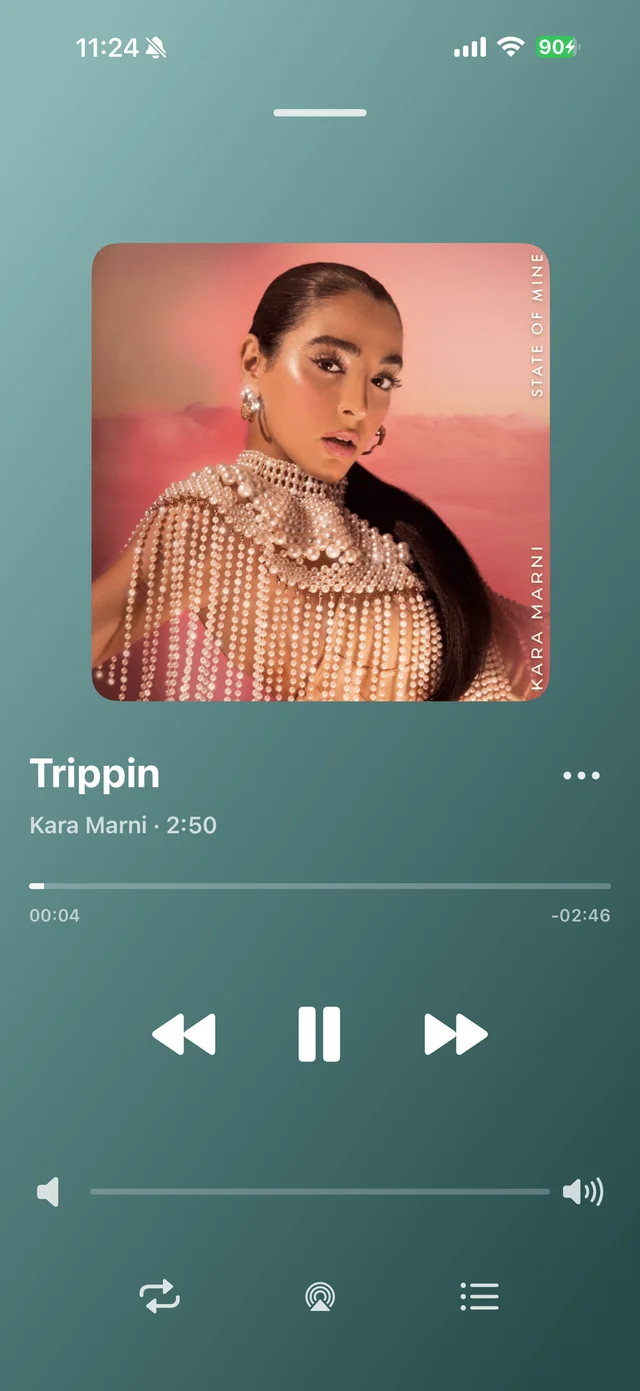
Playback progress, volume, and the player menu

Common questions
Does renaming change the audio?
No. It changes the track’s information in the Library.
Can I rename audio without identifying it first?
Yes. You can enter the title and artist yourself without an online match.