
Quick answer
Open the playlist menu, choose “Reorder”, drag tracks into place, and tap “Done Sorting”. Use sequential playback to follow that order.
Step by step
3 stepsAdd all the tracks
Use “Add Songs” to include missing chapters. Check for duplicates and gaps before sorting.

Find songs, playlists, and recordings in the Library Drag tracks into order
Choose “Reorder” from the playlist menu and move the tracks. Chapter numbers in the titles can help with longer courses.
Save and play in sequence
Tap “Done Sorting”, start from the first track, and check the queue. Turn off shuffle and repeat one.
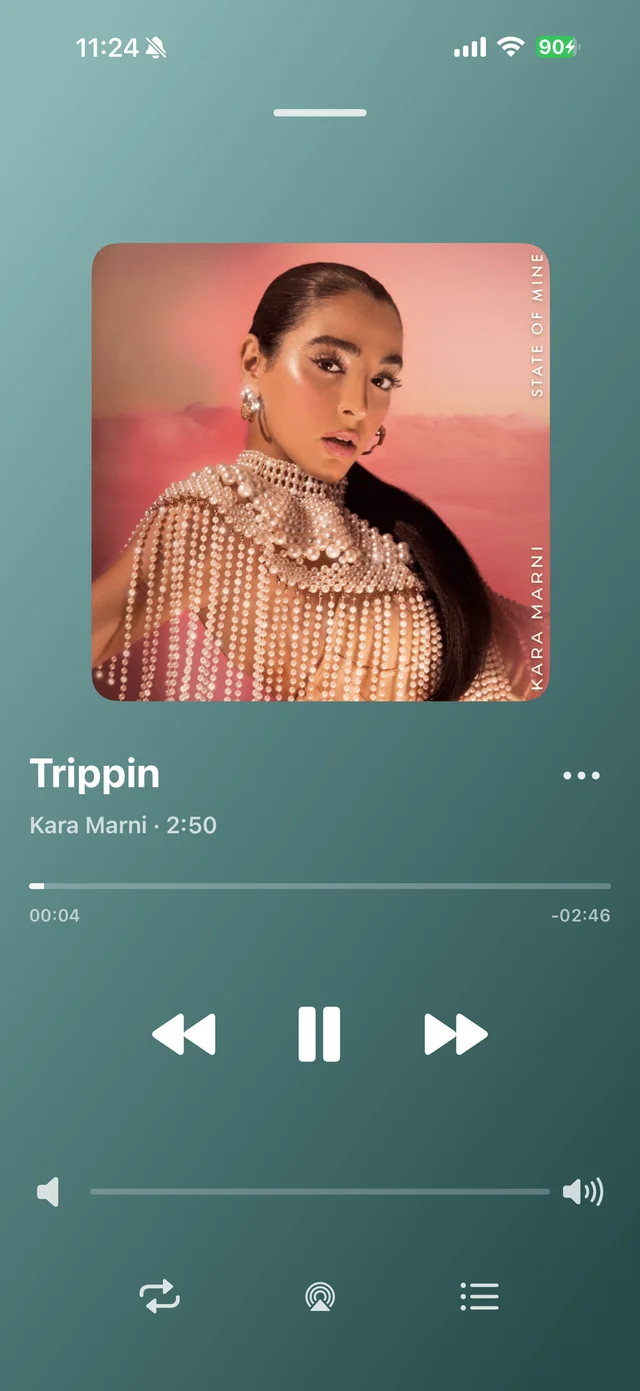
Playback progress, volume, and the player menu

Common questions
Does renaming tracks automatically reorder the playlist?
To set a fixed order, choose “Reorder” and drag the tracks into place.
Is sorting the Library the same as reordering a playlist?
No. Save the order you want within the target playlist.