
Quick answer
Add saved songs and programs to a commute playlist and arrange them for your journey. Start playback before leaving, then listen with the screen locked.
Step by step
3 stepsCreate the playlist
Open “Library” → “Playlists”, tap “+”, and give it a recognizable name. Use “Add Songs” to add saved tracks.

Find songs, playlists, and recordings in the Library Arrange the listening order
Use “Reorder” to place programs and music in the order you prefer. Choose shorter tracks for a short trip or add longer programs for a longer journey.
Check playback before leaving
Connect your headphones, play a track, and lock the screen. Enable “Resume Playback” for long programs to continue on your next commute.

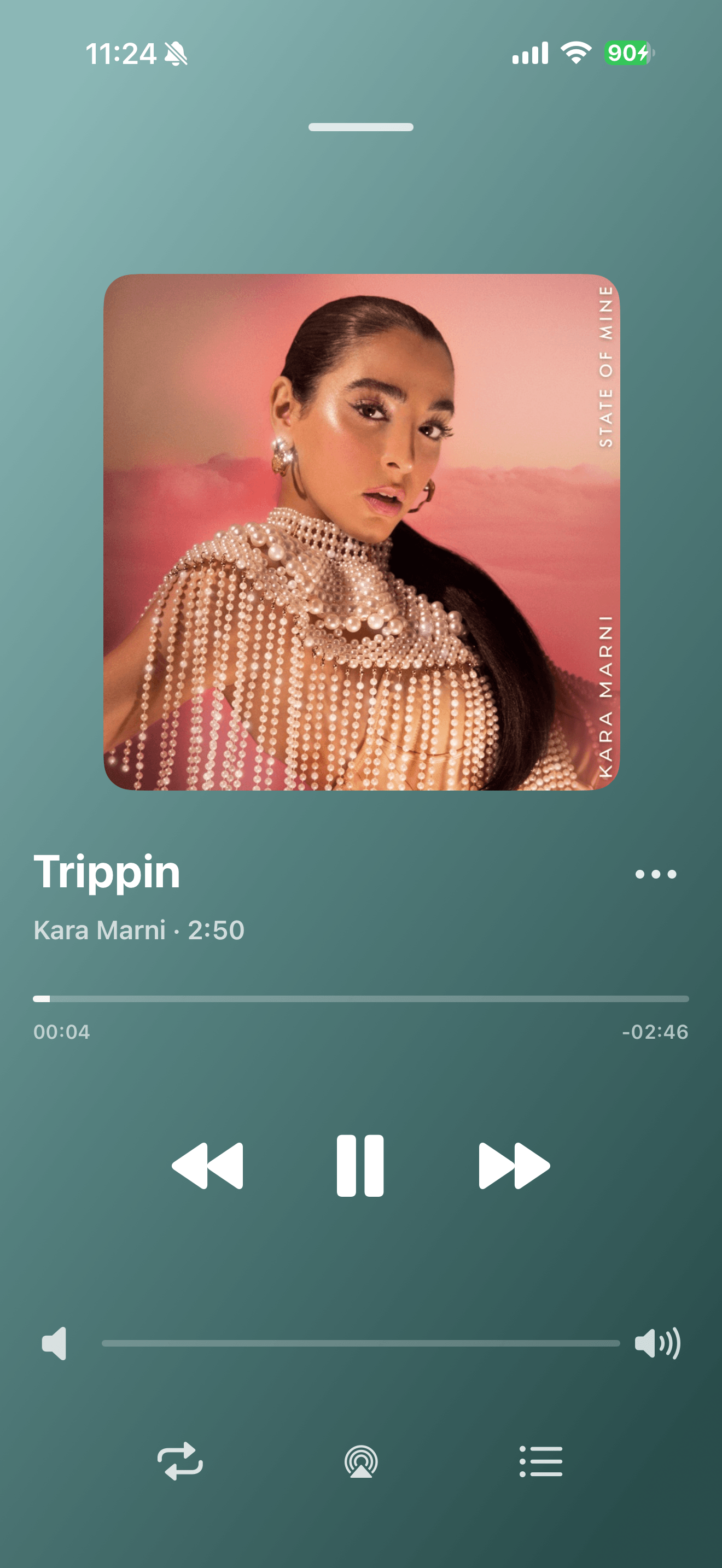
Playback progress, volume, and the player menu

Common questions
Will a weak signal interrupt saved songs?
Fully saved local audio can play offline without downloading along the route.
How can I choose another song without interrupting this one?
Use “Play Next” from the song’s menu, then check the queue.