
Quick answer
Give long audio its own speed and saved playback position.
Open the player’s “⋯” → “Playback Settings”, adjust “Playback Speed”, and enable “Resume Playback”. Choose “This Audio” to apply the settings to this track.
Your first 30 saved songs play in full for free, forever. Unlock more with a one-time purchase.
Step by step
4 stepsPlay the saved recording
Import or record the lesson or interview first. Open it in the full player and choose “⋯” → “Playback Settings”.
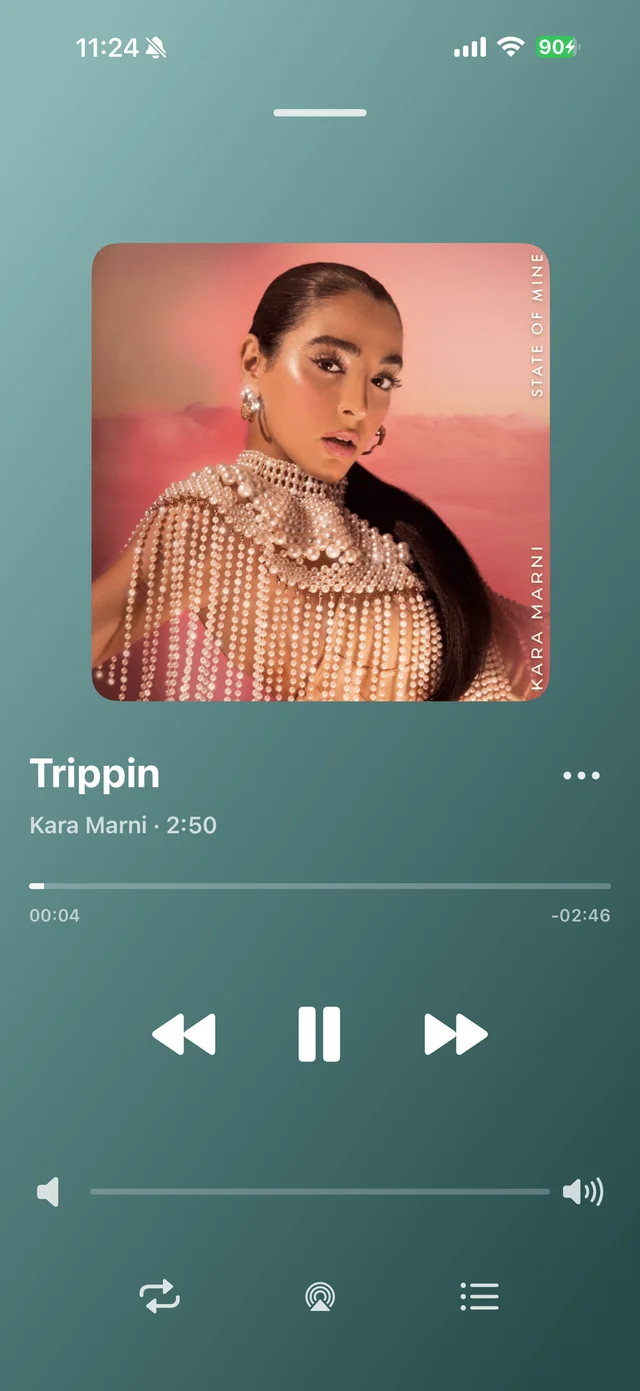
Open “⋯” in the player to find playback settings Choose a comfortable speed
Open “Playback Speed” and try 1.25× or 1.5×. Set “Scope” to “This Audio” and tap “Done”.
Enable resume playback
Open “Playback Settings” → “Resume Playback”, select “On”, choose “This Audio”, and tap “Done”.
Continue next time
Pause and reopen the same track later to continue. To apply the settings to a whole course, play from its playlist and choose “Current Playlist”.
Common questions
Why are my other songs playing faster too?
Check whether you changed “Global Default”. Use “This Audio” for one lesson and keep the music default at 1×.
Which settings take priority?
A track’s own settings override its playlist’s settings. Playlist settings override the global defaults.
How do I listen from the beginning?
Drag the playhead to the start. To start over each time, turn “Resume Playback” off for that track.