
Quick answer
Choose when to stop, then settle in and listen.
Save the audio in TuneTrace and add it to a bedtime playlist. In the player, open “⋯” → “Sleep Timer”, choose a duration or “Current Track”, and tap “Done”.
Your first 30 saved songs play in full for free, forever. Unlock more with a one-time purchase.
Step by step
5 stepsSave the video’s audio
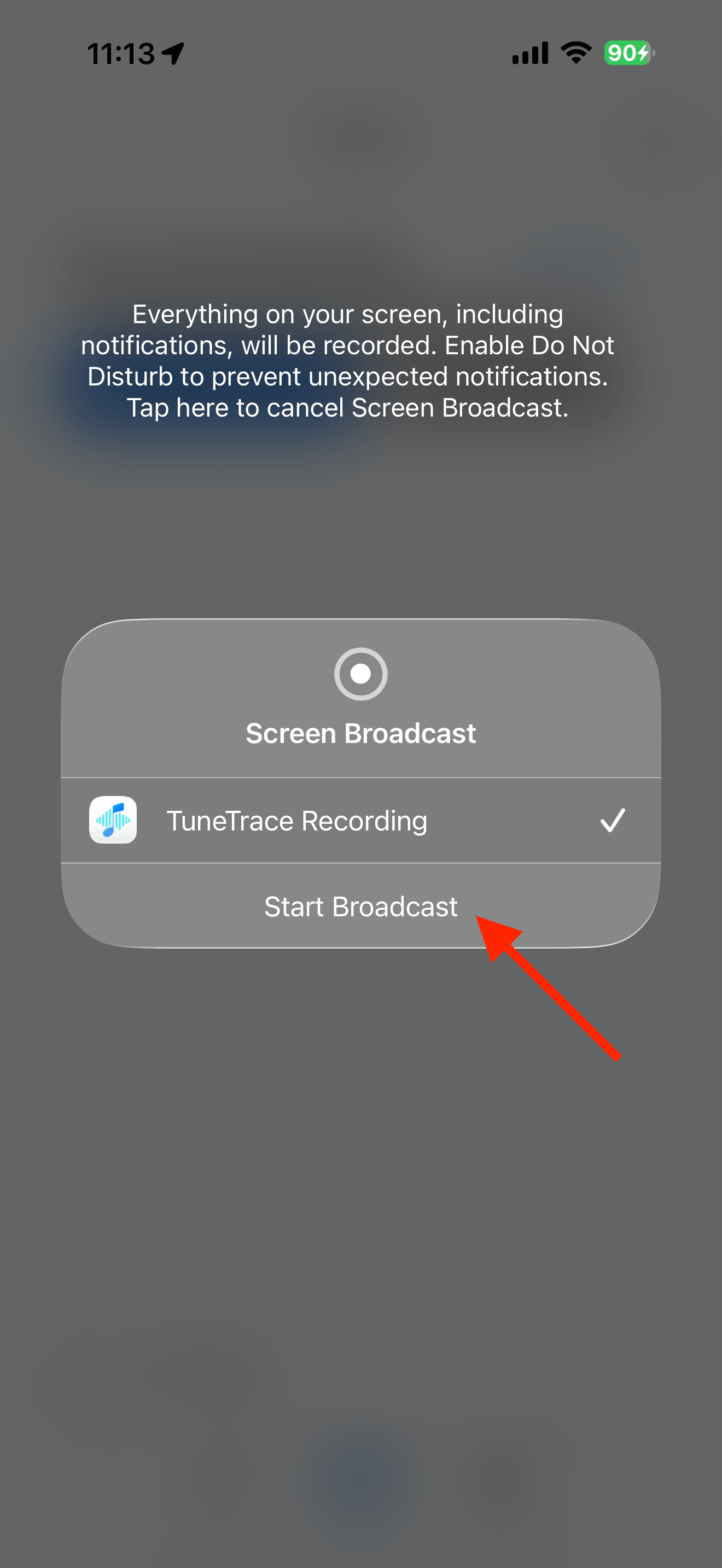
Start recording in TuneTrace and play the video with the screen awake. Try a short recording first. For an existing video file, extract its audio and import it instead.
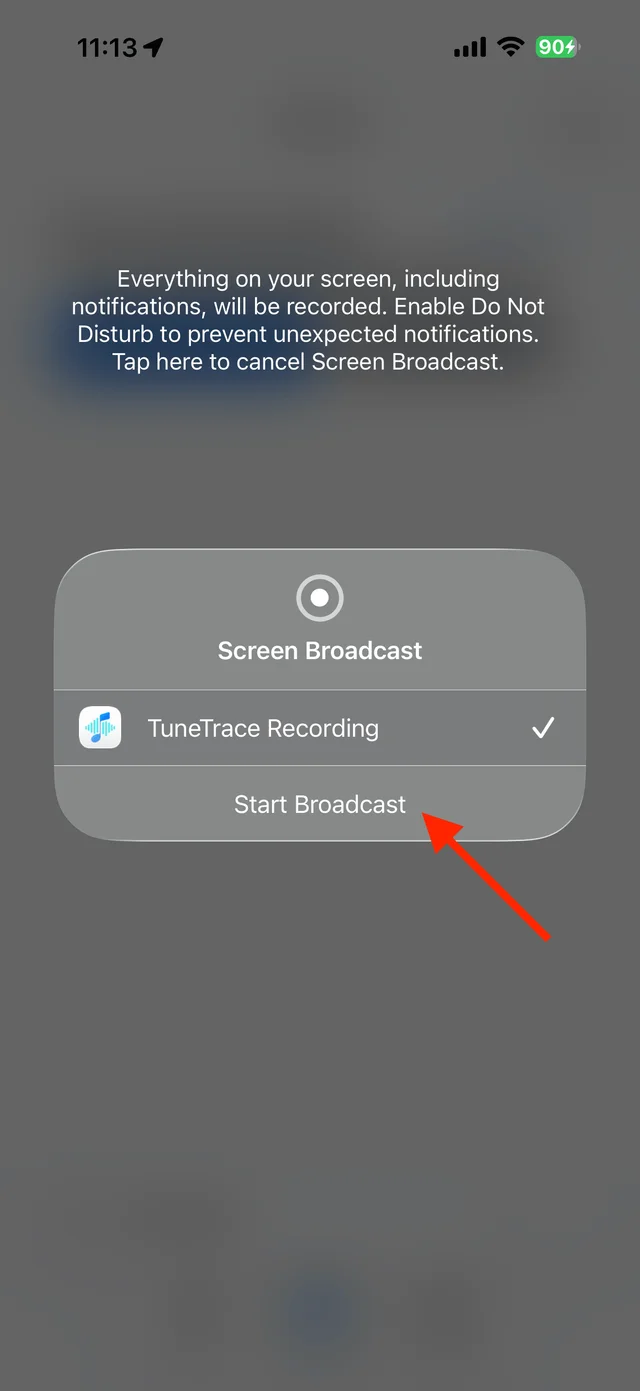
Start recording, then play the video Name and save the recording
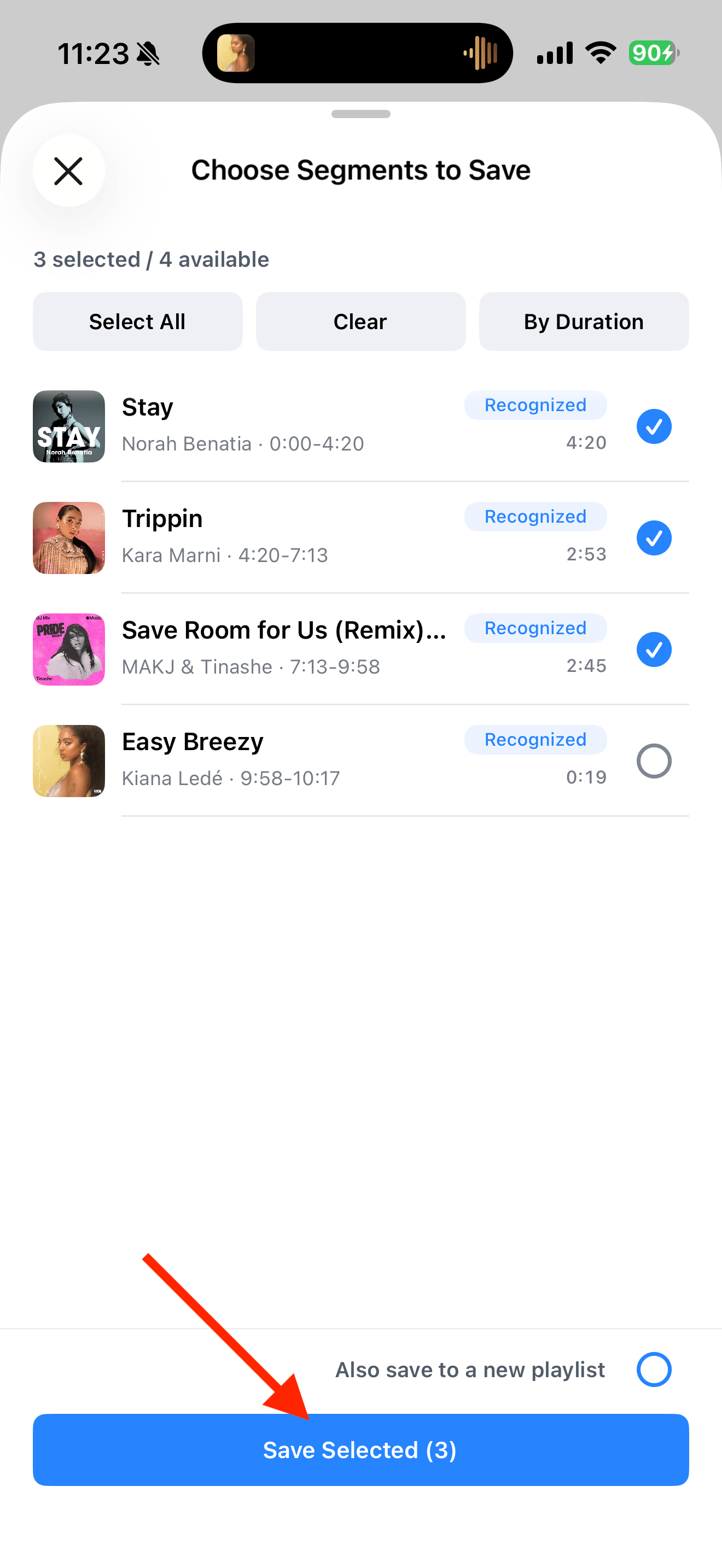
Stop the broadcast and return to TuneTrace. Keep a story or interview as one track, name it, and tap “Save to Library”. Skip this step for audio already saved.
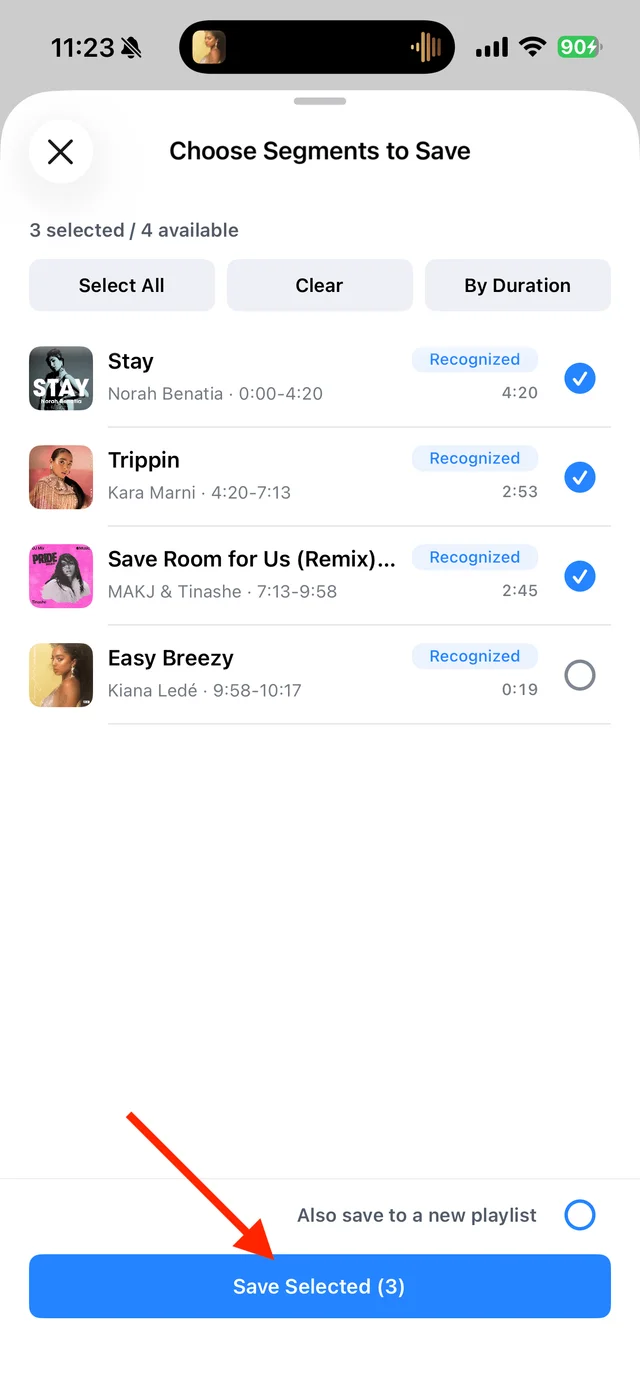
Select the audio you want for bedtime Create a bedtime playlist
Create a playlist under “Library” → “Playlists” and use “Add Songs”. Arrange chapters with “Reorder” and use sequential playback.

Organize bedtime audio under Library playlists Choose when to stop
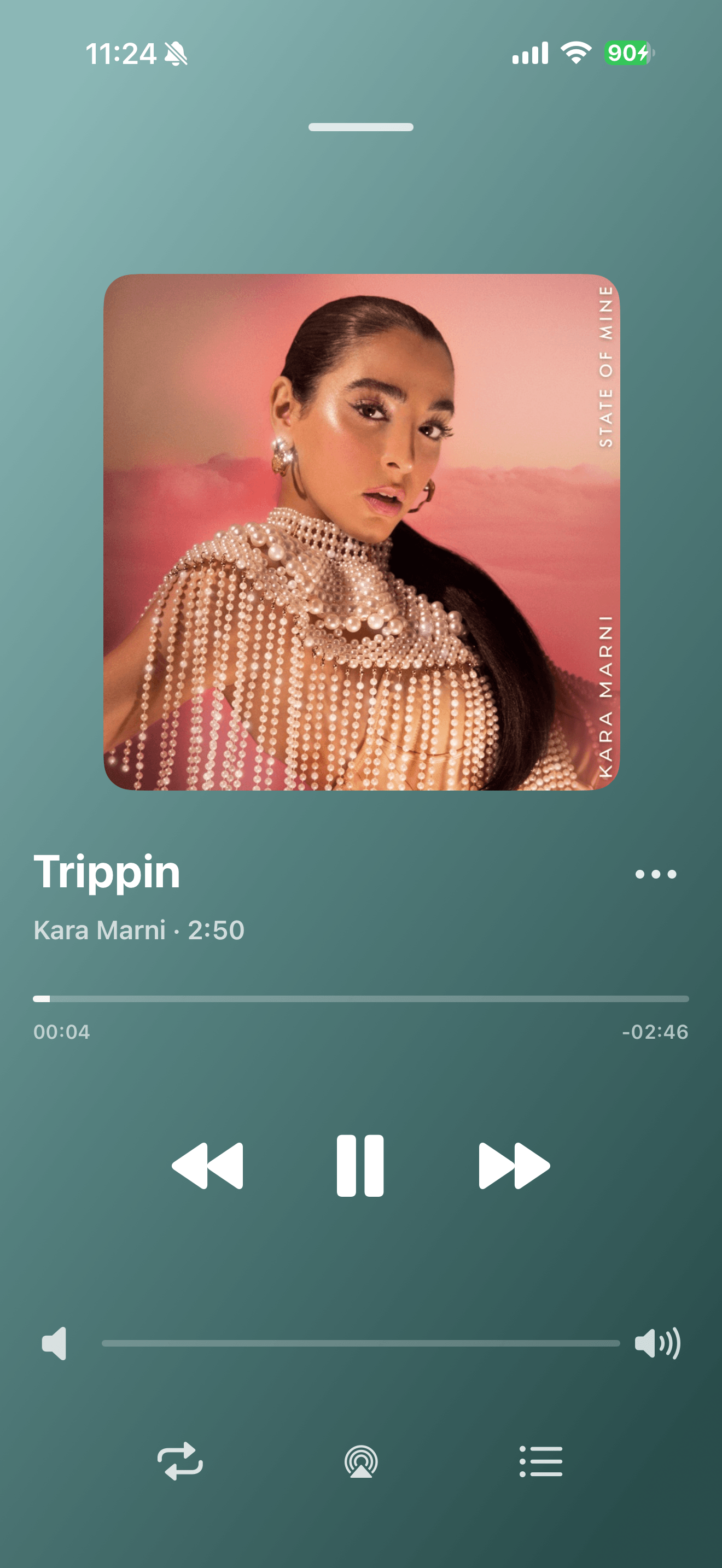
Open the full player’s “⋯” → “Sleep Timer”. Choose “30 minutes”, “Current Track”, or another time or track-count option.
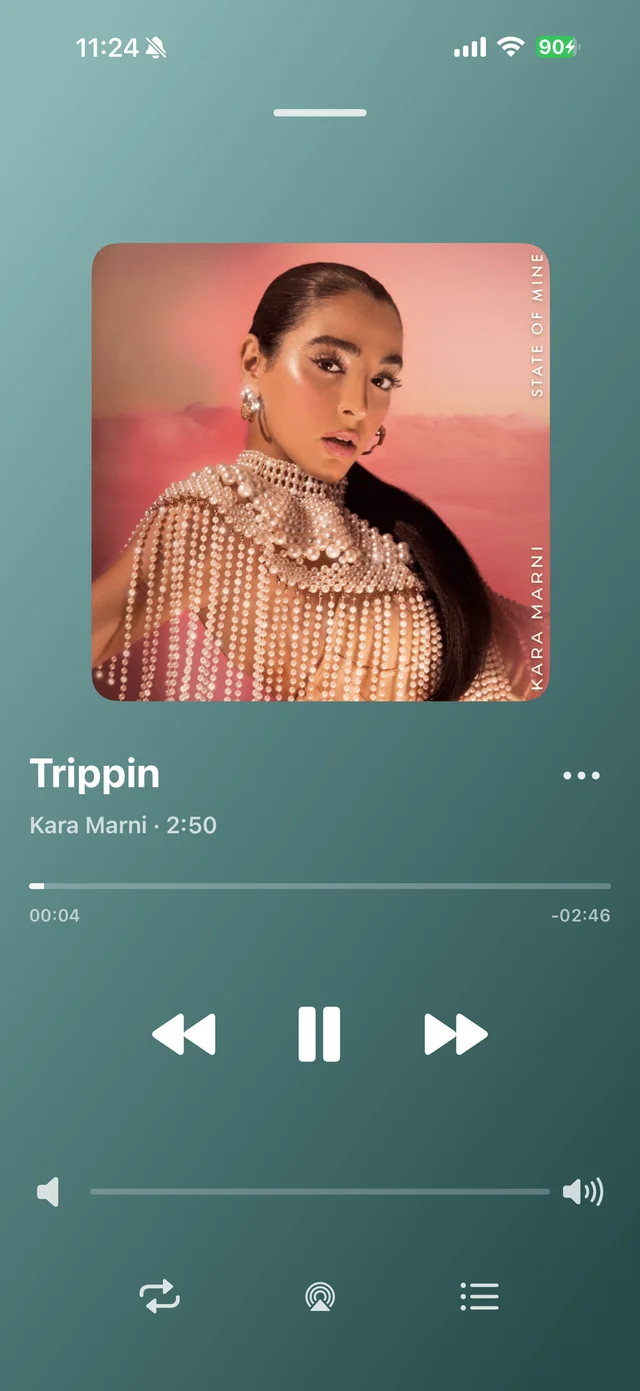
Open “⋯” beside the title to find the sleep timer Apply the timer
Tap “Done”. Check the timer status in the player menu. Use “Cancel Sleep Timer” on the same settings page if you want to keep listening.

Common questions
How is 30 minutes different from “Current Track”?
A timed stop may pause in the middle of a story. “Current Track” waits for the current audio to finish.
Does the timer work with the screen locked?
Yes. Saved local audio can play with the screen locked, and TuneTrace still applies its sleep timer.
Can this stop playback in another app?
No. The timer controls TuneTrace’s own playback.
Video recording depends on iOS and the source app. Only save content you have permission to record.