
Quick answer
Use ClipDock to extract M4A audio from your screen recording, save it in Files, then import it into TuneTrace. Listen offline or with the screen locked. A silent video cannot produce missing audio.
Step by step
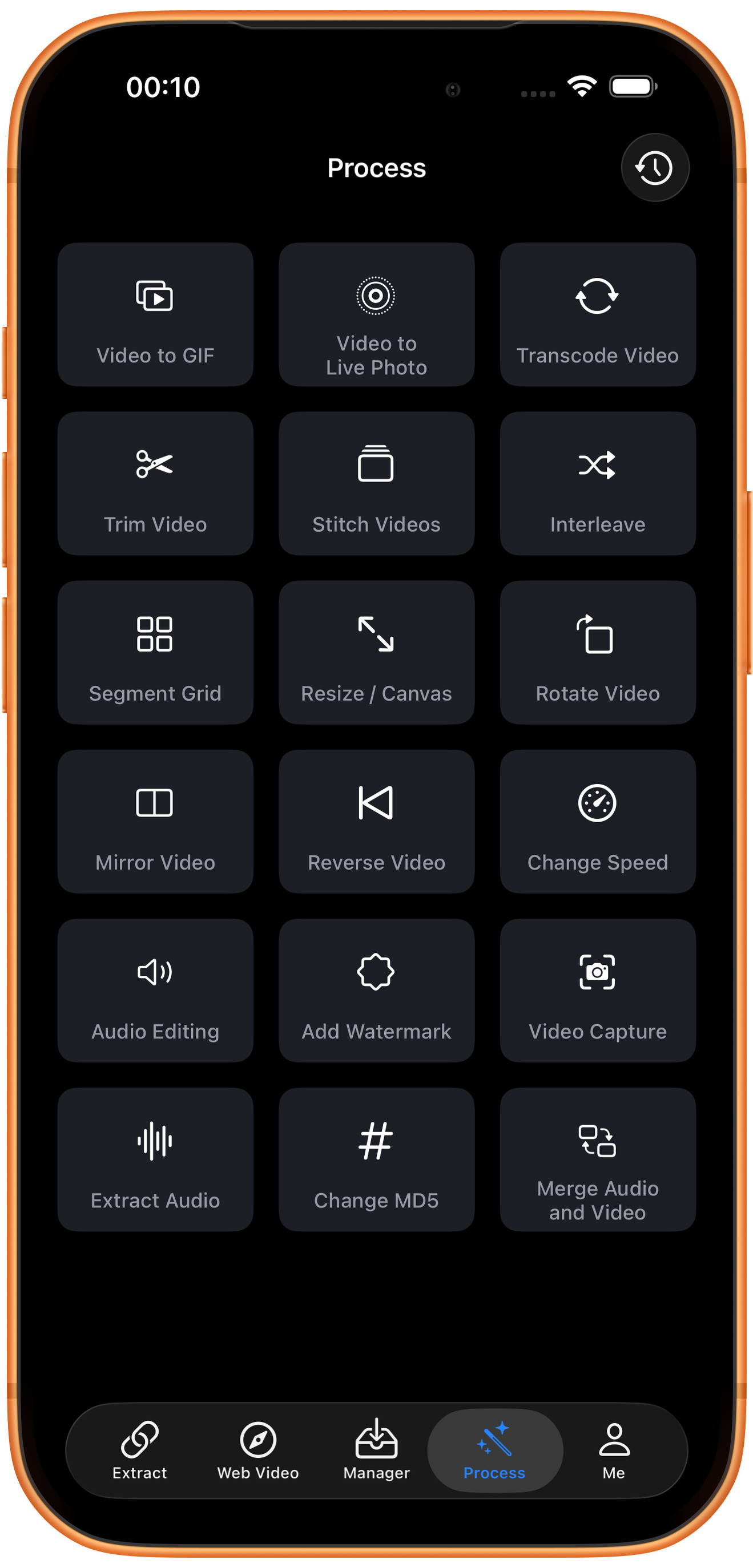
5 stepsOpen “Extract Audio” in ClipDock
Play the screen recording in Photos to check it has sound. In ClipDock, tap “Process”, then “Extract Audio”.
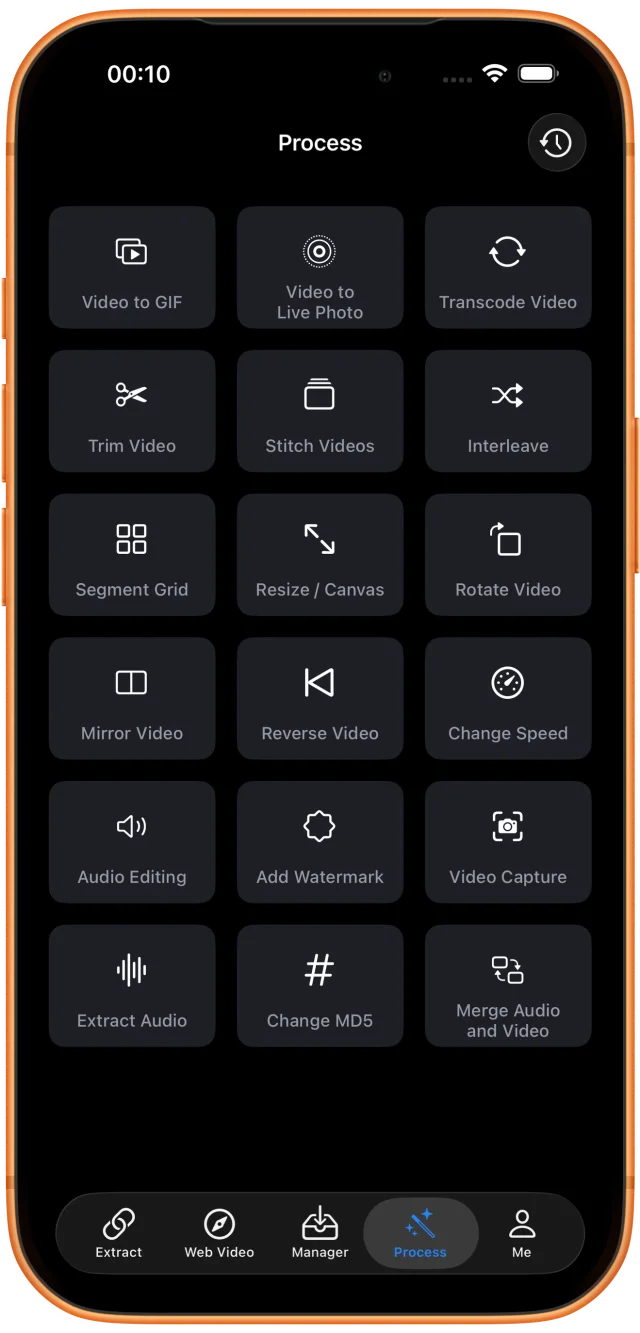
ClipDock: “Extract Audio” on the processing page Choose the saved video
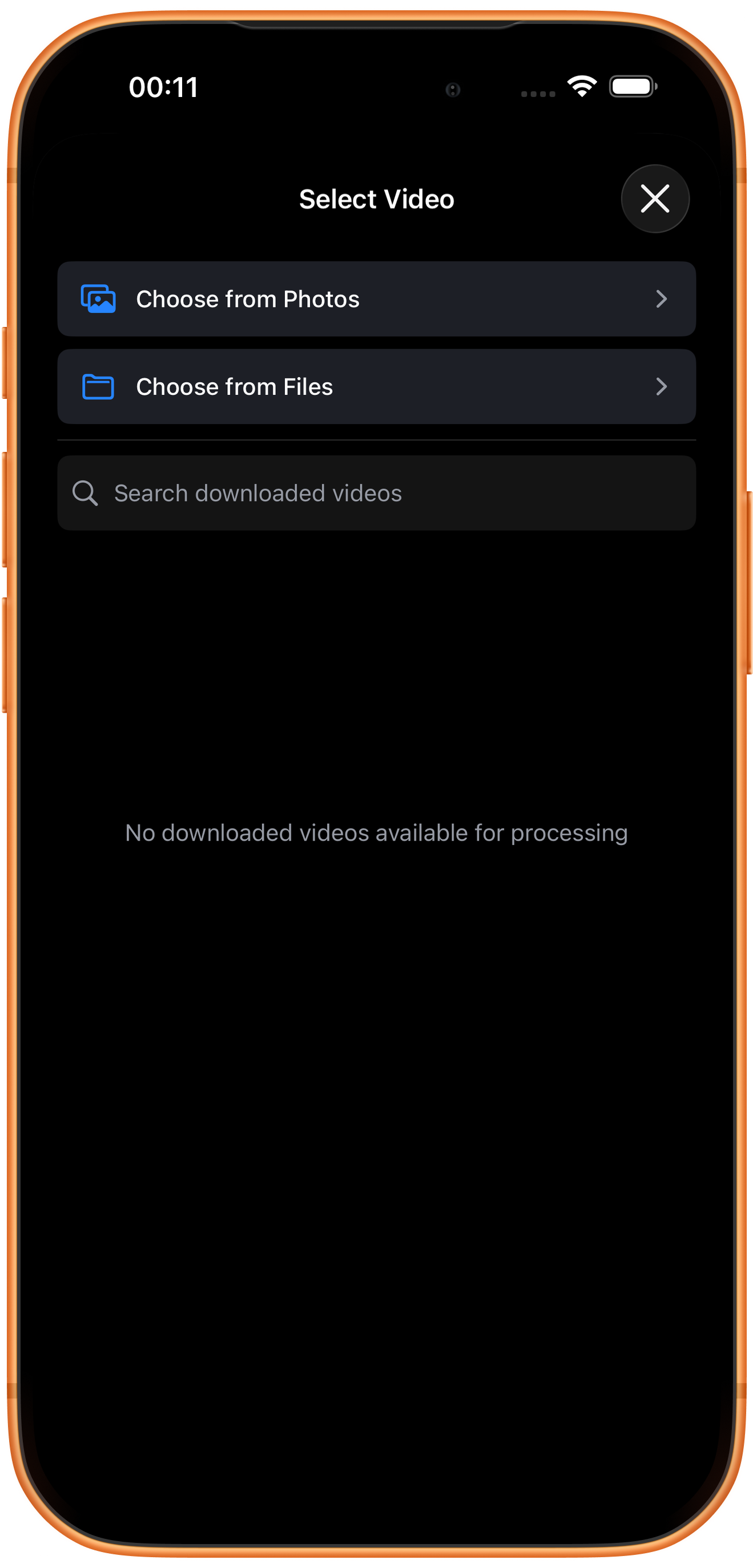
Tap “Choose from Photos” and select your recording. For a video in Files, choose “Choose from Files”. Processing begins after selection.
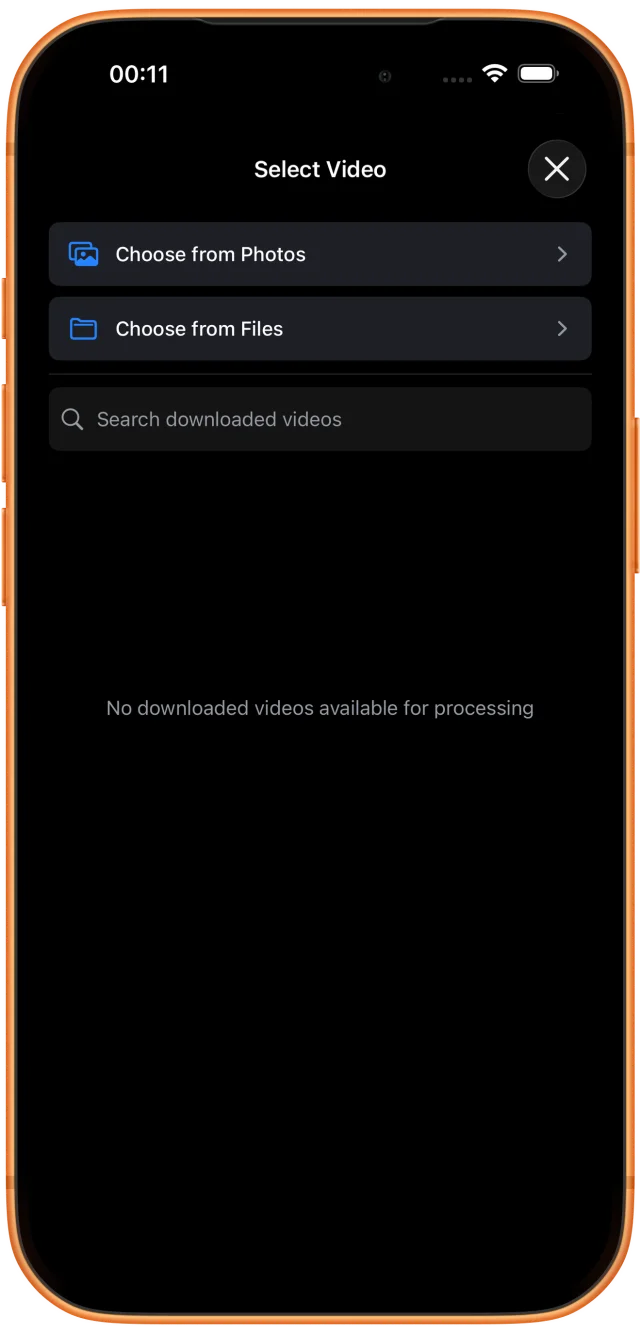
Choose Photos or Files based on where the video is saved Share the extracted file
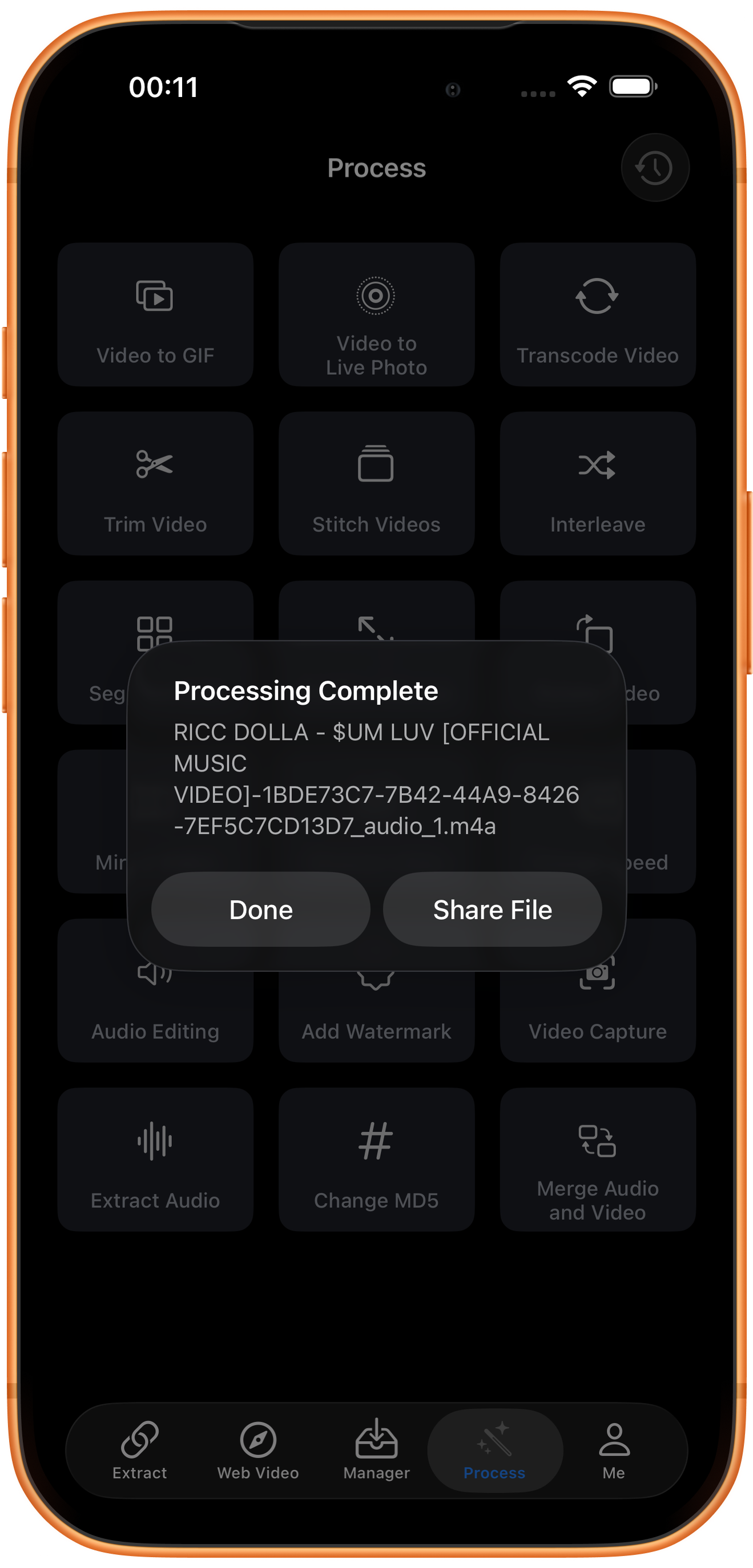
When “Processing Complete” appears, check that the result is an .m4a file. Tap “Share File” to open the share sheet.
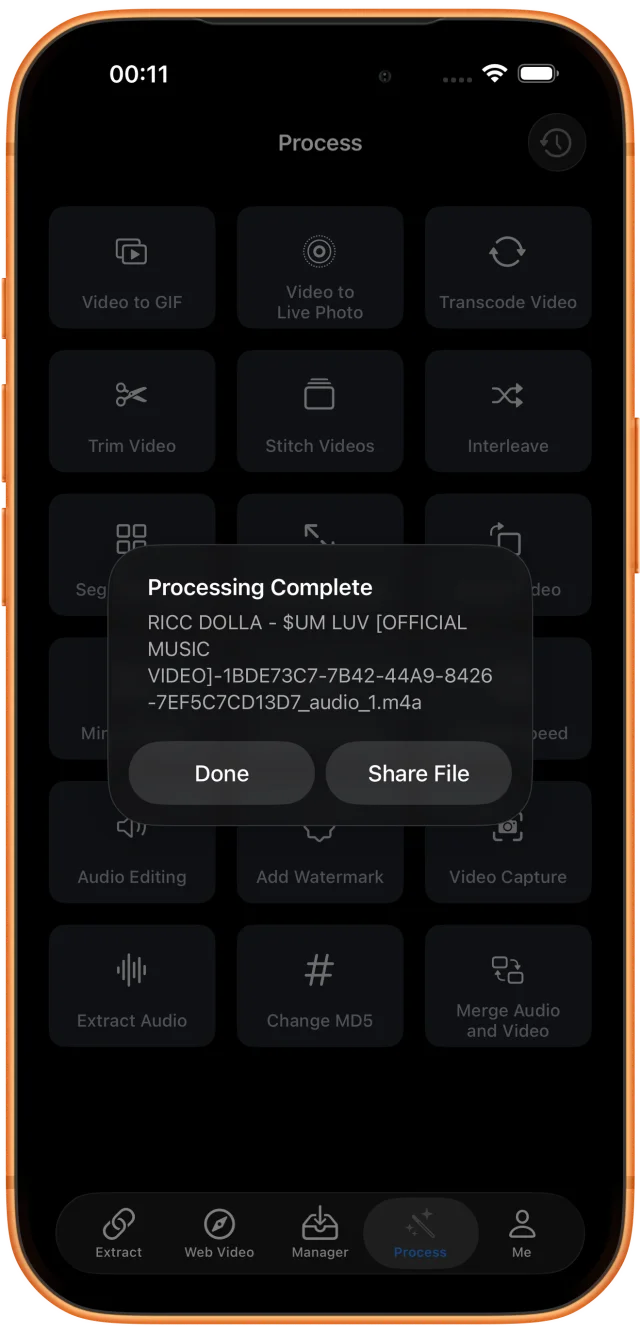
After processing, tap “Share File” on the right Save the audio in Files
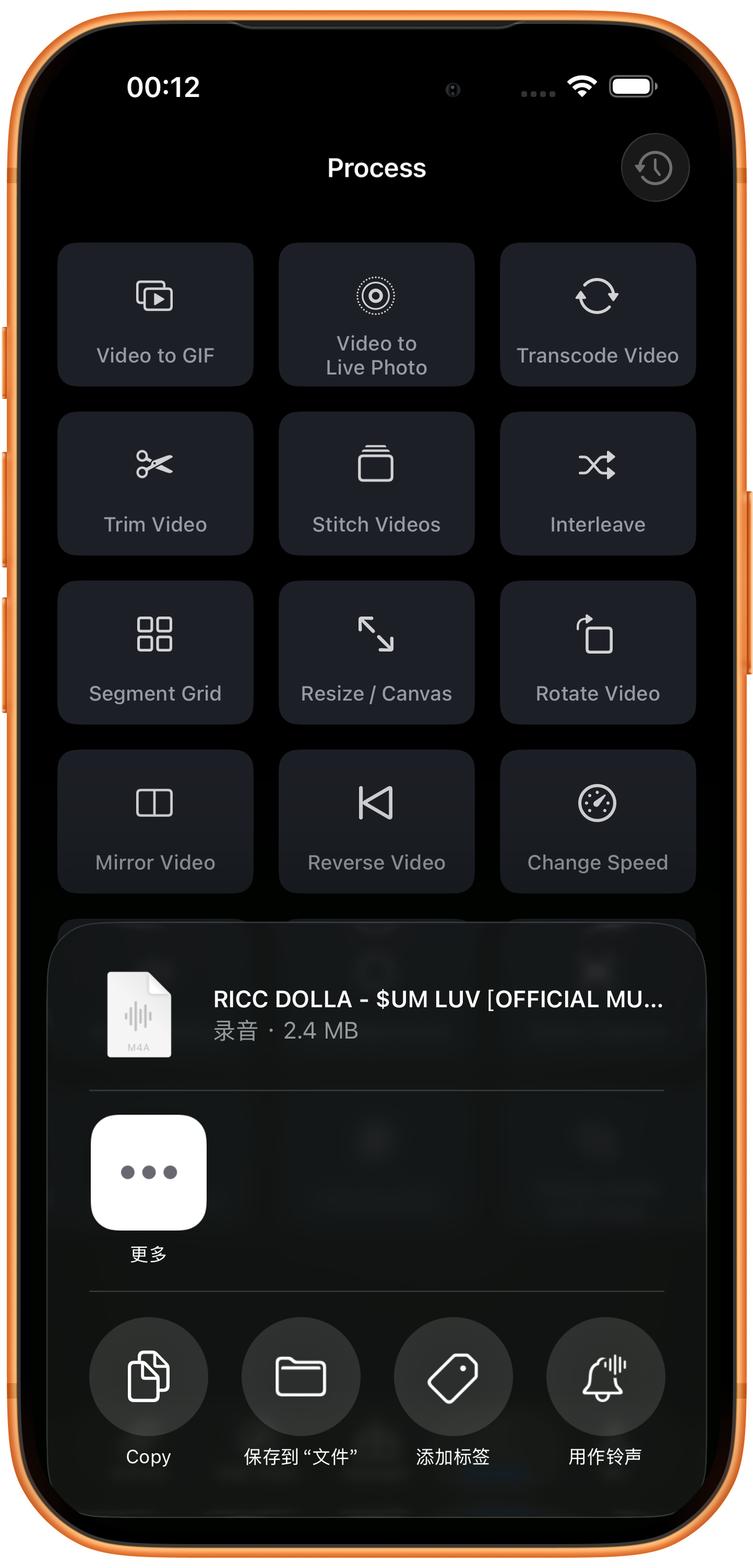
Choose “Save to Files”, select a folder and save. Give it a useful show or topic name, then play it in Files to check.
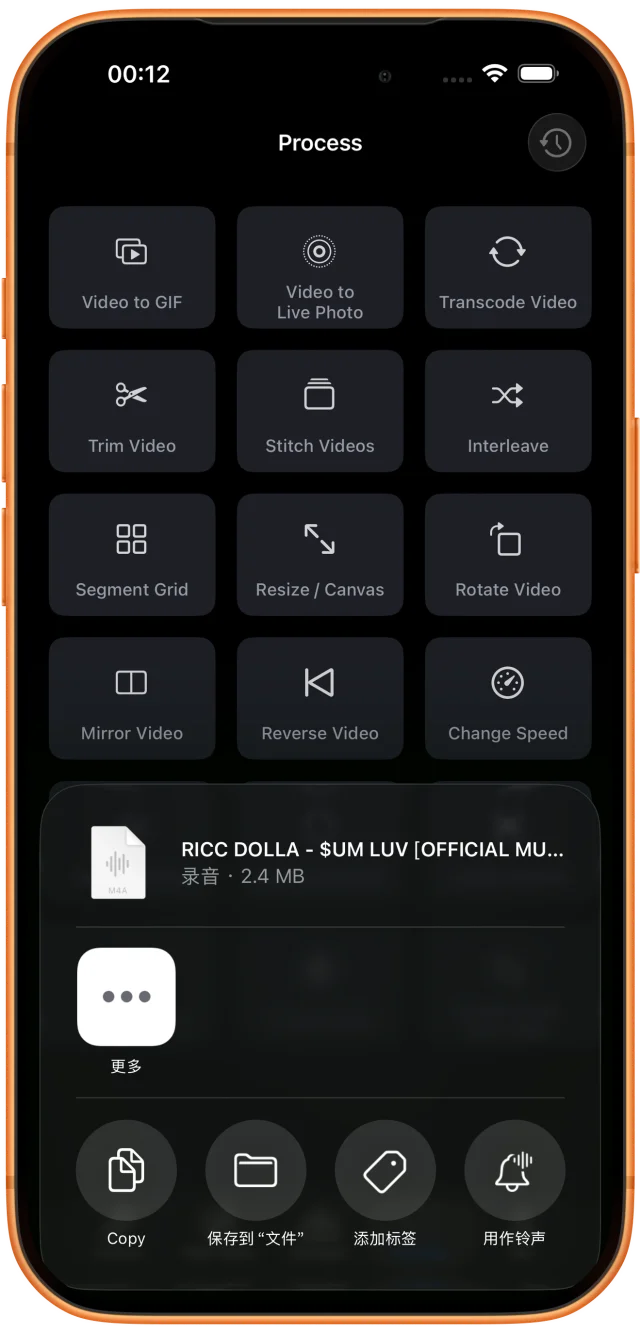
Save the M4A file from the system share sheet Import into TuneTrace
Tap the top-left import arrow in Library and choose the M4A. If it contains several songs, use “Import Audio” on the recording page to split it before saving.

TuneTrace: Import audio from the top left of the Library

Common questions
Can I import the screen-recording video directly into TuneTrace?
TuneTrace imports audio files. Extract the sound as M4A first, then import it.
Do I need to convert the extracted audio to MP3?
No. TuneTrace can play a valid M4A file directly.
Does extraction separate dialogue and music?
No. It keeps the video’s existing audio mix; voices, music and effects are not separated into different tracks.
Only process content you have permission to save.