
Quick answer
Turn one long recording into songs you can find and play individually.
Open the recording in TuneTrace, split it at the song boundaries, then identify and save the tracks you want.
Your first 30 saved songs play in full for free, forever. Unlock more with a one-time purchase.
Step by step
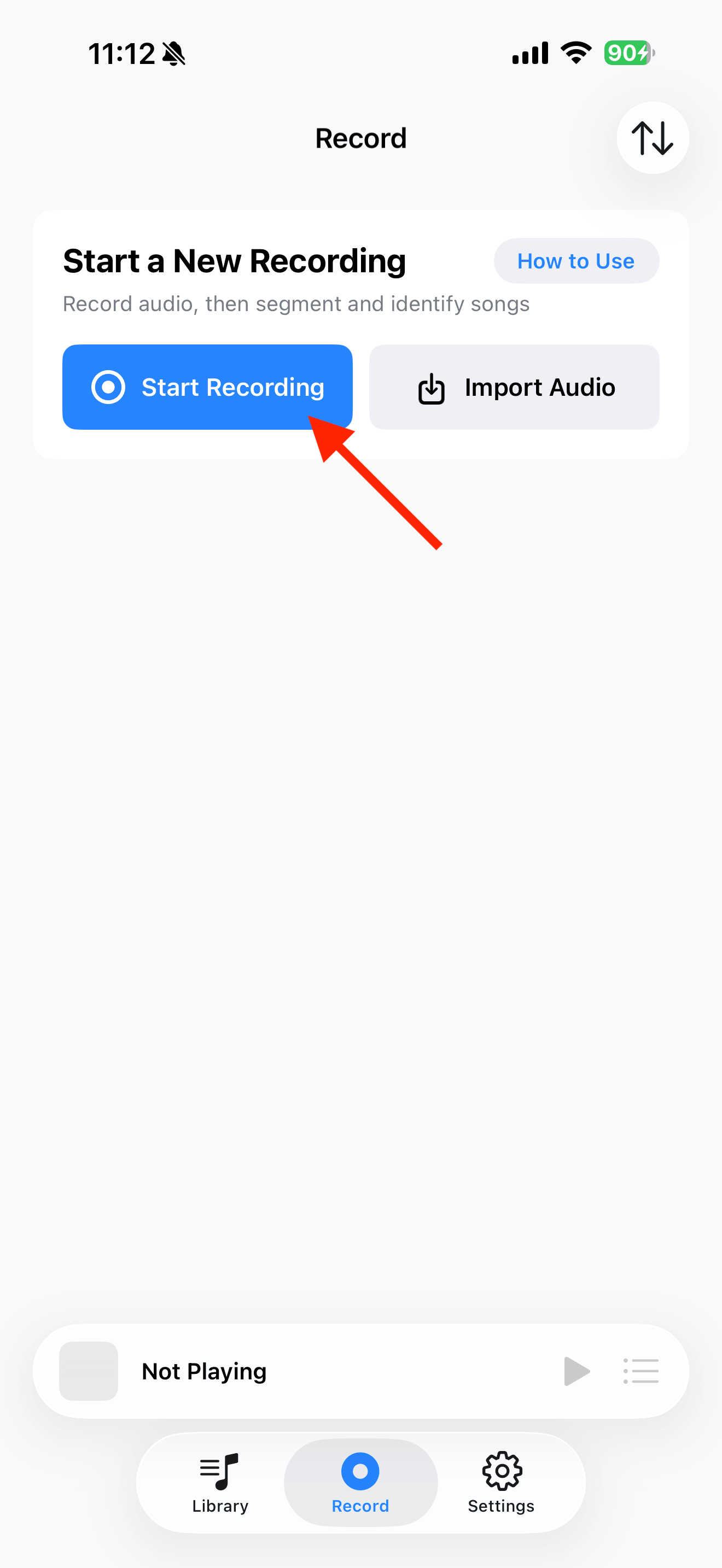
5 stepsOpen the complete recording
Open your recording, or use “Import Audio” to add an existing file. Keep the original until you have checked the saved tracks.
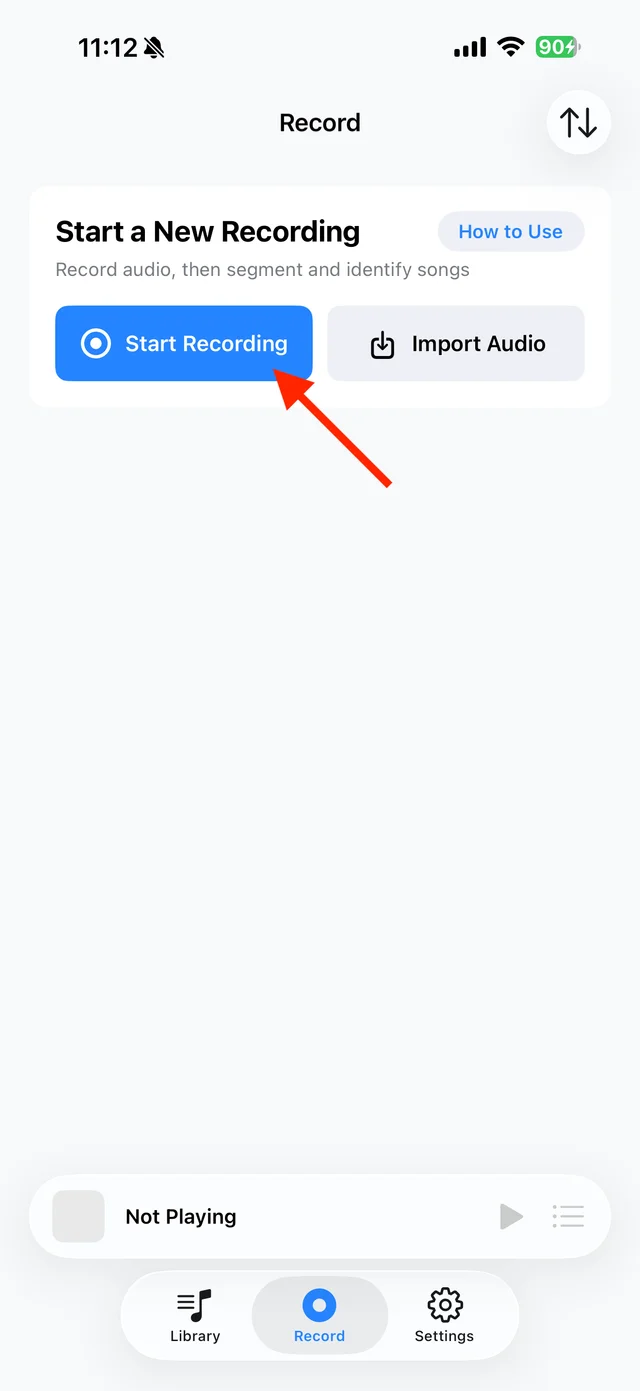
Use “Import Audio” for an existing file Find the song boundaries
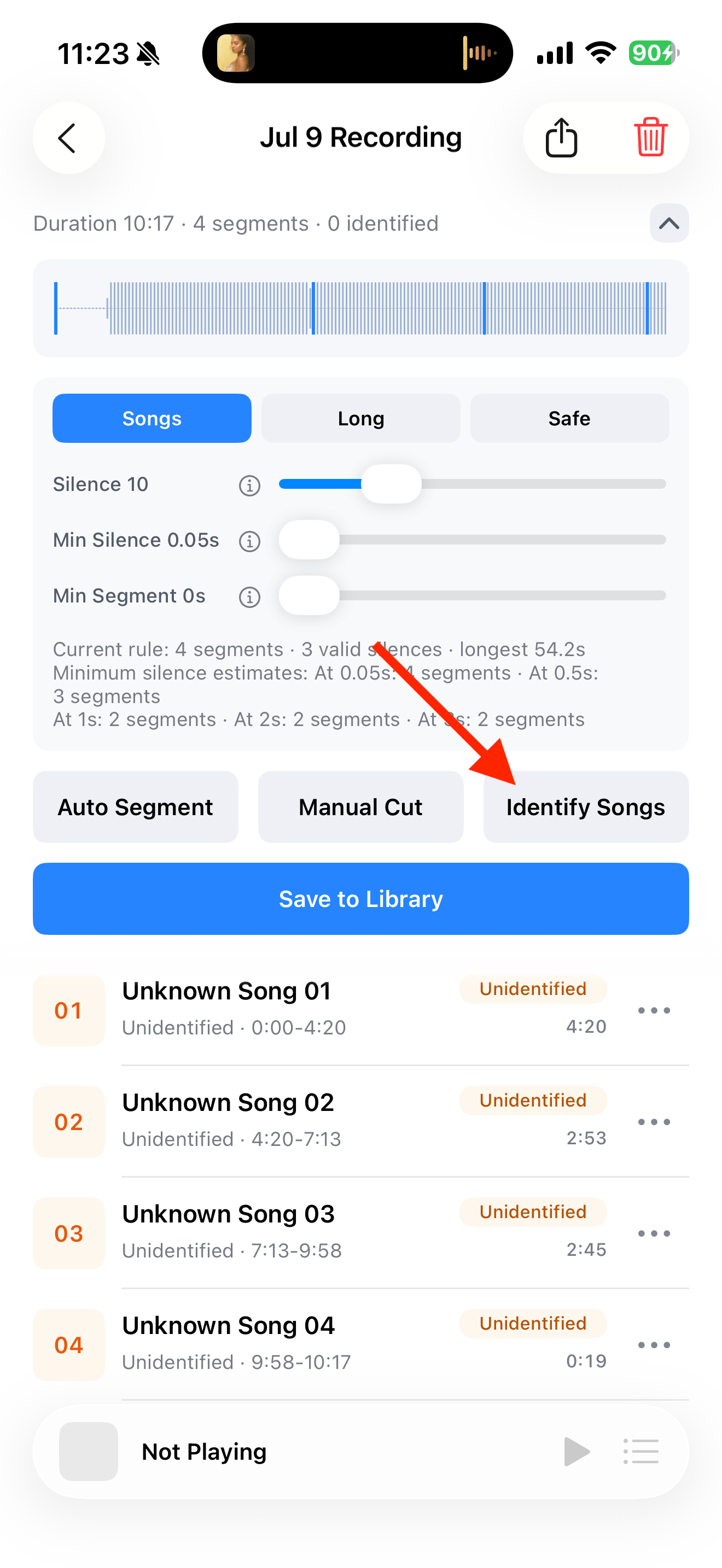
Use “Auto Segment” to detect pauses. Check the number and length of the resulting segments.
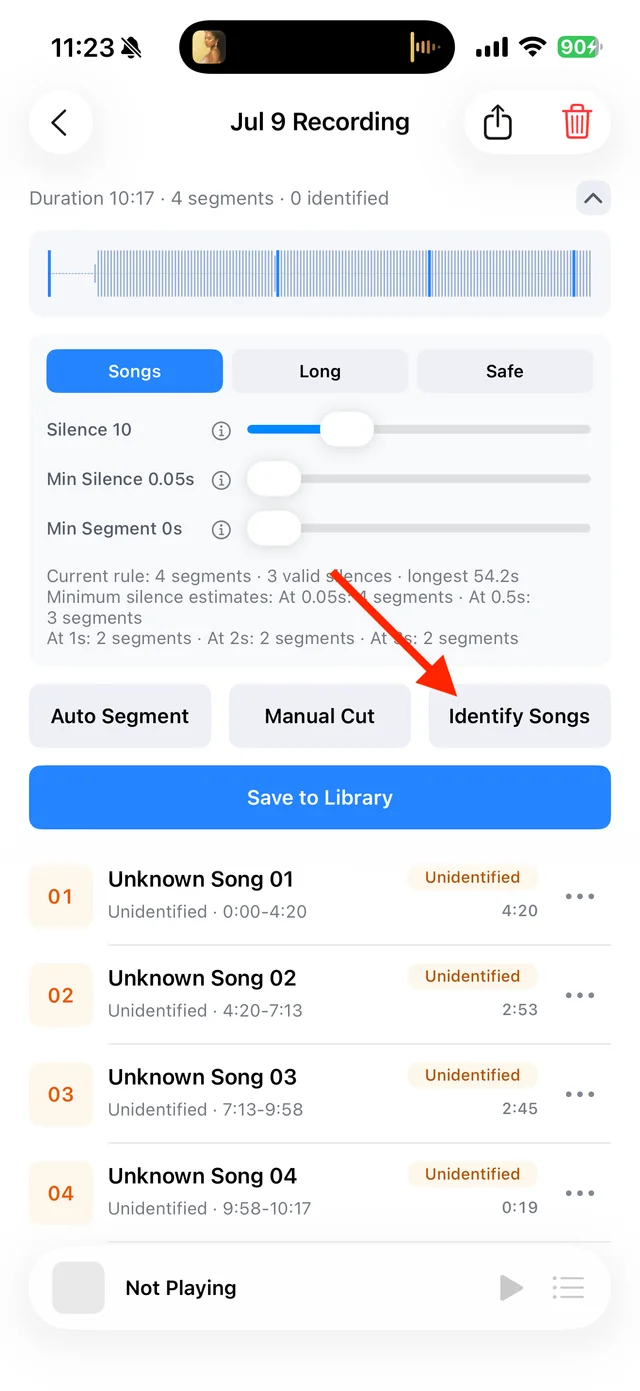
Segmentation settings on the recording page Check each transition
Listen to the start and end of each segment. Merge cuts within a song, or use “Manual Cut” to separate songs that remain joined.
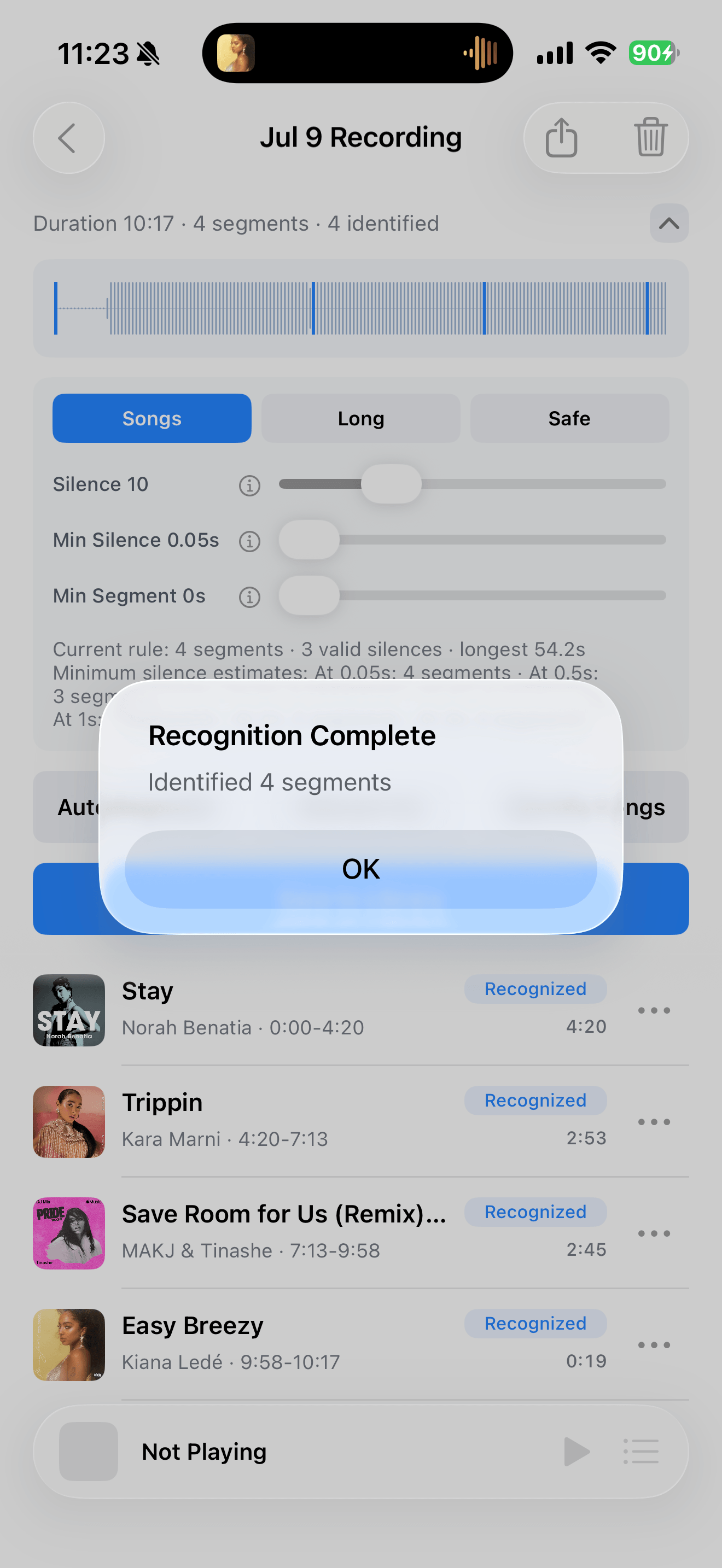
Add titles and artists
Tap “Identify Songs” and review the matches. You can also name unrecognized tracks yourself.
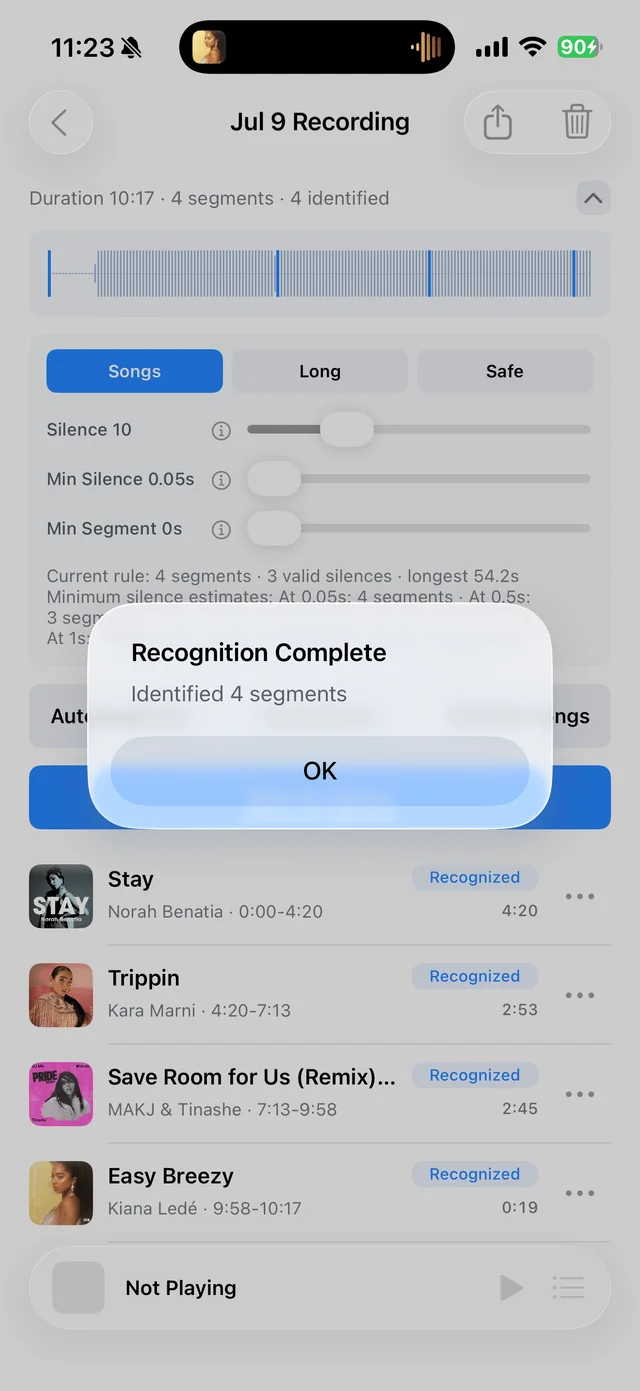
Review track details after identification Save individual tracks
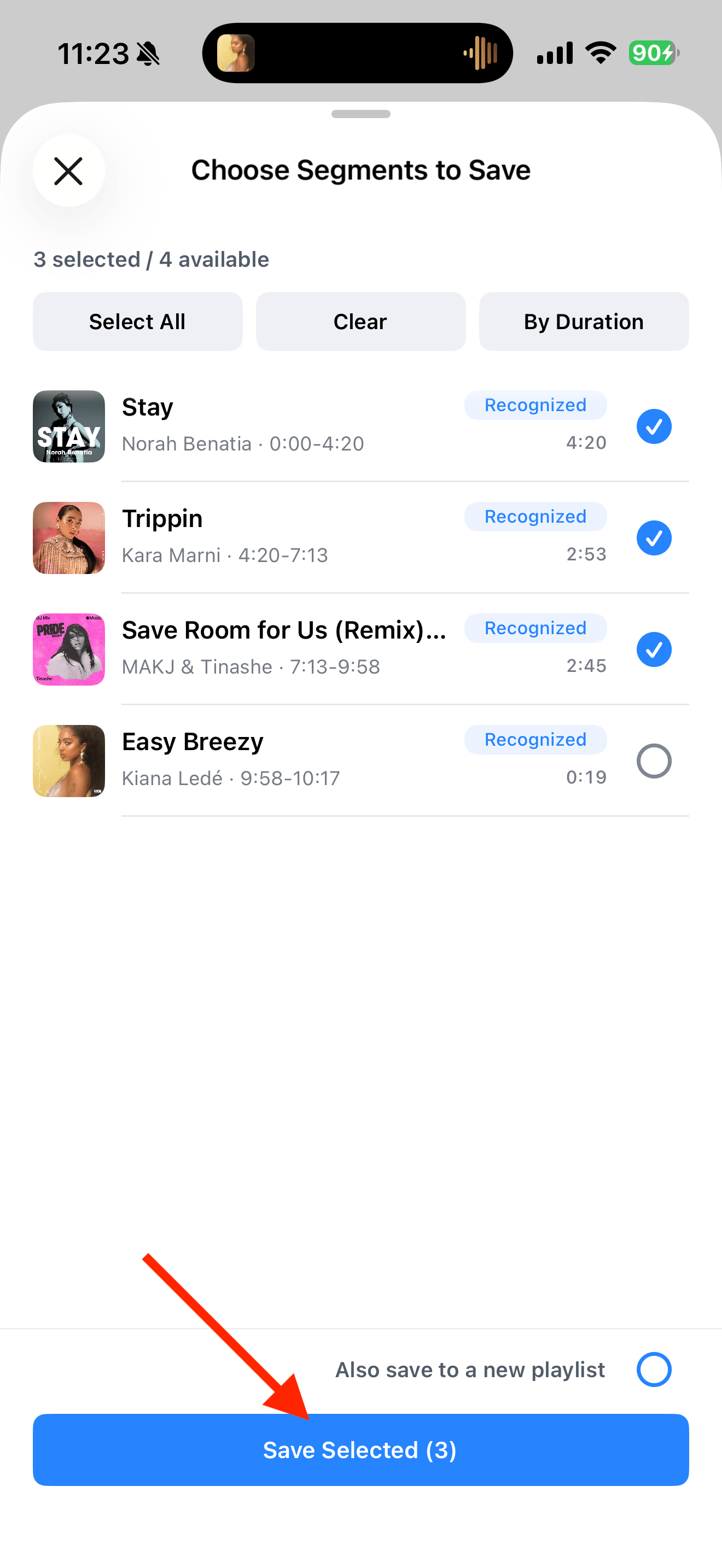
Tap “Save to Library”, select the tracks you want, and save them. You can now play them individually or add them to playlists.
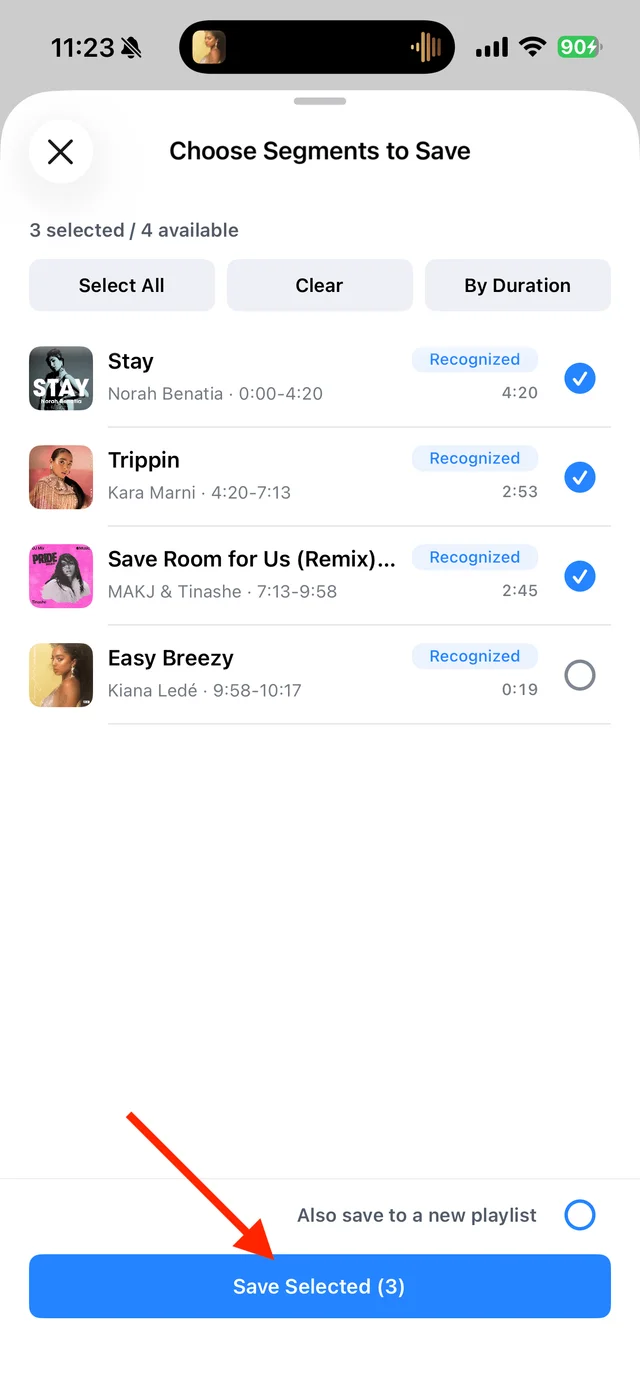
Select the songs you want 
Find the saved segments in your Library

Common questions
What if one song is split into too many pieces?
Increase “Minimum Silence” or use a stricter silence threshold and try again. You can also merge neighboring segments manually.
Why is a continuous mix still one segment?
Without quiet gaps, automatic segmentation may not find the transitions. Add cuts manually or keep the mix as one track.
Can I delete the original afterward?
First check that every track you need is saved and plays correctly in your Library. Keep a backup if you may want to edit the original again.
Adjust segmentation to suit the gaps in your recording.