
Quick answer
Listen to one playlist without switching between apps.
Record or import the audio into TuneTrace, then add the saved tracks to one playlist. Open that playlist to listen continuously offline.
Your first 30 saved songs play in full for free, forever. Unlock more with a one-time purchase.
Step by step
4 stepsAdd the audio to your Library
Record and save songs from other apps, or import existing MP3 and M4A files using the Library’s import button. Check that every track you need is saved.

Check that the songs are saved in your Library Create a playlist
Switch to “Playlists”, tap “+”, enter a name such as “My Commute”, and tap “Create”.
Add your songs
Open the playlist, tap “Add Songs”, select tracks from different sources, and tap “Done”. You can add more later.
Arrange and play
Choose “Reorder” from the playlist menu, drag the tracks into place, and tap “Done Sorting”. Start playback from the playlist.

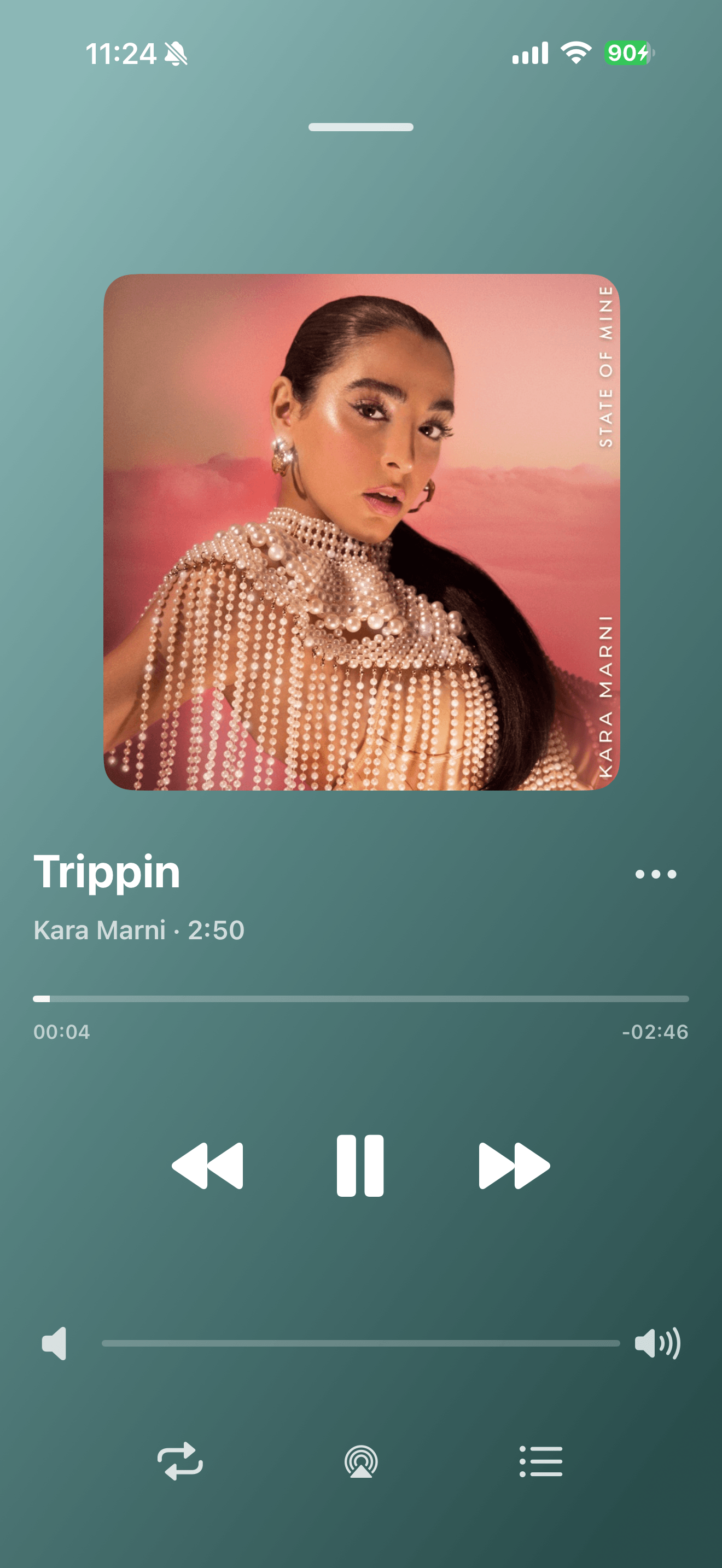
Play saved tracks from your local Library

Common questions
Can I paste a NetEase Cloud Music or QQ Music playlist link?
Playlist links cannot be imported directly. Record the songs or import audio files first, then add them to a TuneTrace playlist.
Can one song belong to several playlists?
Yes. Use the same saved track in playlists for commuting, exercise, or bedtime without importing it again.
How do I remove a song from just this playlist?
Choose “Remove from Playlist” from its menu. The song stays in your Library.