
Quick answer
Record the playlist once, then save separate songs.
Play the playlist while TuneTrace records it. When playback finishes, check the song boundaries, identify the tracks, and save your selection to the Library.
Your first 30 saved songs play in full for free, forever. Unlock more with a one-time purchase.
Step by step
5 stepsSet the playback order
Turn off single-song repeat and arrange the playlist in the order you want. Try a few songs before recording a long playlist.
Start recording and play the playlist
Start the recording in TuneTrace, switch to the music app, and play the playlist. Keep the screen awake while recording.
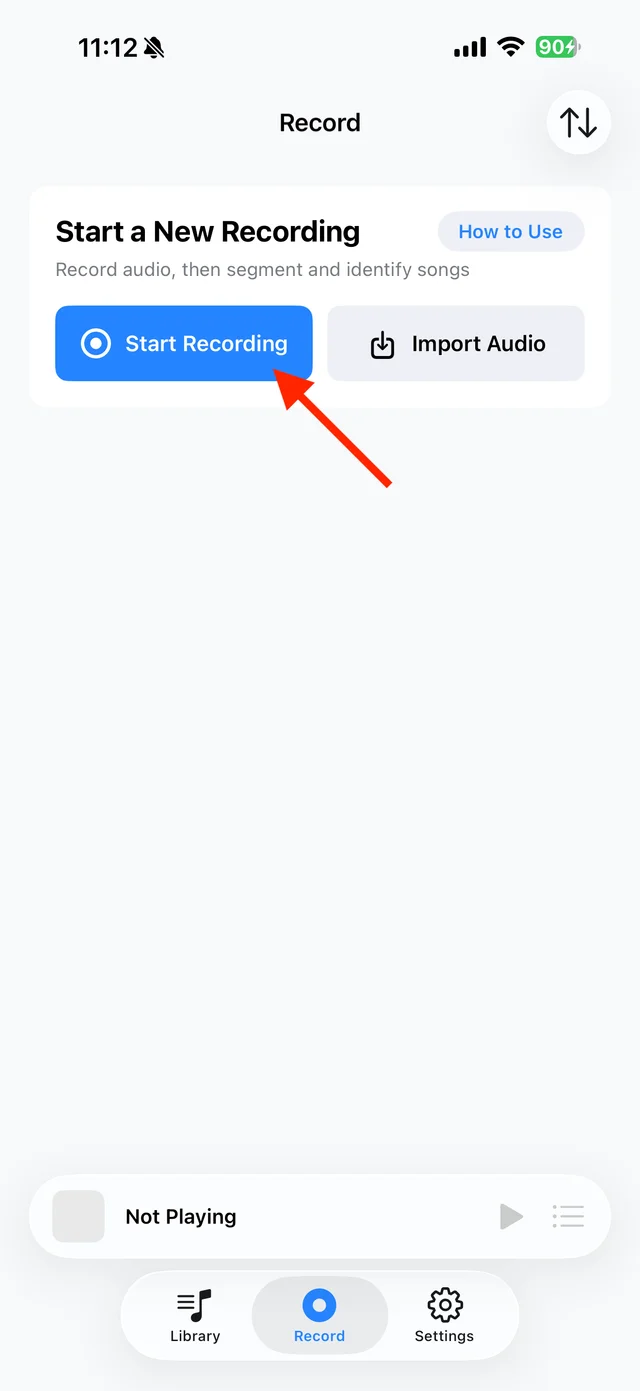
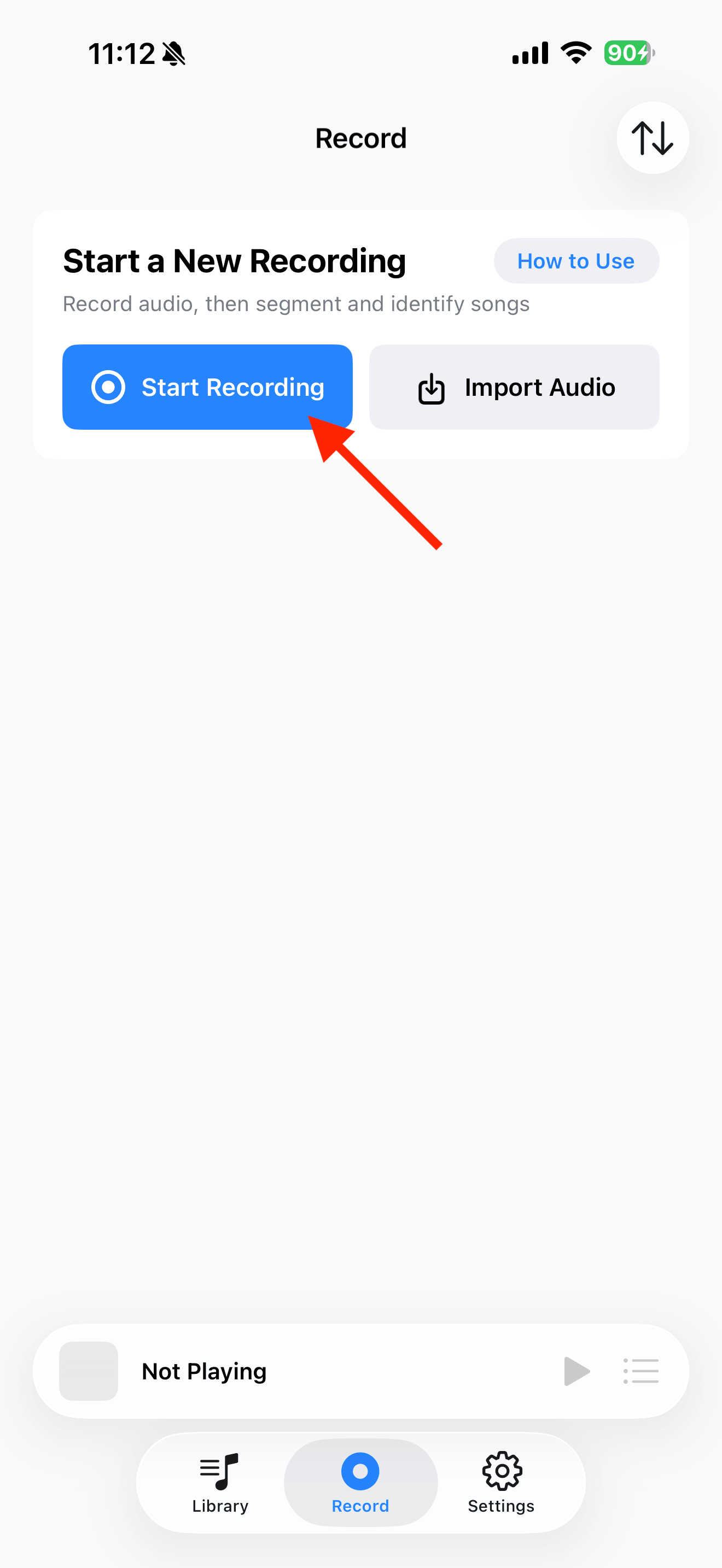
Tap “Start Recording” 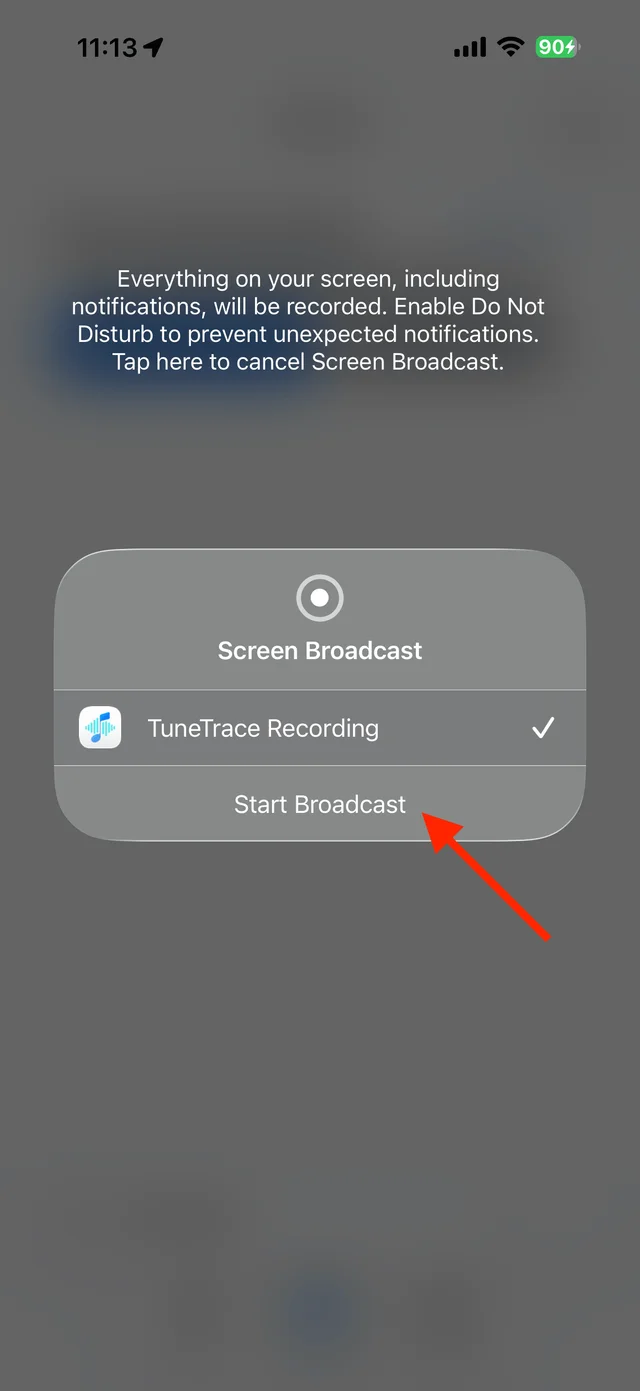
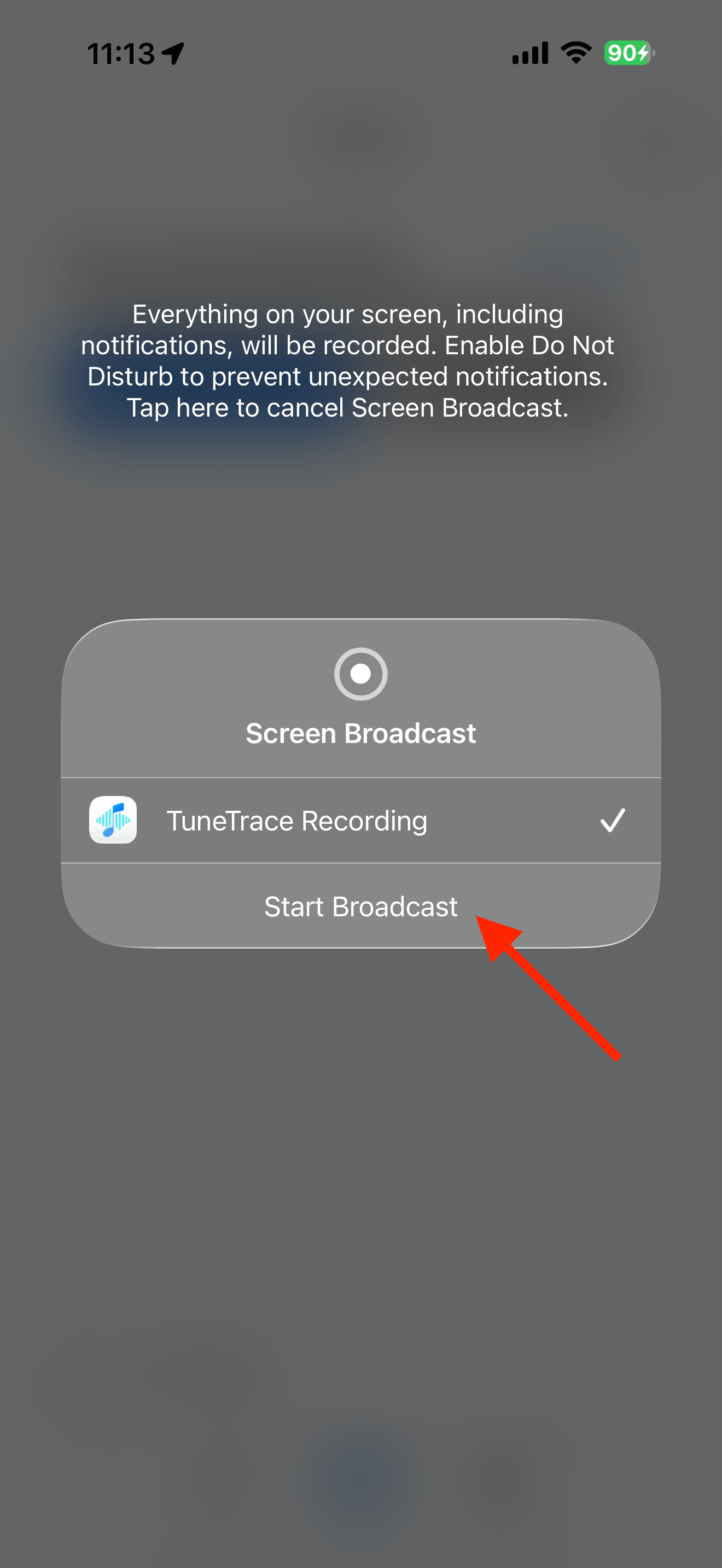
Confirm “Start Broadcast” Finish the recording
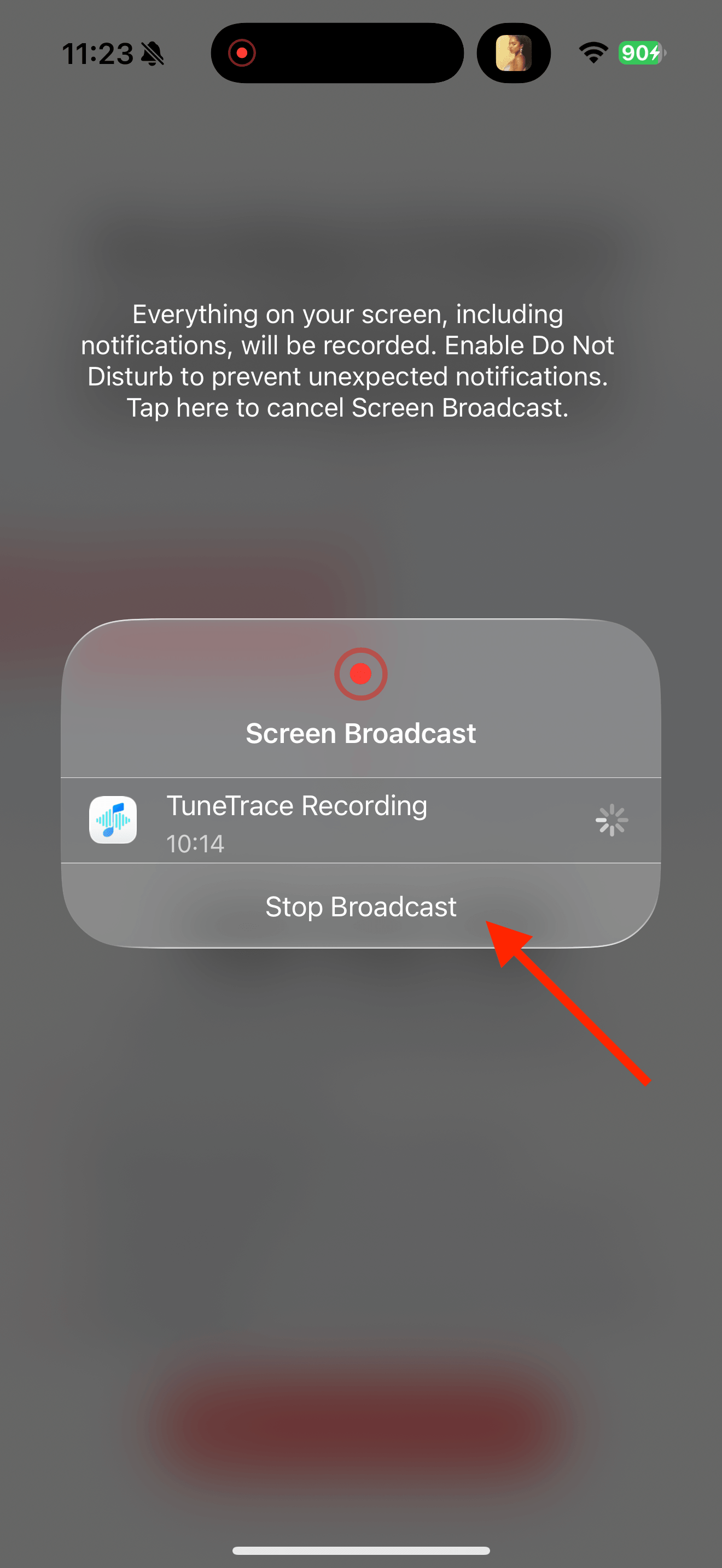
Return to TuneTrace and tap “Manage Recording → Stop Broadcast”. Your recording imports automatically, ready to organize.
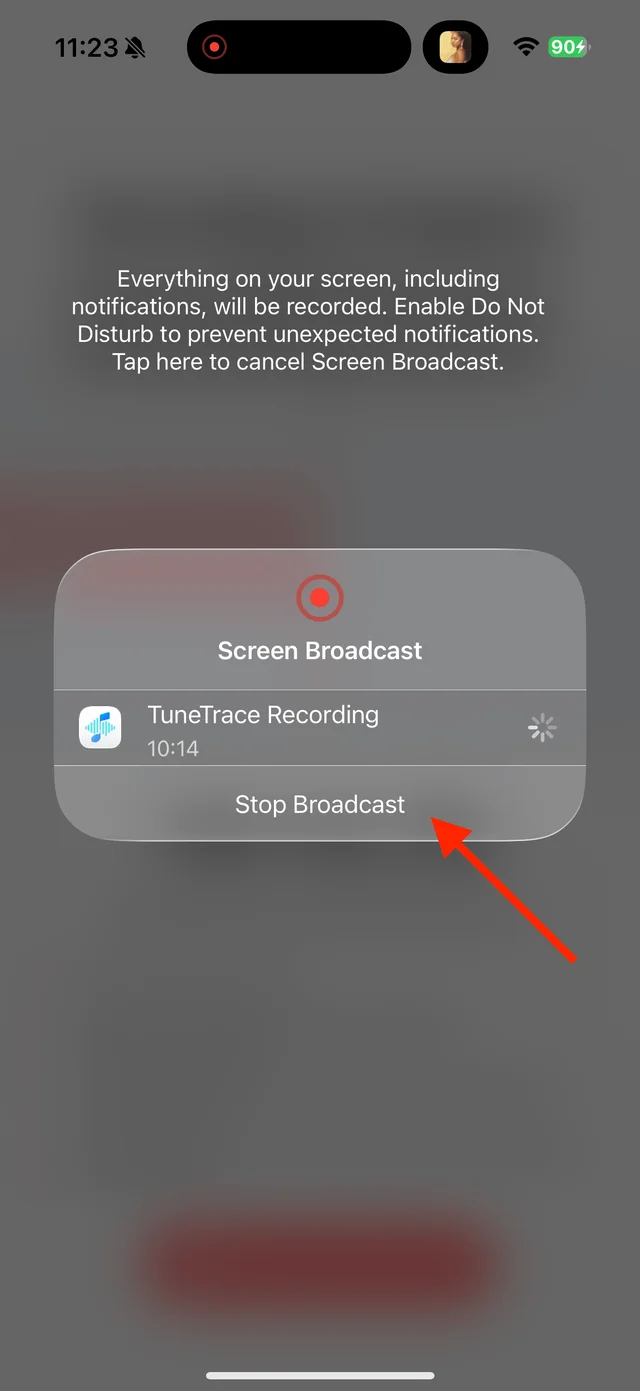
Tap “Stop Broadcast” to finish Review the separate songs
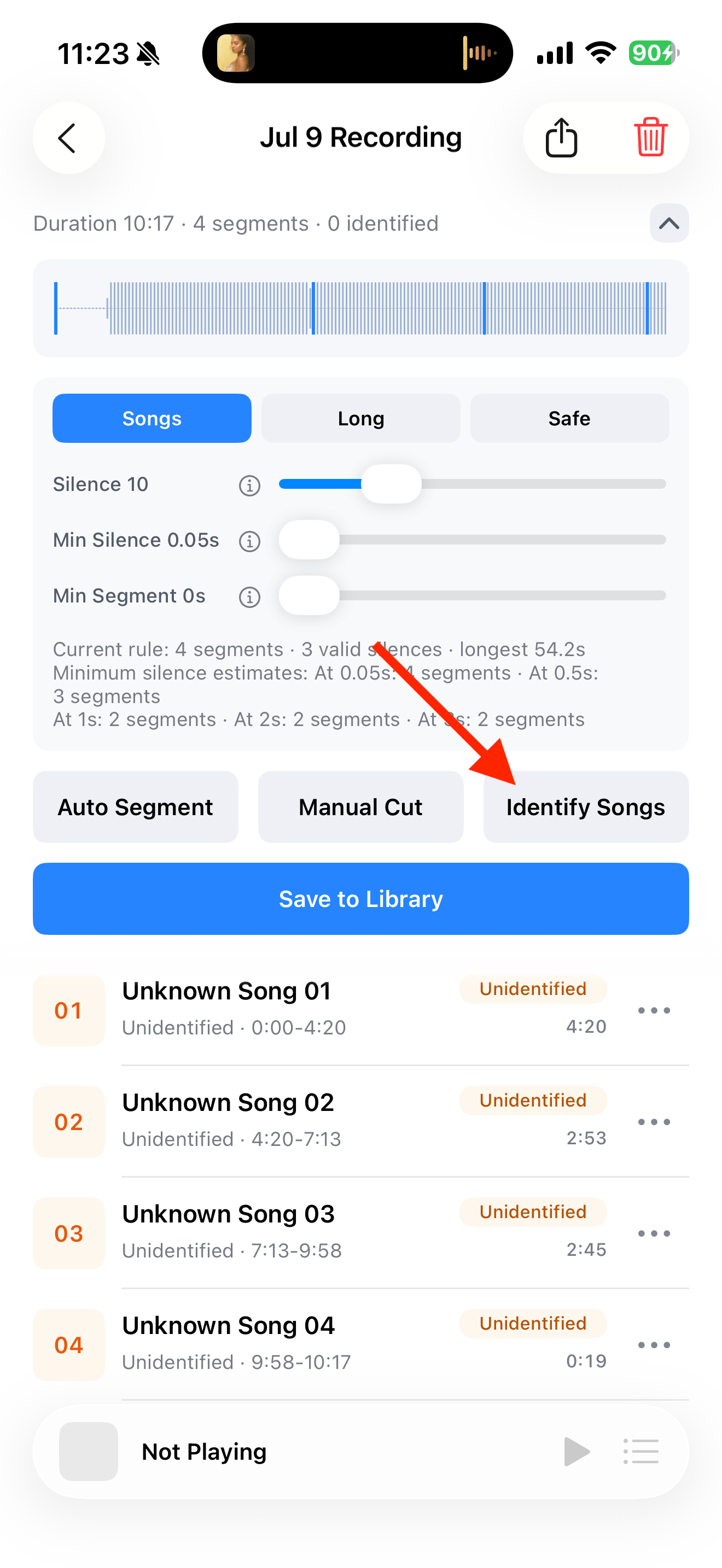
Identify the songs and listen to their beginnings and endings. Split joined songs or merge segments that belong together.
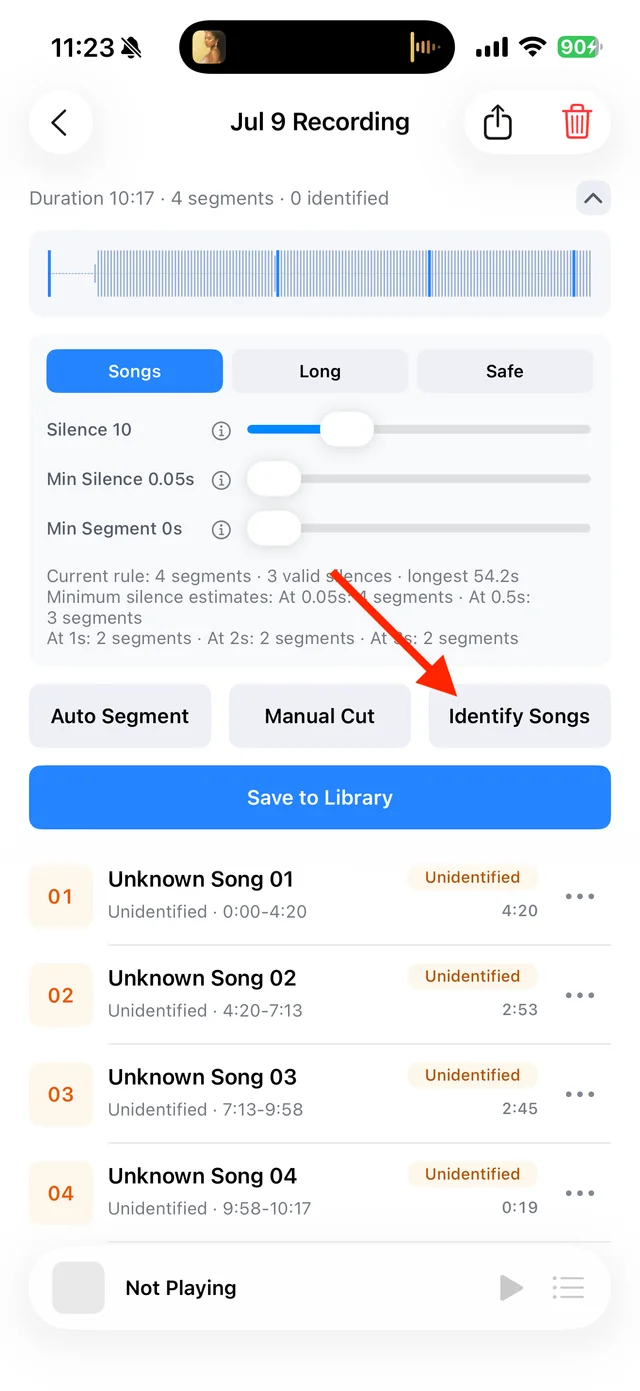
Split and identify songs on the recording page Save the tracks you want
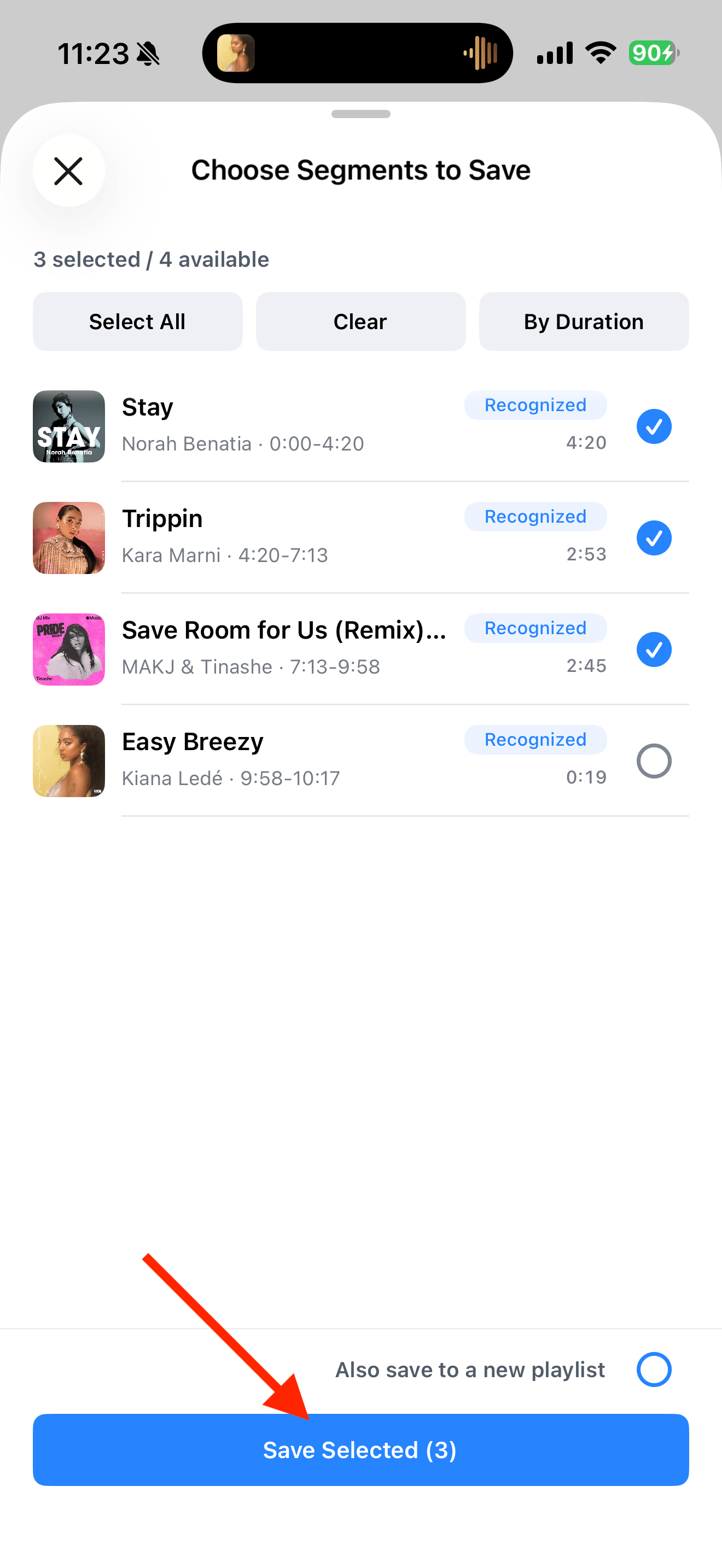
Tap “Save to Library”, select the songs, and tap “Save Selected”. Leave out duplicate tracks, ads, and empty segments.
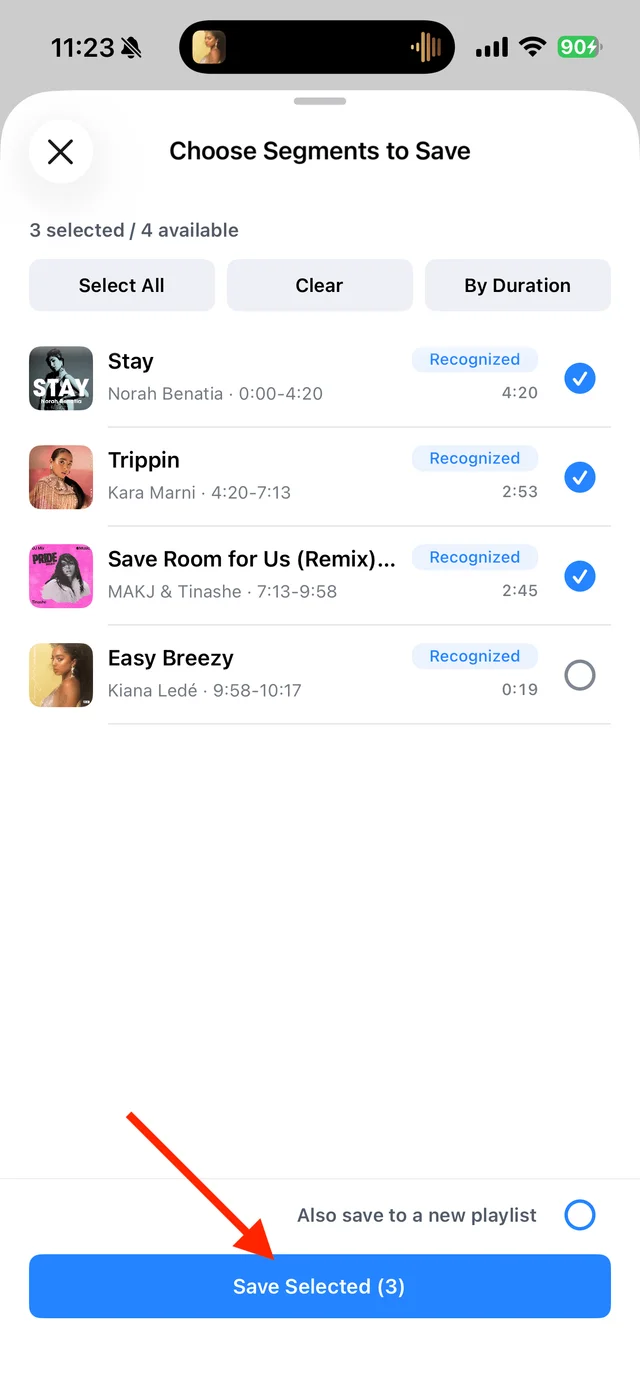
Save only the songs you want
Common questions
Can I save an hour-long playlist instantly?
Recording takes as long as playback. A one-hour playlist needs about one hour to record; pasting its link does not save the audio.
What if the recording includes an ad or notification?
Cut out a separate unwanted segment before saving. If a sound overlaps the music, record that part again from a clean source.
What about a seamless DJ mix?
Use “Manual Cut” at the transitions, or keep the mix as one continuous track.
Recording depends on iOS and the source app. Only save audio you have permission to record.