
Quick answer
Keep the songs you replay, without paying for them every month.
Record permitted songs playing in NetEase Cloud Music with TuneTrace, then save them to your local library. Listen offline whenever you like and reduce repeat subscription costs for the same songs.
Your first 30 saved songs play in full for free, forever. Unlock more with a one-time purchase.
Step by step
5 stepsStart recording in TuneTrace
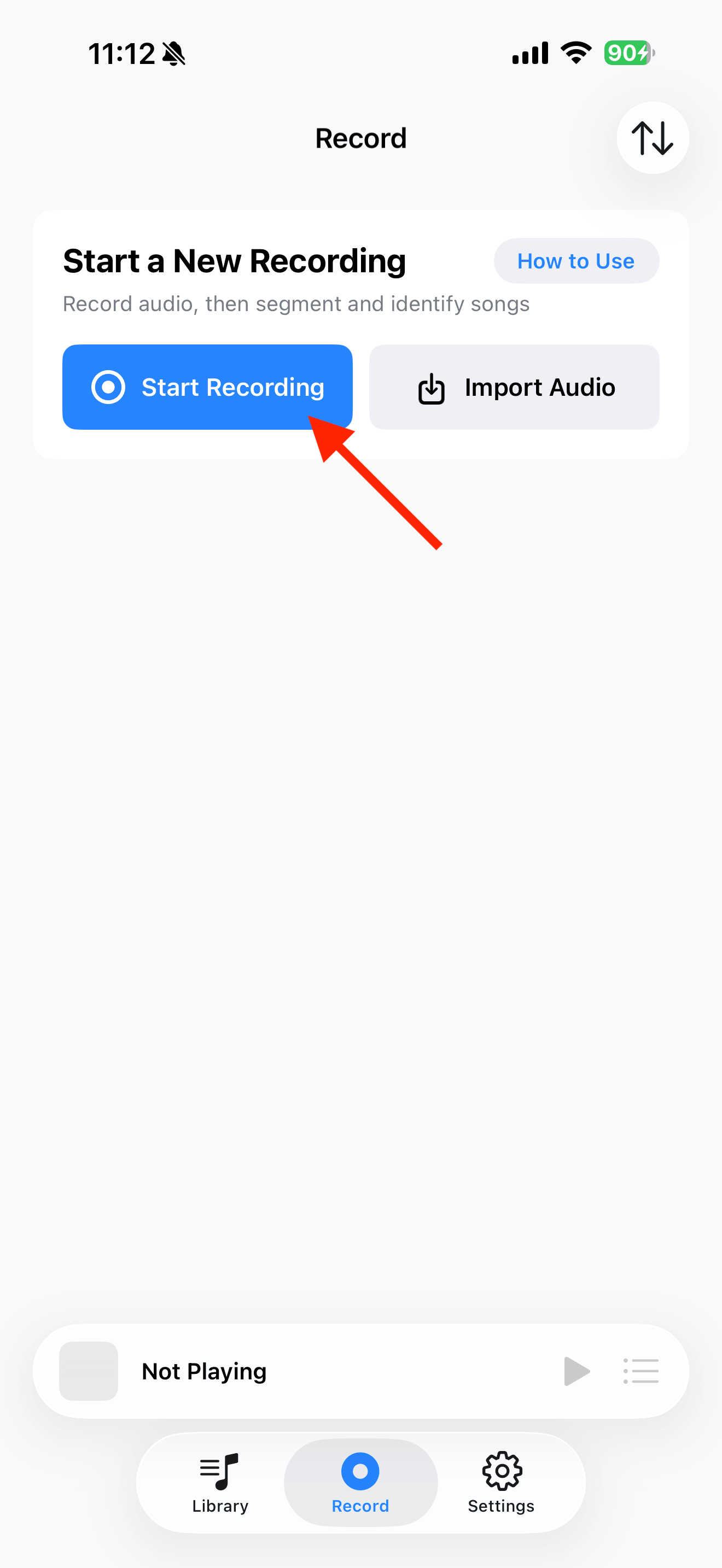
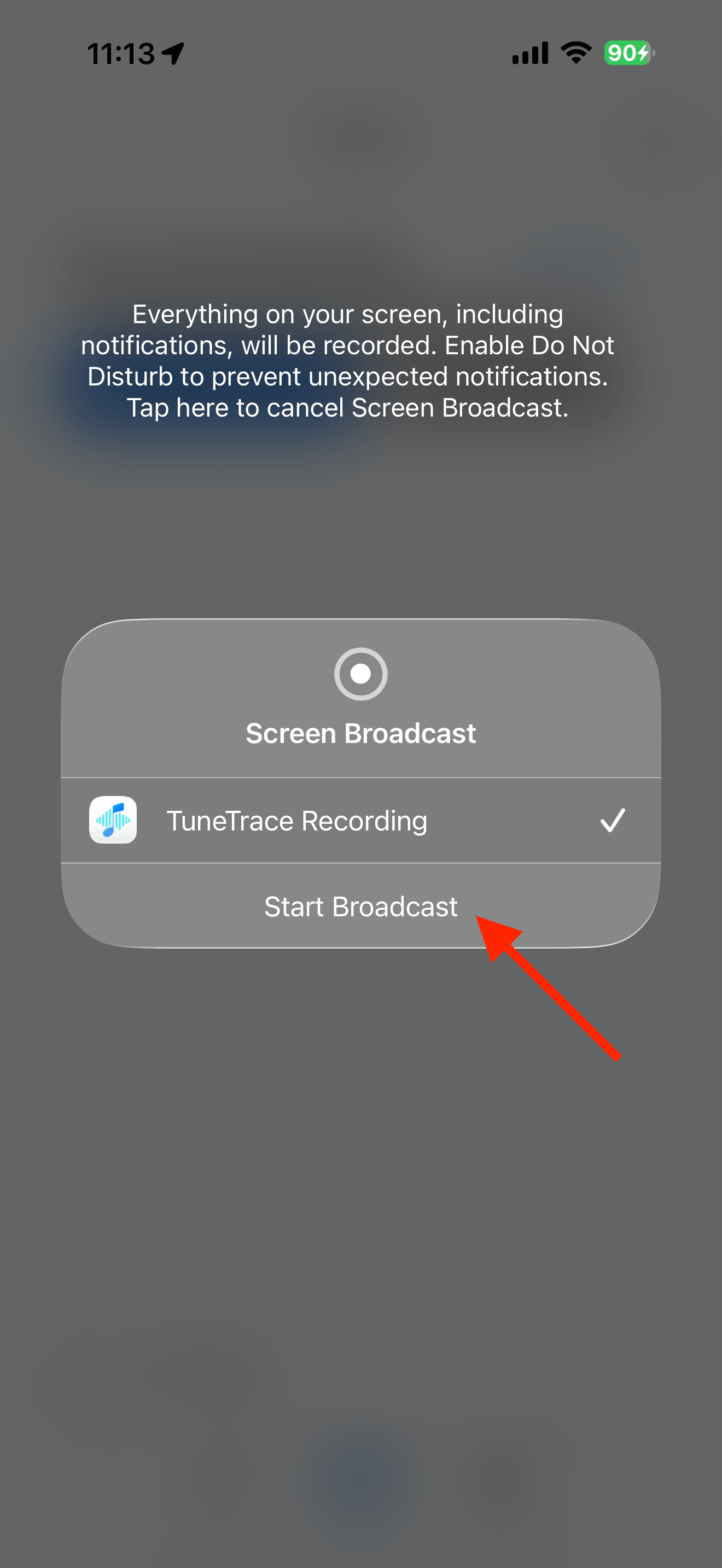
Tap “Start Recording”, then “Start Broadcast” in the system dialog. Once recording starts, tap outside the dialog to close it.
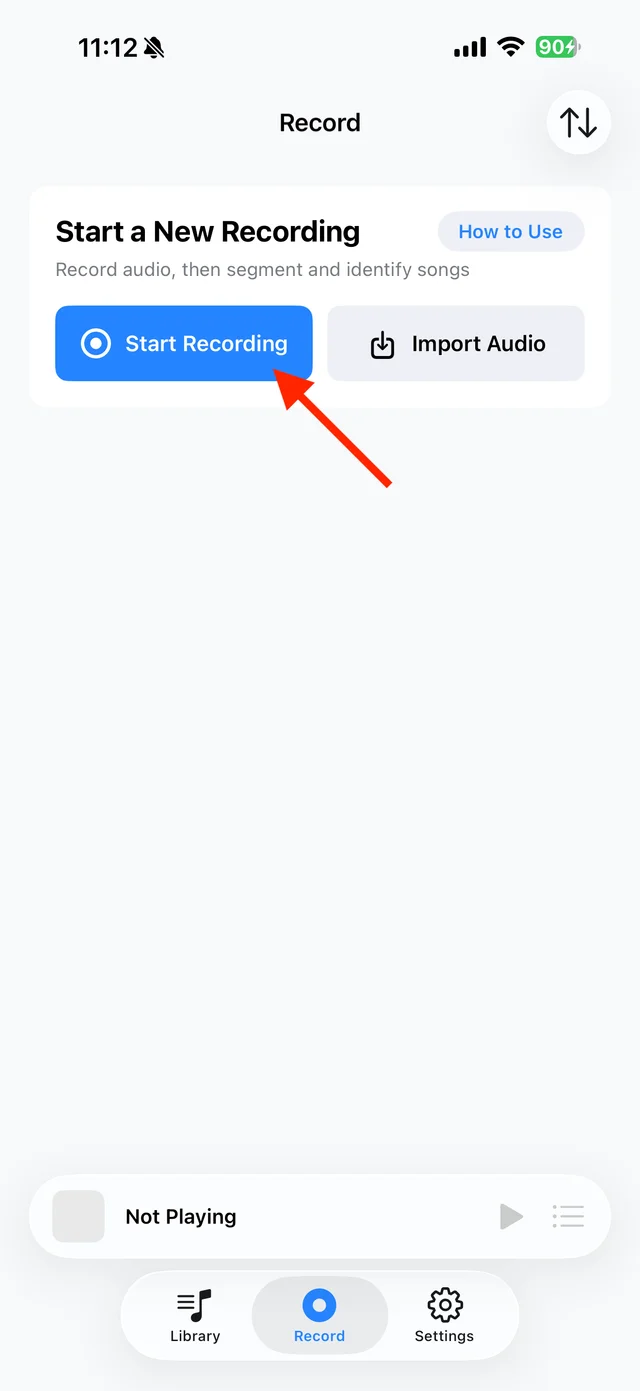
Tap “Start Recording” 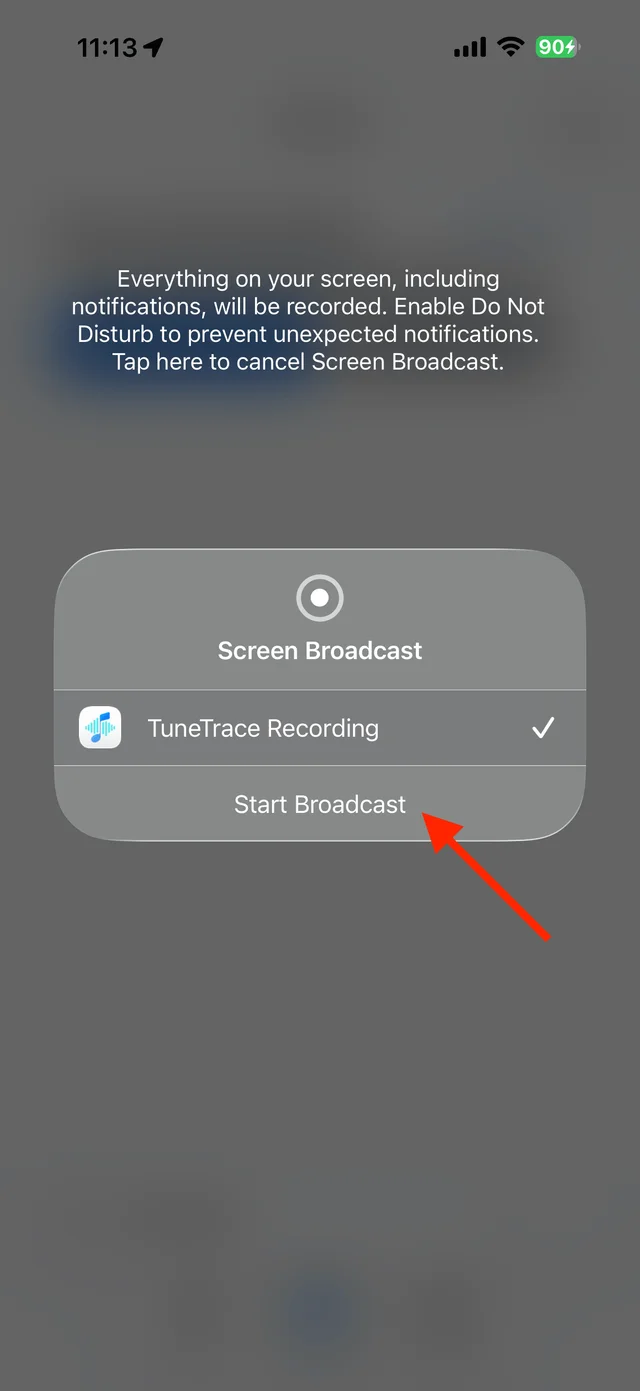
Confirm “Start Broadcast” Play your songs in NetEase Cloud Music
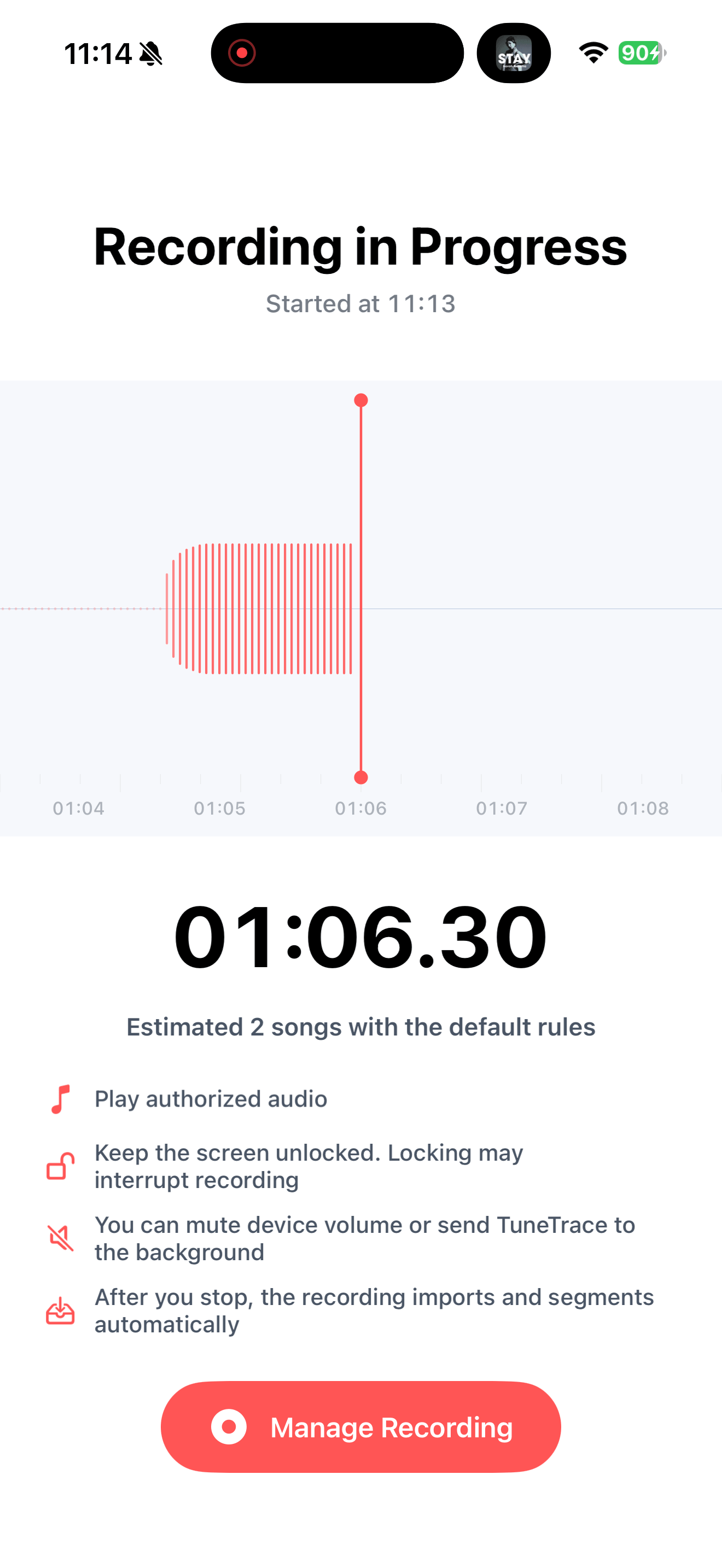
Start at the beginning of a song or play a playlist in order. Keep your screen awake. You can return to TuneTrace to check the recording waveform.
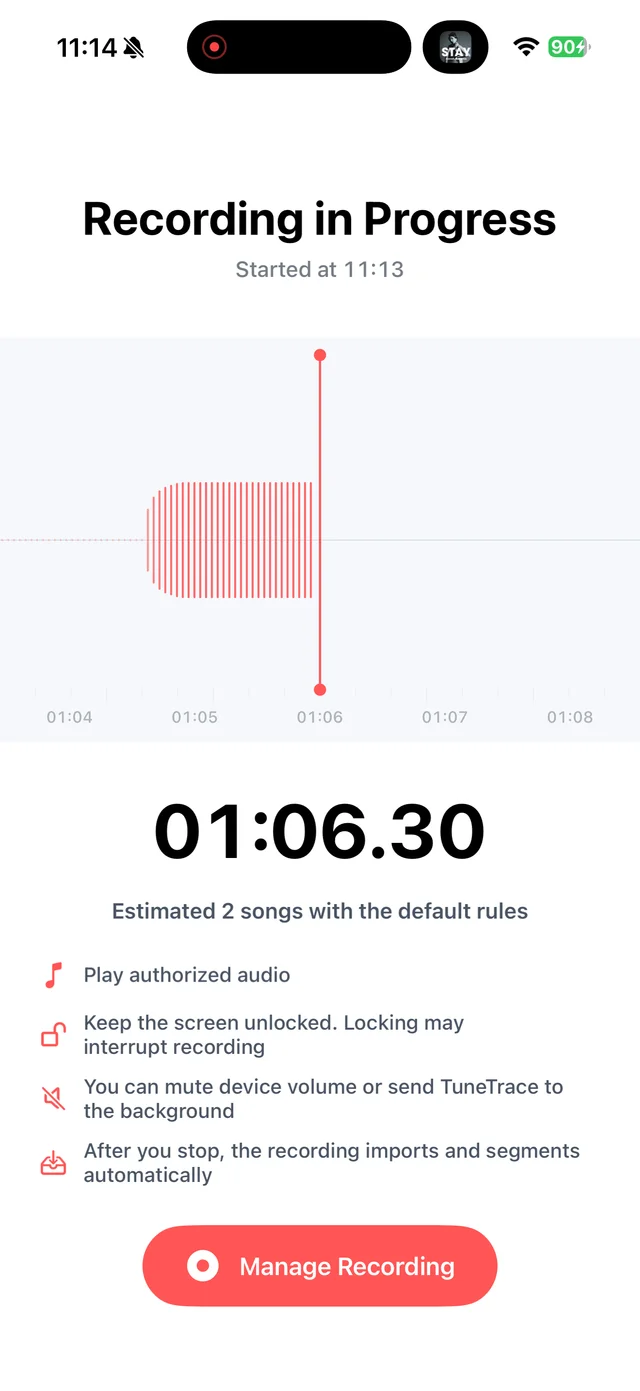
Check recording status in TuneTrace Stop when you have finished
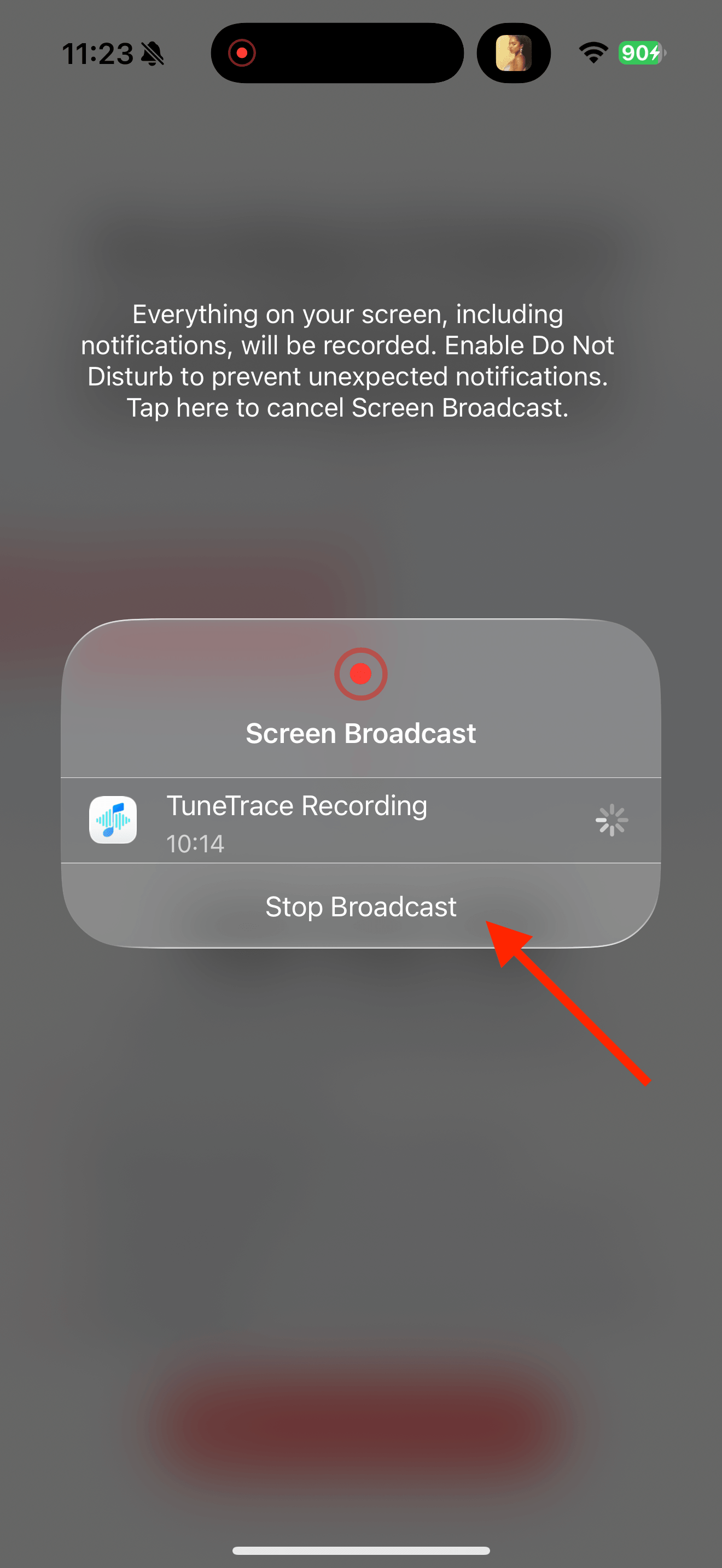
Return to TuneTrace and tap “Manage Recording → Stop Broadcast”. Your recording imports automatically, ready to organize.
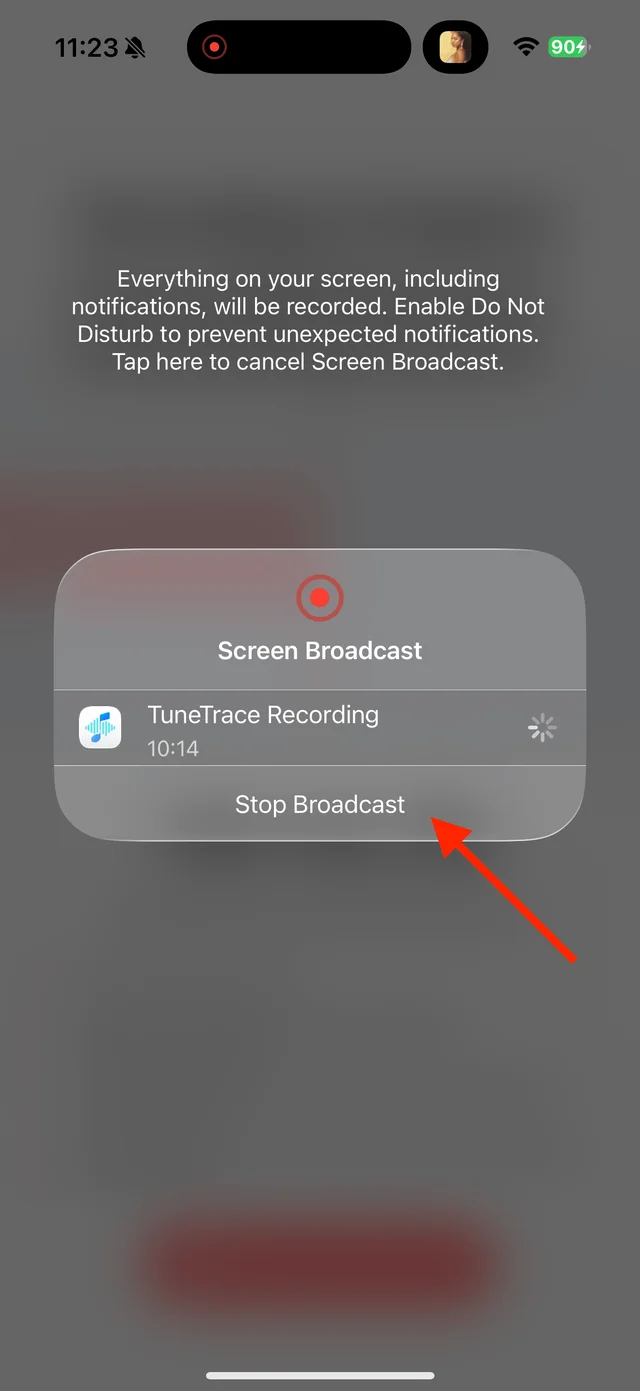
Tap “Stop Broadcast” to finish Identify songs and save them
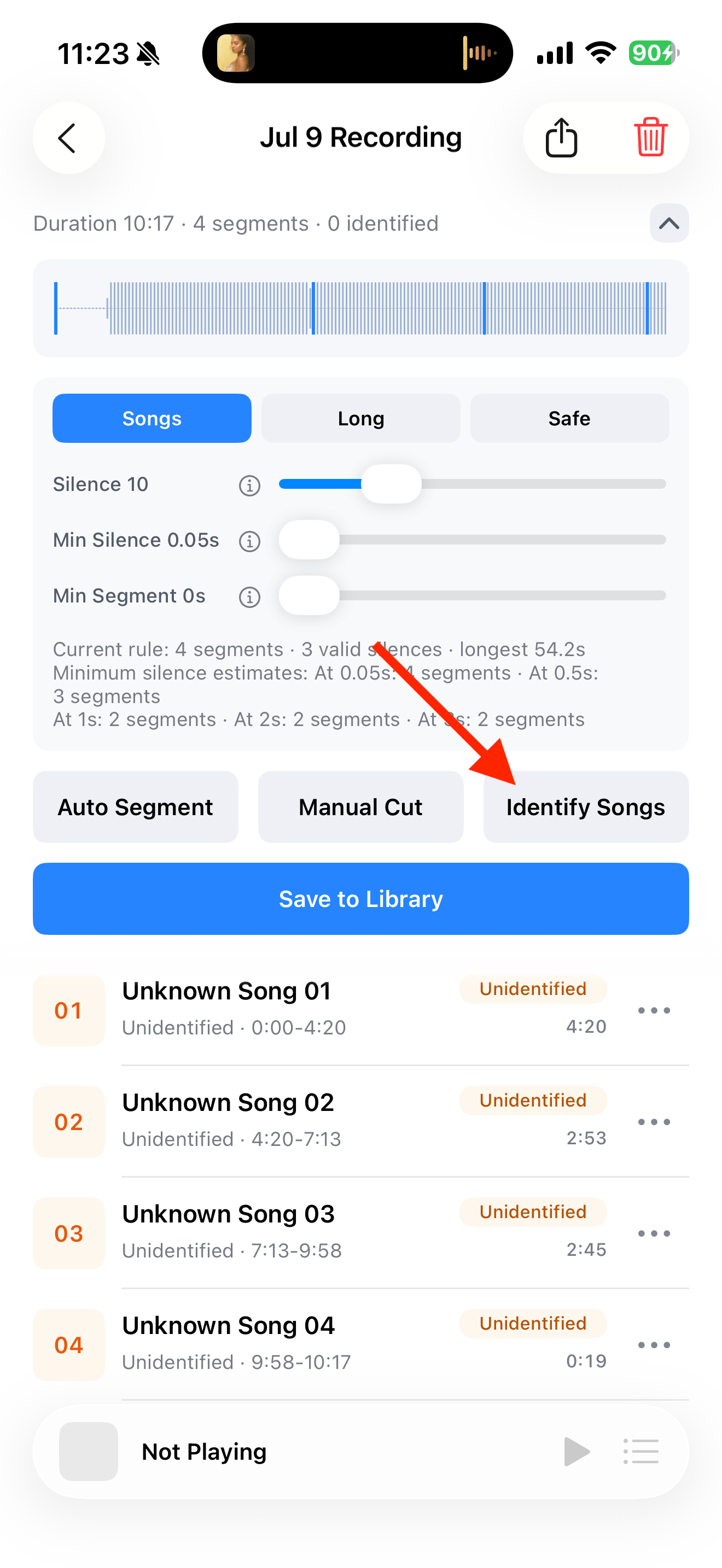
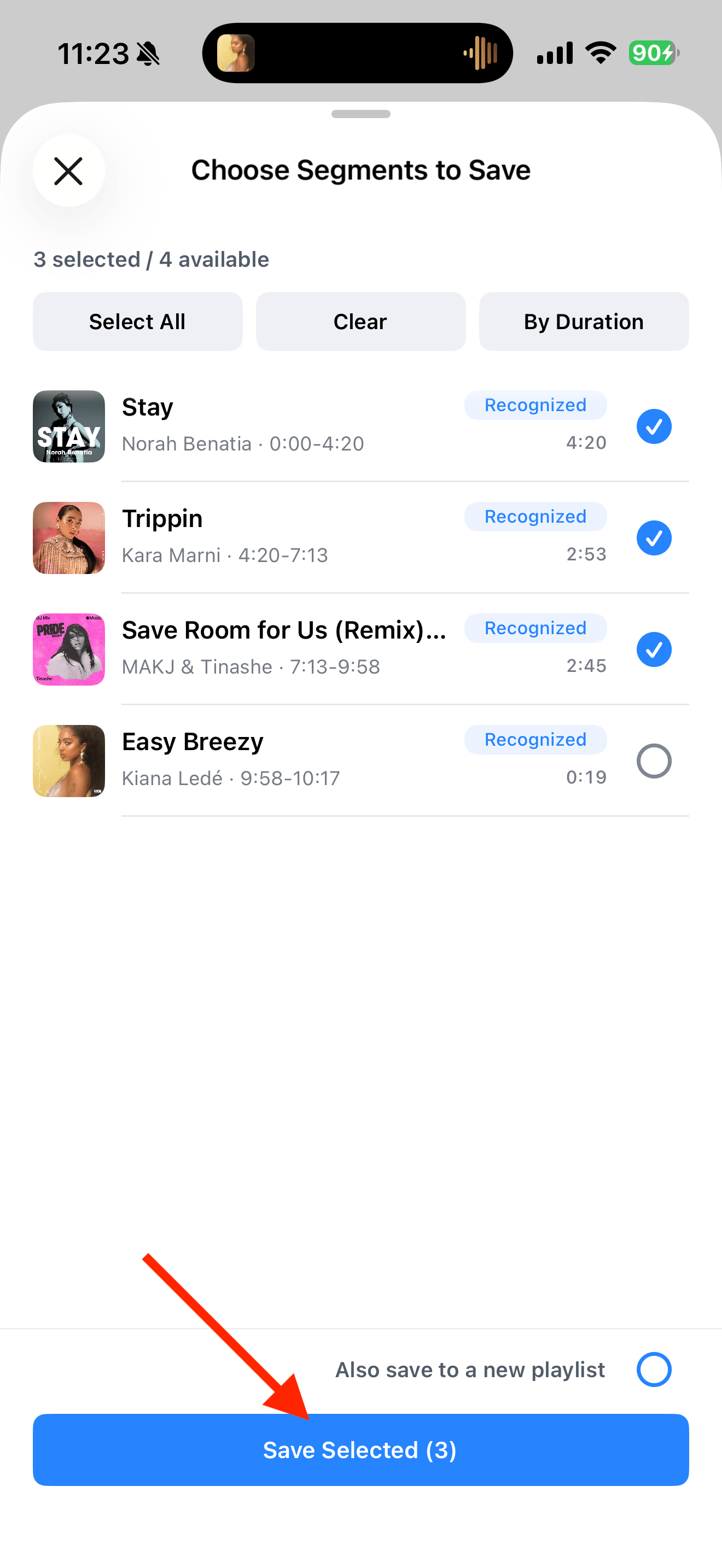
Tap “Identify Songs”. Check the suggested cuts, song names and artists. Adjust any cuts that need fixing, then tap “Save to Library” and select the songs to keep.
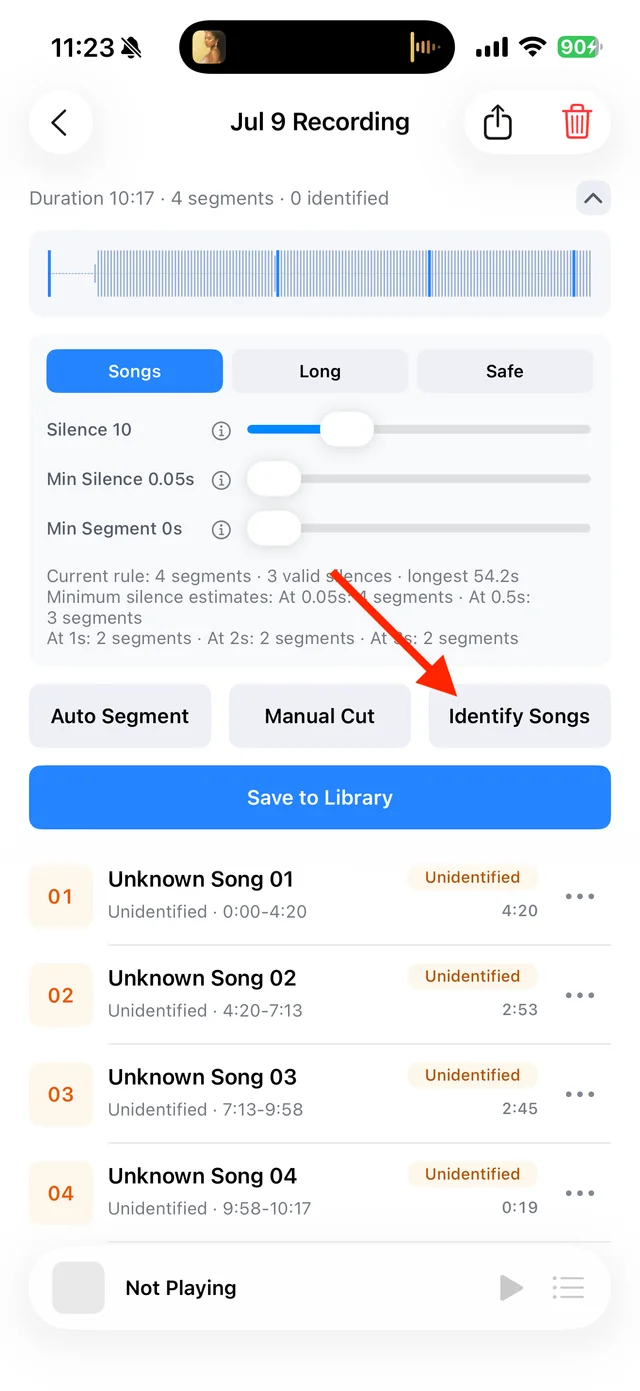
Split and identify songs 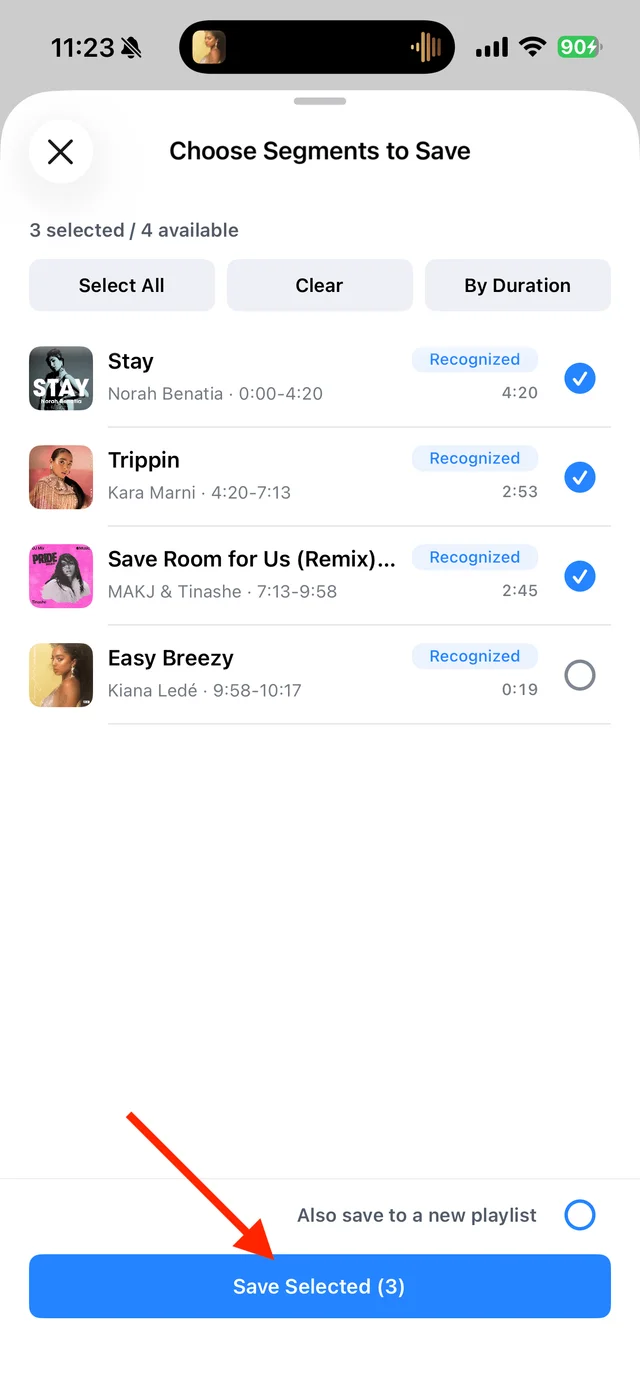
Select tracks, then tap “Save Selected” Listen from your local library
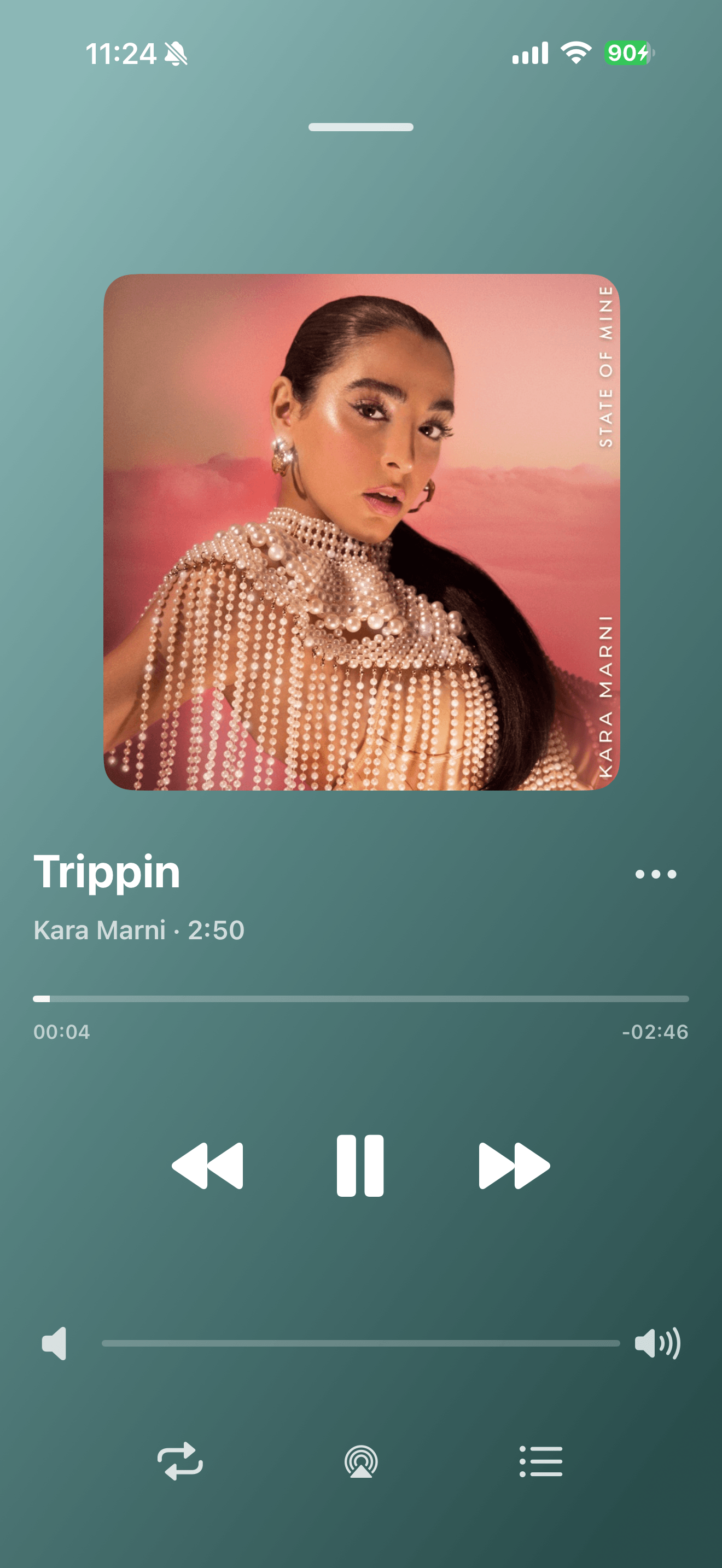
Open your saved songs in TuneTrace. You can listen offline with the screen locked, without opening NetEase Cloud Music.
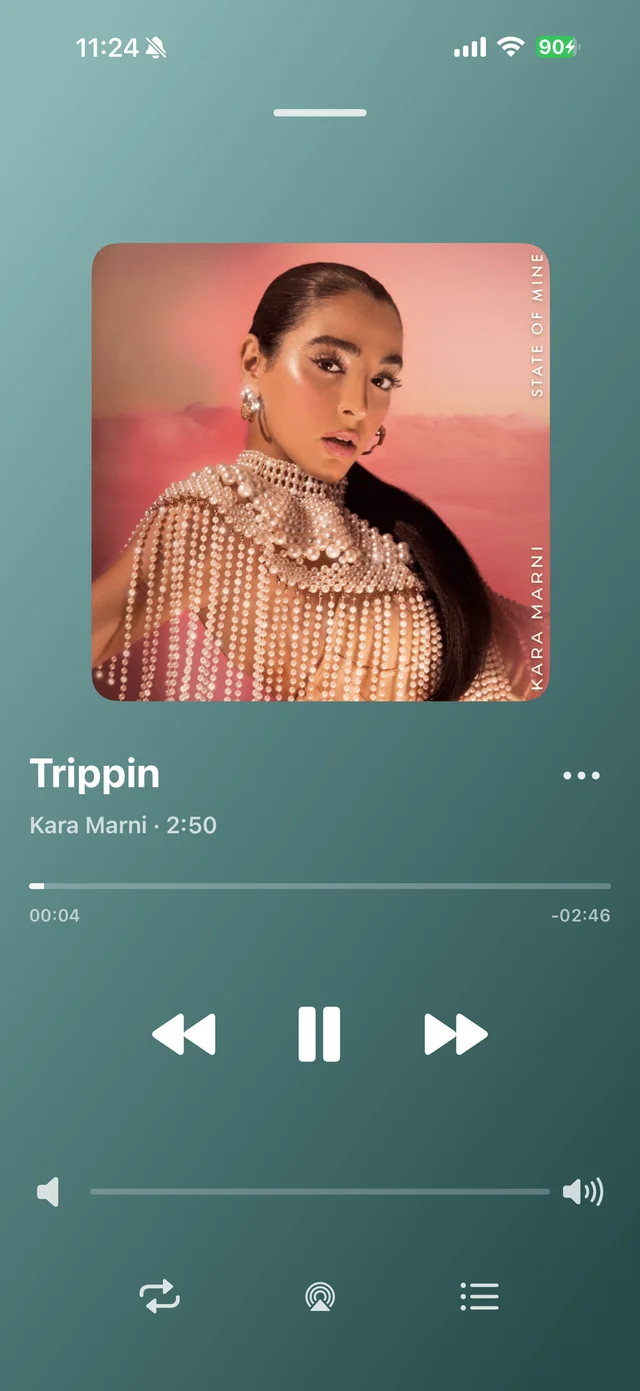
Play saved tracks from your local Library
Common questions
Do I still need to open NetEase Cloud Music?
No. Saved songs play from your local TuneTrace library, including offline.
Can I lock the screen while recording?
Keep the screen awake during recording. Once songs are saved, you can listen with the screen locked.
Can every song be recorded?
The song must play normally, and both iOS and the source app must allow recording. Try a short recording and play it back first.
Recording depends on iOS and the source app. Only save audio you have permission to record.