
Quick answer
Record permitted audio from the Bilibili collection, split it at the song boundaries and identify the tracks. Check each beginning and ending, then save the songs individually to your local library.
Step by step
4 stepsNote the songs and their positions
Use the video’s timestamps to plan what to record. They help you find songs, but do not become TuneTrace cut points automatically.
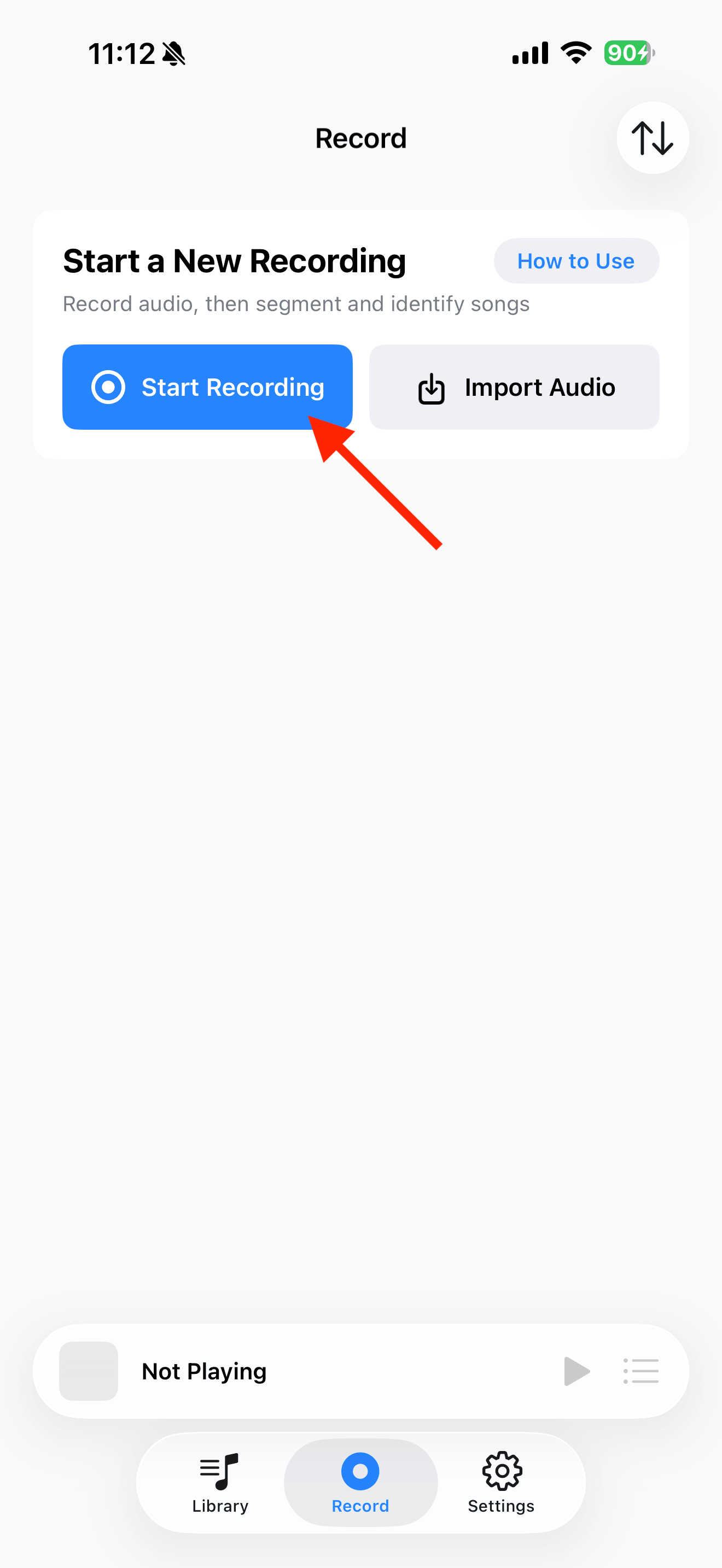
Start recording in TuneTrace
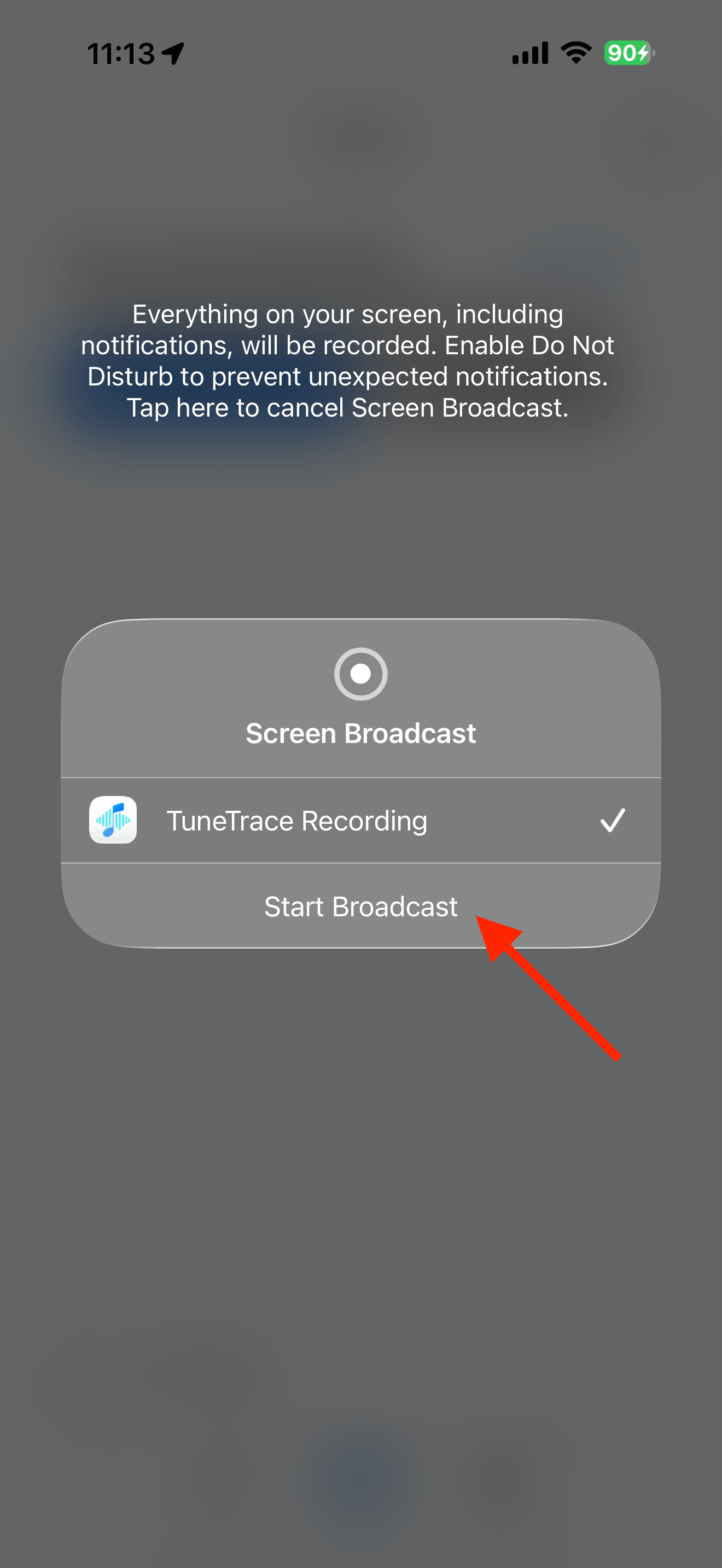
Tap “Start Recording”, then “Start Broadcast”. Once recording starts, close the dialog and return to the source app.
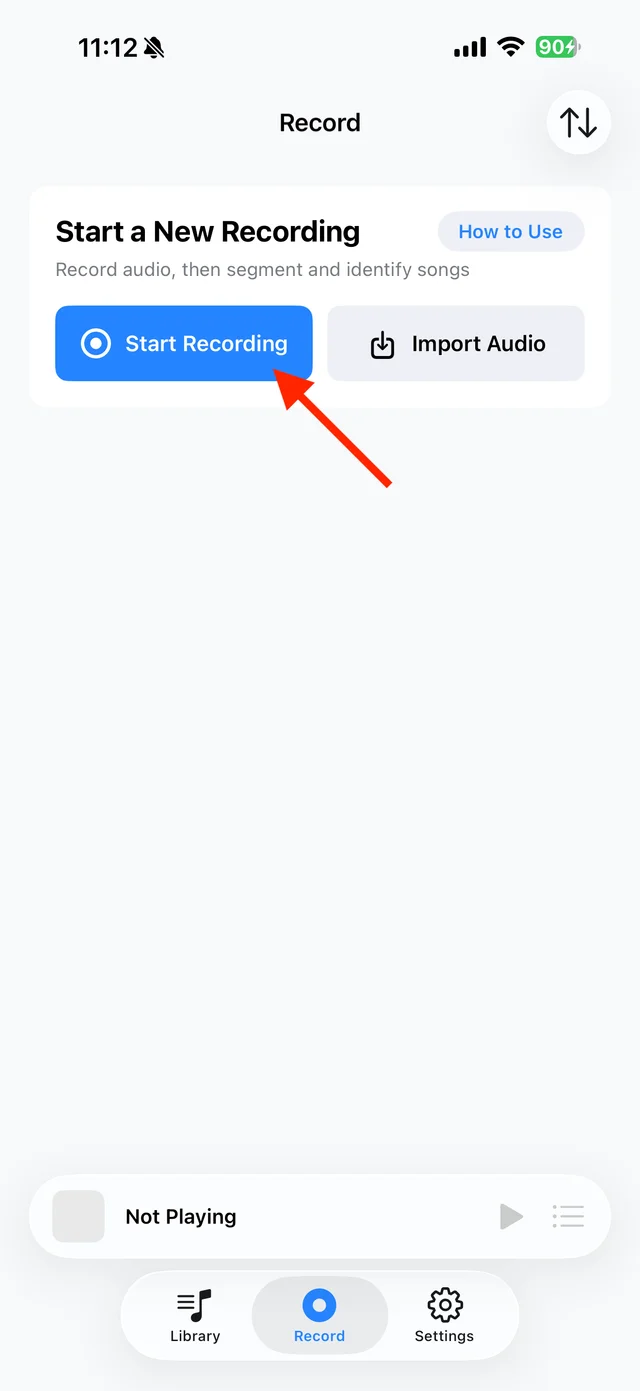
Open TuneTrace’s recording page 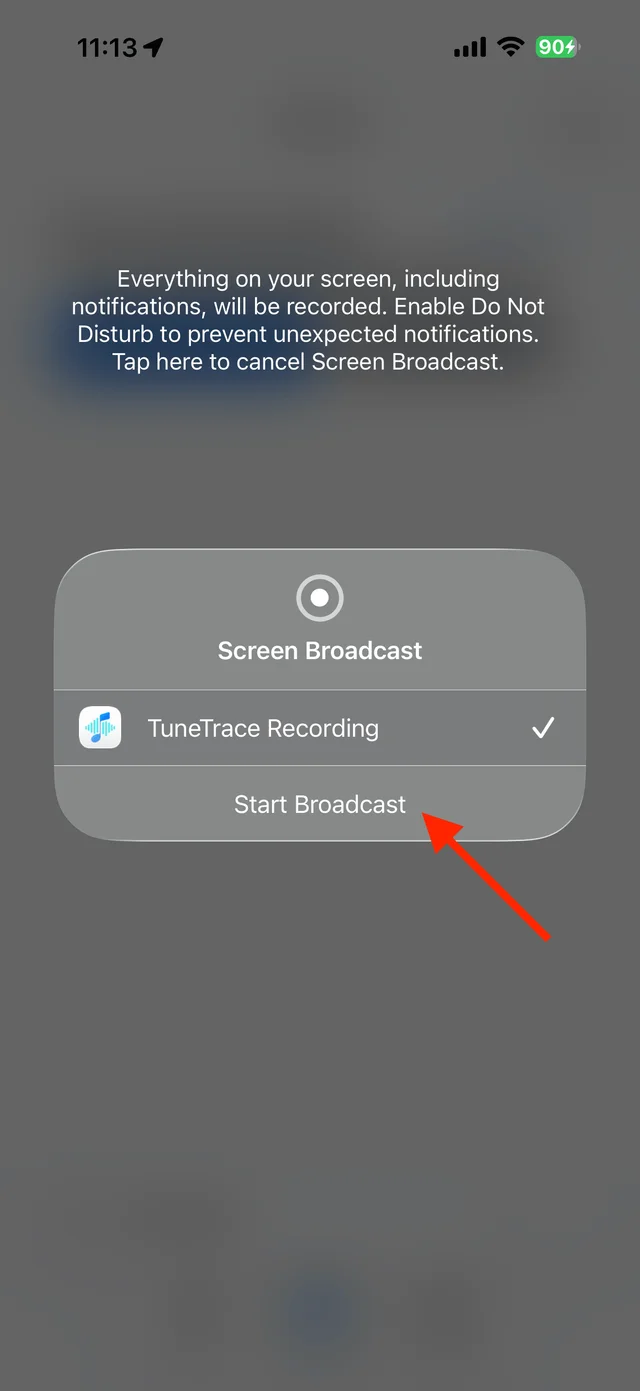
Start the broadcast in the system dialog Record the desired section and stop
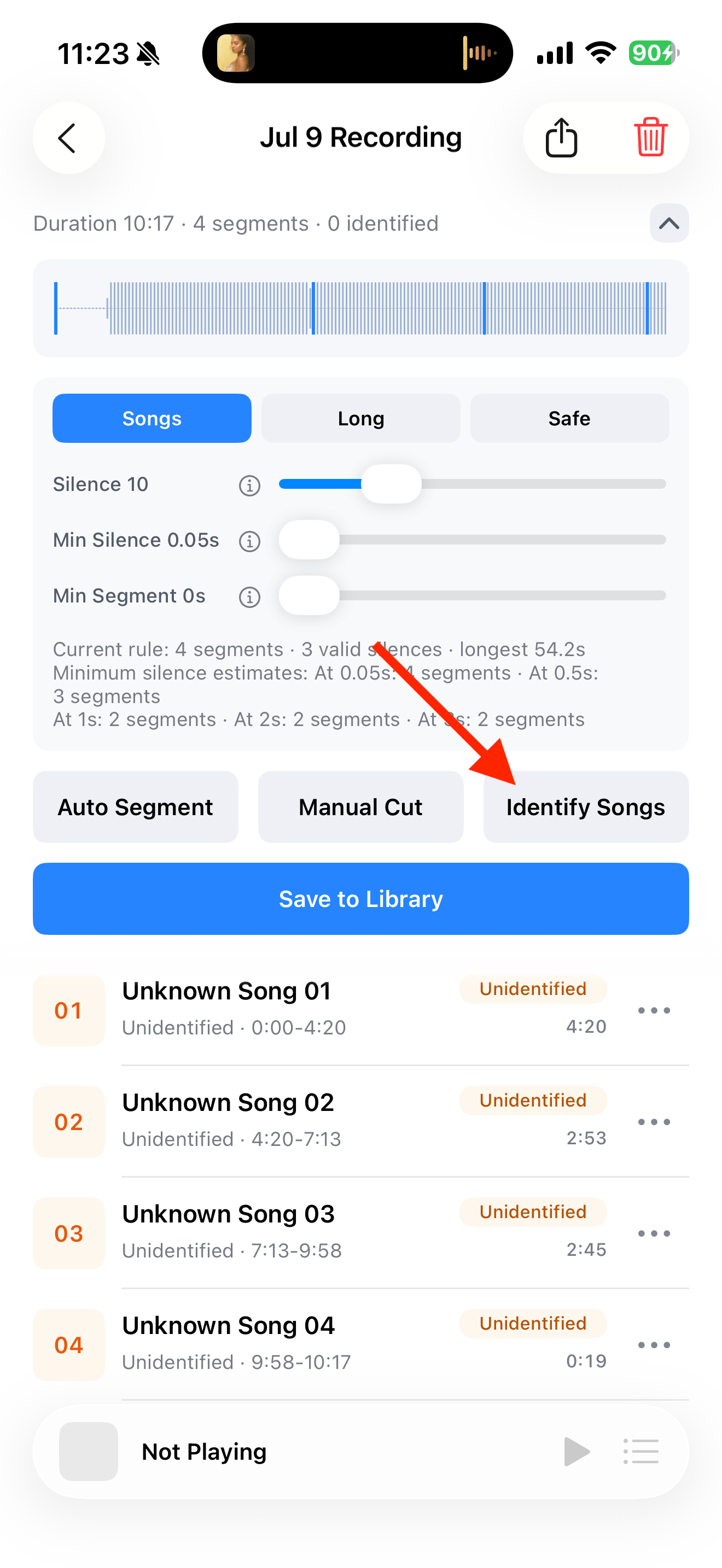
Play the collection continuously in Bilibili with the screen awake. Stop the broadcast in TuneTrace, then tap “Identify Songs” and check the cuts.
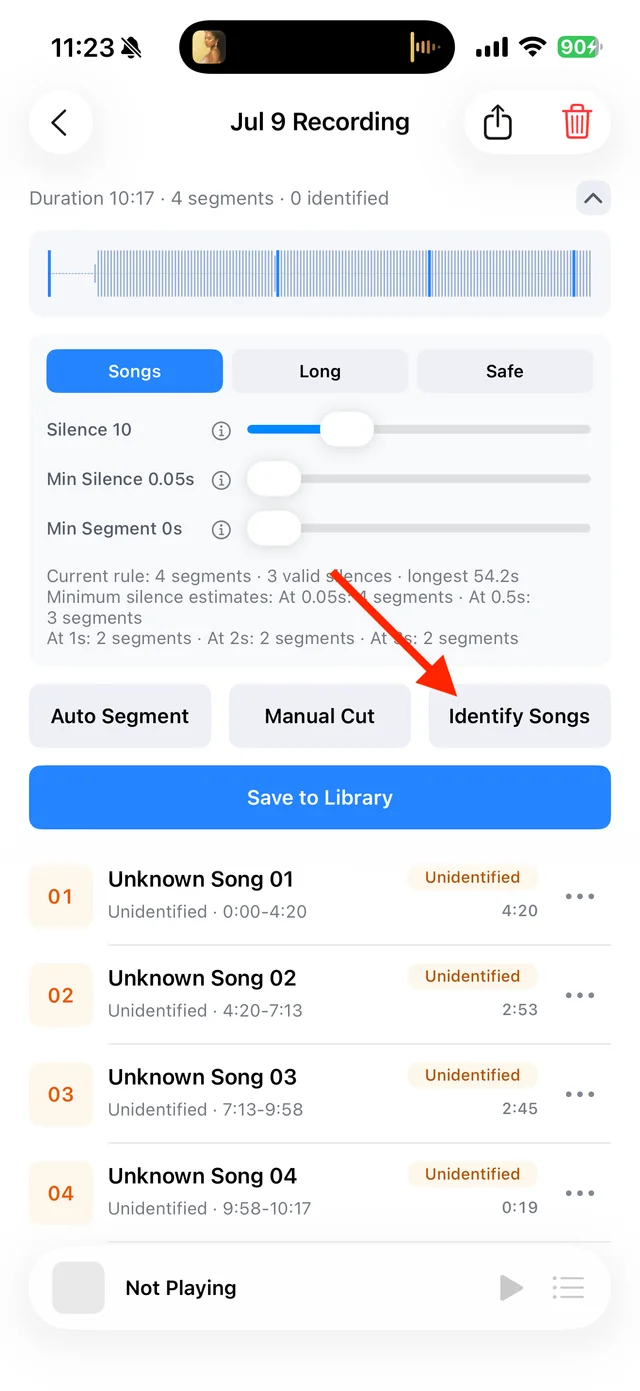
Split and identify songs in the imported recording Check transitions before saving
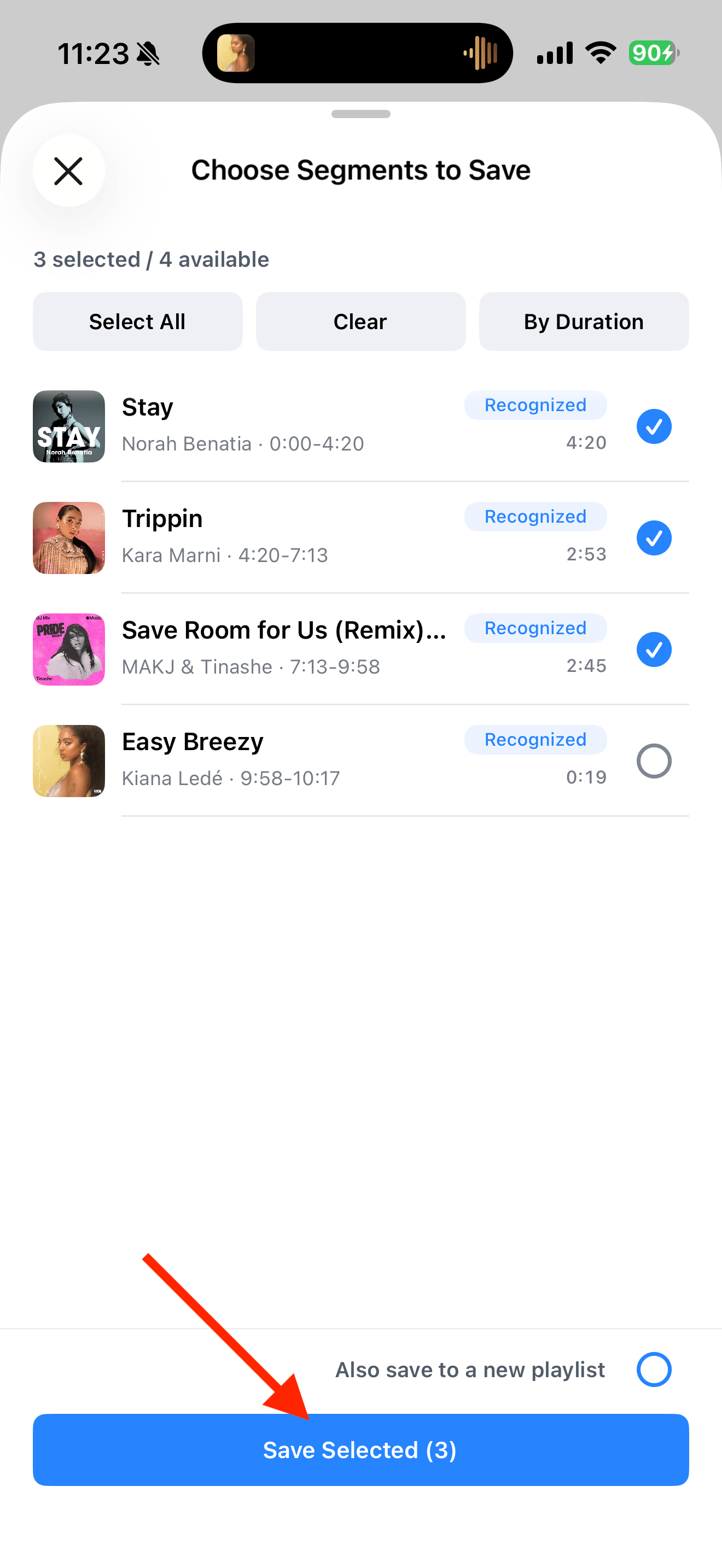
Use “Manual Cut” for mixes or crossfades where needed. Listen to each song’s beginning and end, then select the songs you want to save.
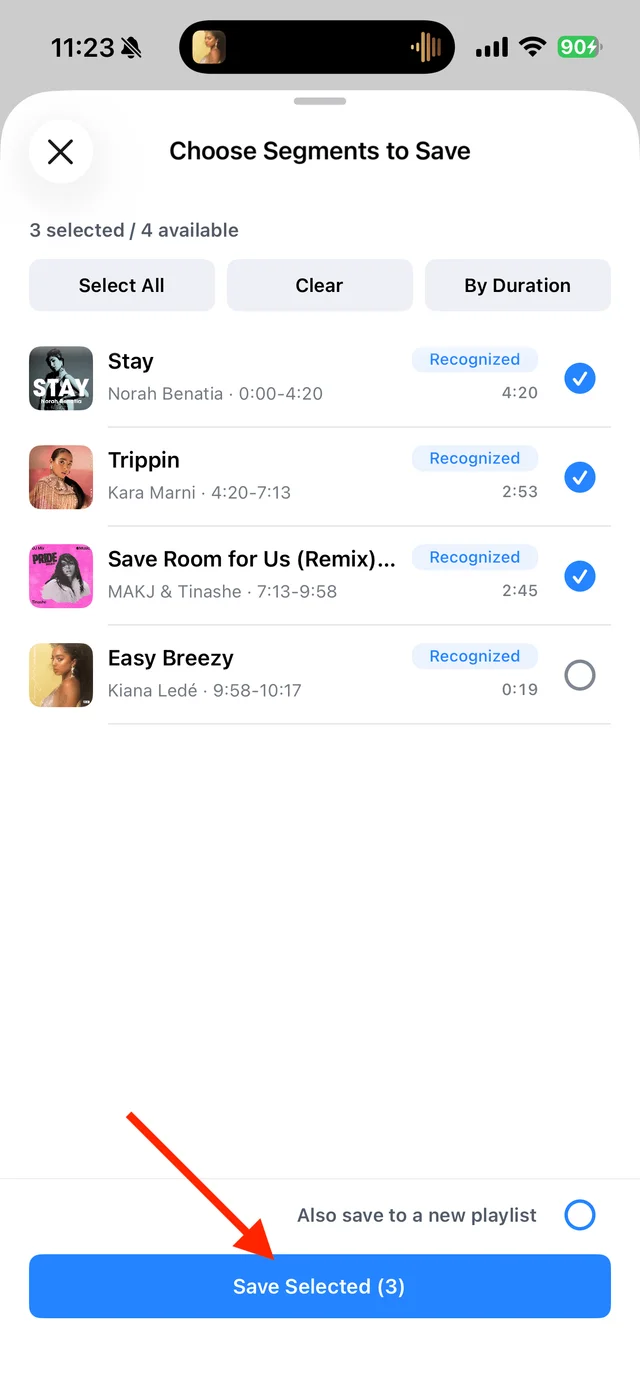
Select the tracks you want to keep and save them
Common questions
Will video chapters become audio cuts automatically?
No. TuneTrace receives the recorded audio and does not read Bilibili’s video chapters.
Can I keep the collection as one continuous recording?
Yes. Keep and name the complete clip instead of splitting it into songs.
Only record audio you have permission to save. The source app or iOS may restrict recording.