
Quick answer
Open “Manual Cut”, move to a boundary, and tap “Add Cut”. Save the cuts, then save the resulting tracks to your Library.
Step by step
3 stepsOpen the cut editor
Choose “Manual Cut” for the recording. To split one segment, open its “⋯” menu and choose “Split Segment”.
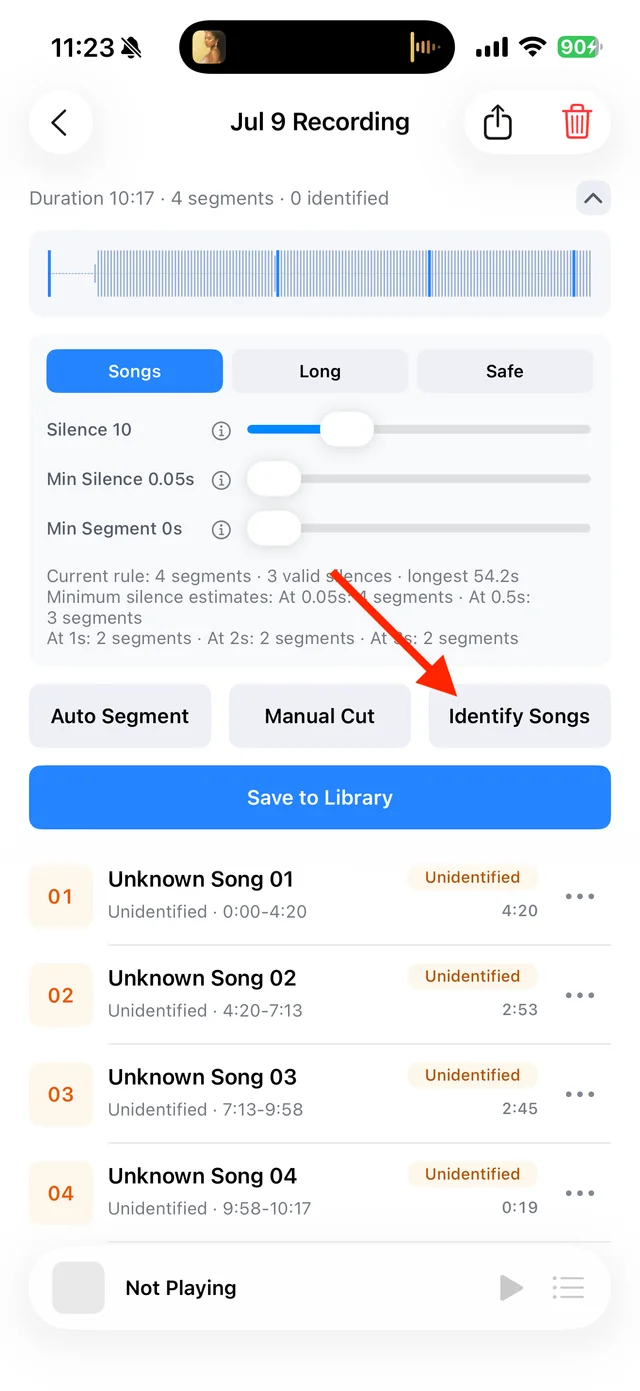
Split, identify, and save audio on the recording page Place the cuts
Listen around the boundary, move the playhead to the right point, and tap “Add Cut”. Remove any misplaced cuts.
Save and check the segments
Save from the top-right corner, listen to each segment’s beginning and end, then use “Save to Library”.
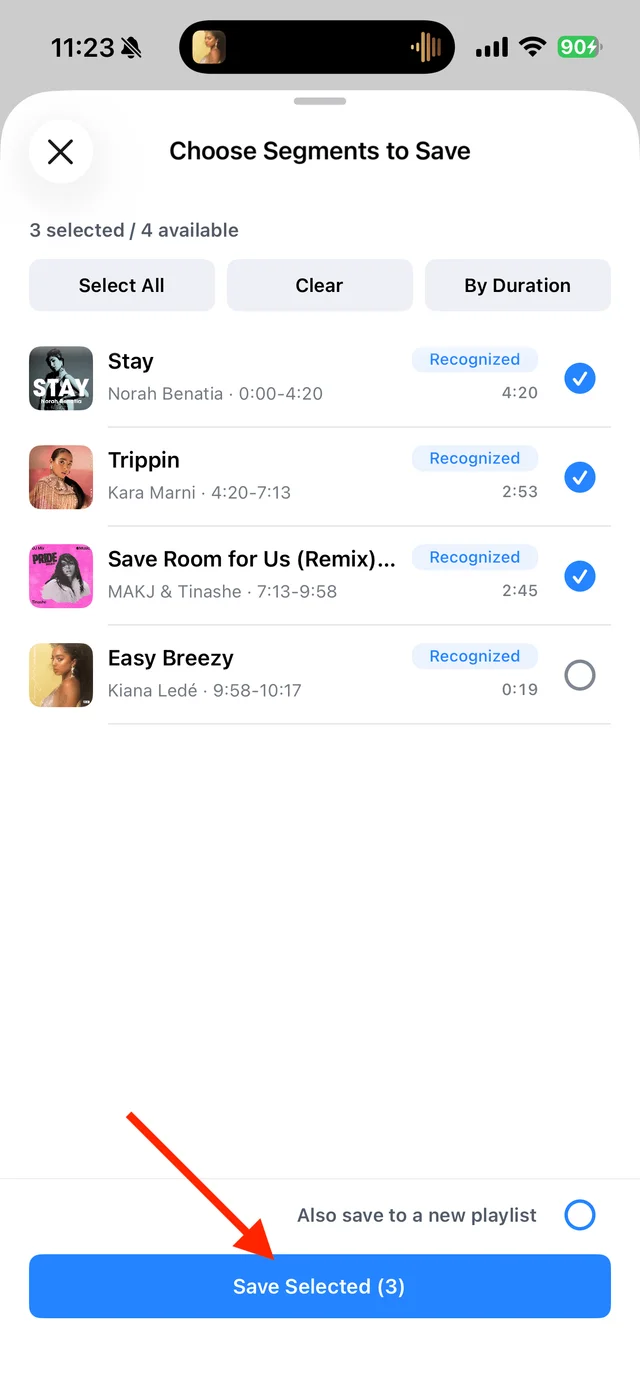
Select the tracks you want to keep and save them
Common questions
Is tapping “Add Cut” enough to save the song?
No. Save the edits in the cut editor first, then save the resulting tracks to your Library.
Can I add several cuts?
Yes. Add all the boundaries you need, then check each resulting segment before saving.