
Quick answer
Open a segment’s “⋯” menu and choose “Merge with Previous” or “Merge with Next”. Check the combined track before saving it.
Step by step
3 stepsListen to the neighboring segments
Confirm that the segments belong to the same song or passage. Matching names alone do not guarantee that they belong together.
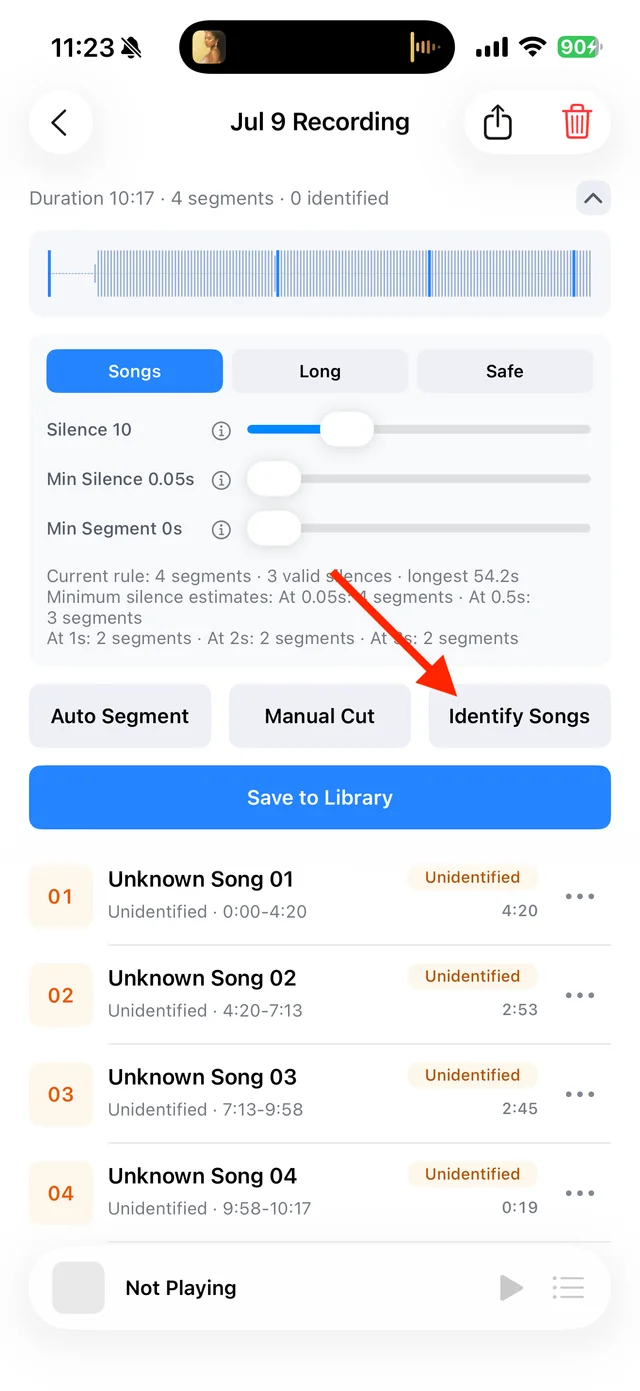
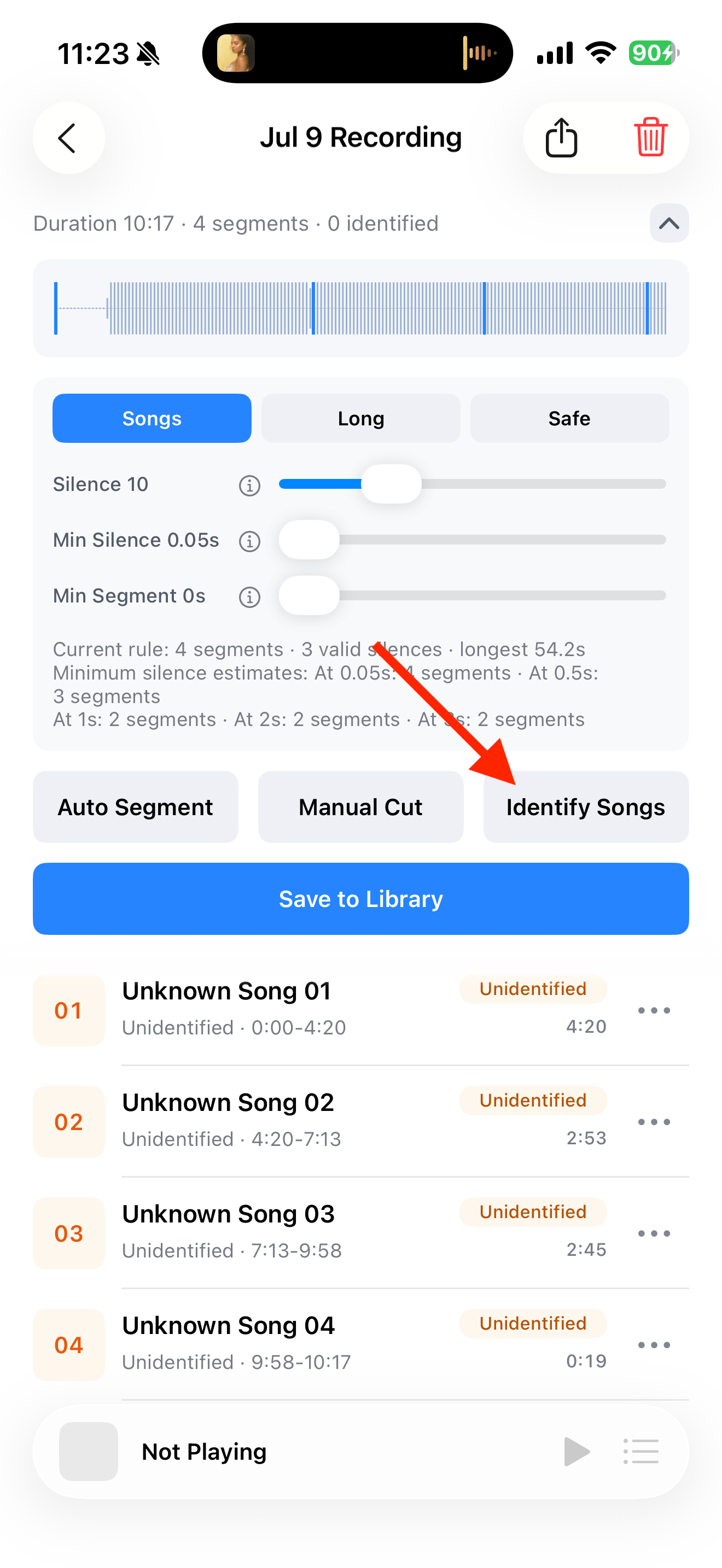
Split, identify, and save audio on the recording page Choose a merge direction
Open “⋯” and merge with the previous or next segment. Repeat if the recording has more adjacent pieces to join.
Check and save the result
Listen to the beginning, transition, and ending. Rename or identify the combined track, then save it to your Library.
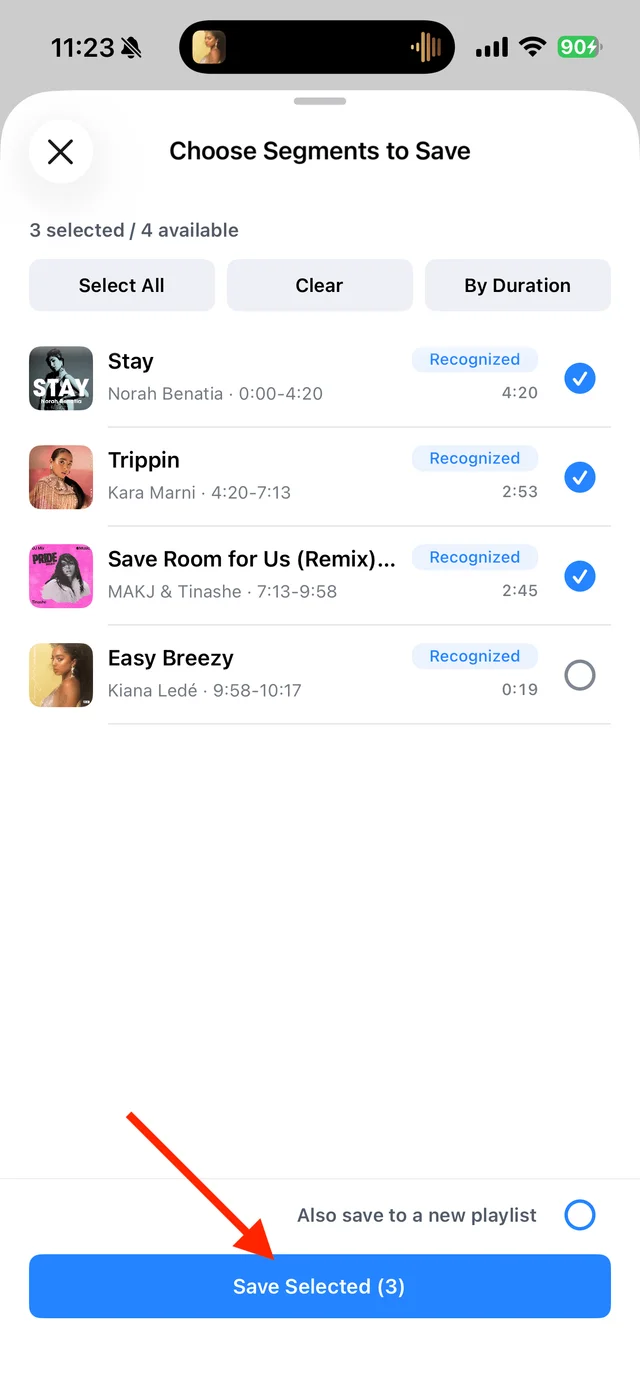
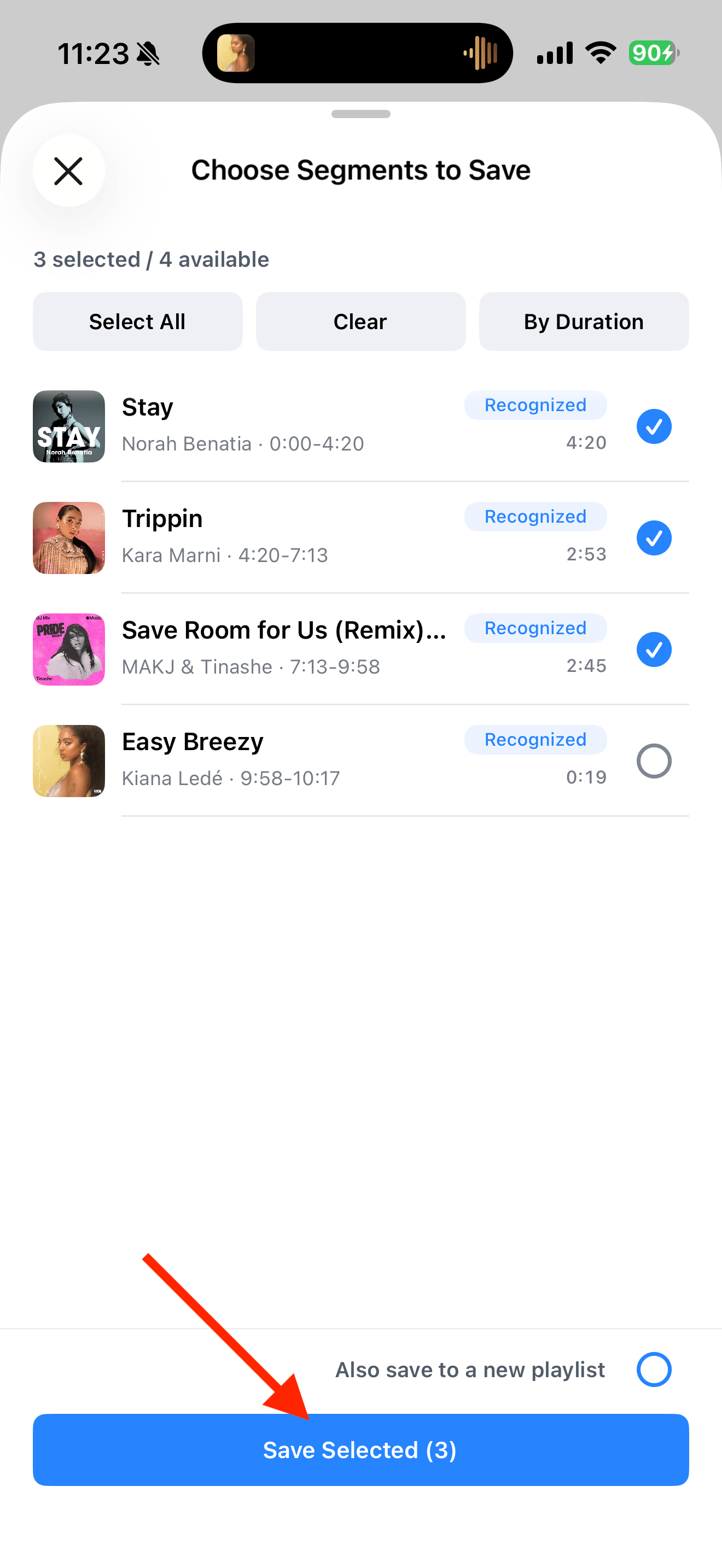
Select the tracks you want to keep and save them
Common questions
Can I join audio from different files?
This merge action joins neighboring segments from the same recording. It does not combine unrelated audio files.
What happens to pieces already saved in my Library?
Check that the newly saved track is complete before removing any older copies from the Library.