
Quick answer
After identification, TuneTrace may merge consecutive segments matched to the same song. Keep the merge or choose “Undo Merge”, then listen to the boundaries before saving.
Step by step
4 stepsIdentify the recording’s songs
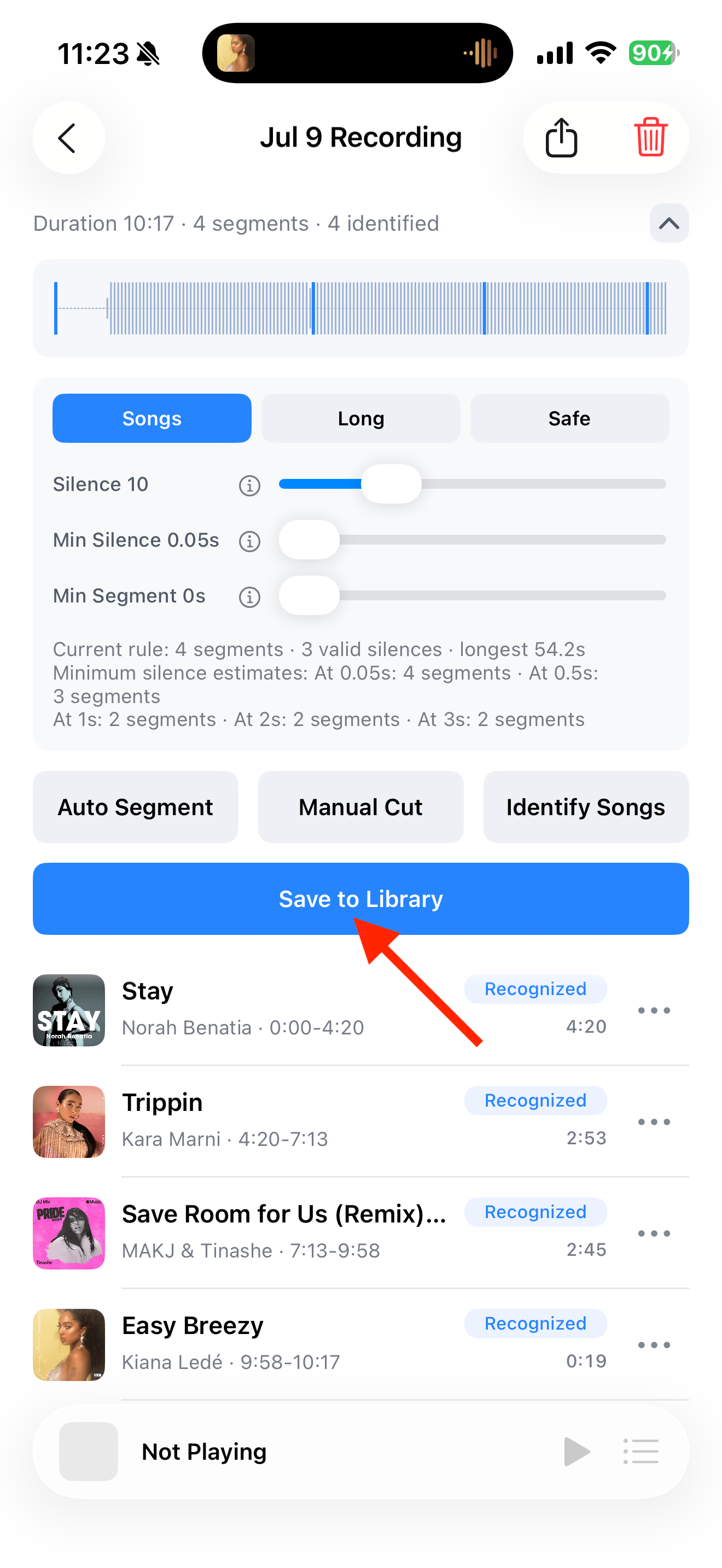
Tap “Identify Songs” and wait for the results. Check the actual performances; the same song title can refer to different versions.
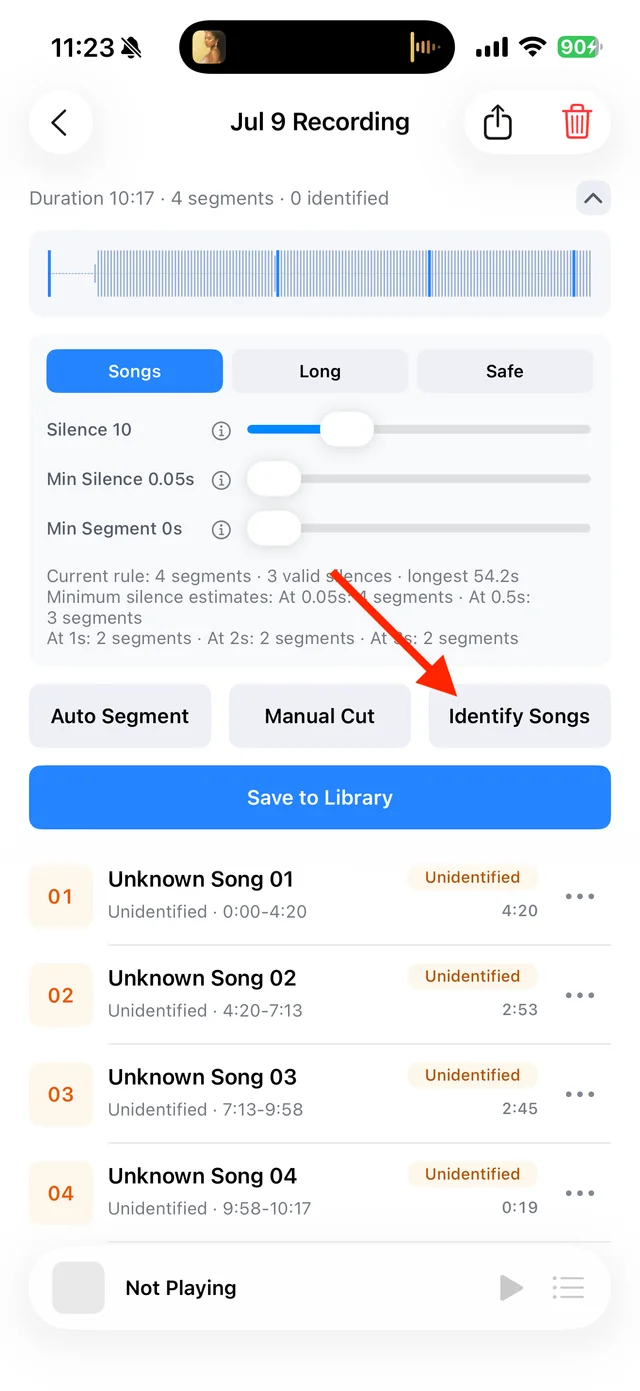
Split, identify, and save audio on the recording page Choose whether to keep the merge
If “Duplicate Segments Merged” appears, check the reduced segment count. Tap “OK” to keep it or “Undo Merge” to review the segments separately.
Listen to the merged audio
Check the start, end, and transitions. Use “Manual Cut” to separate performances that were joined incorrectly, or merge remaining adjacent pieces from “⋯”.
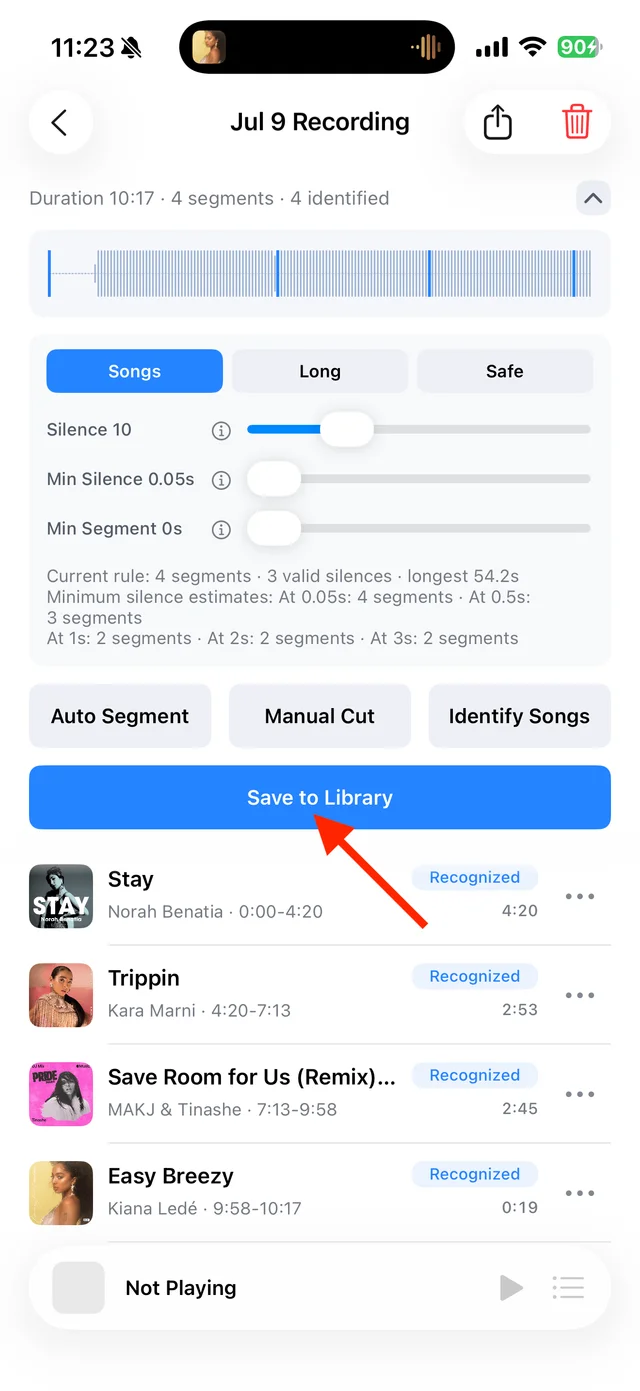
Listen to the segments and adjust them from the right-hand menu Save the version you want
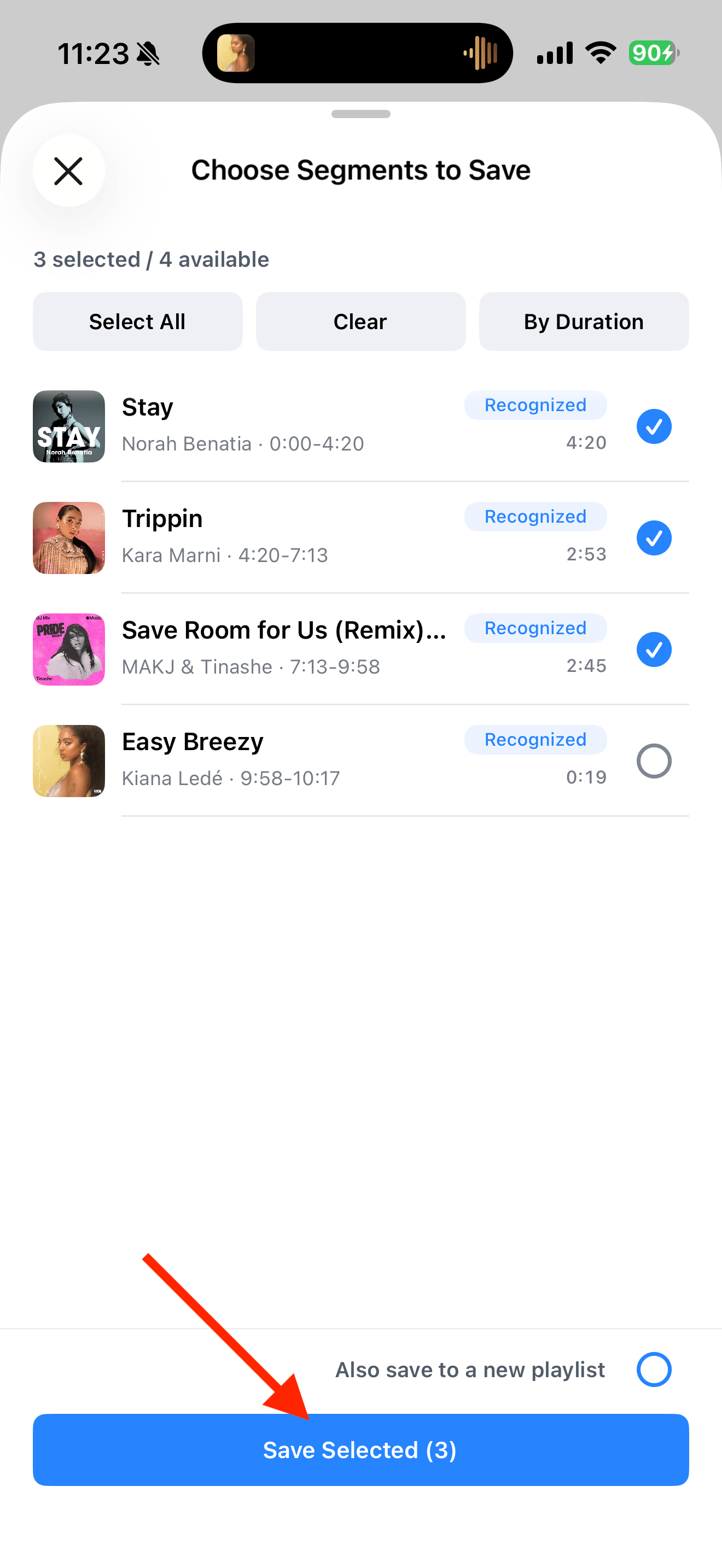
In “Save to Library”, select the complete segments you need. Keep one duplicate performance or give distinct versions different names.
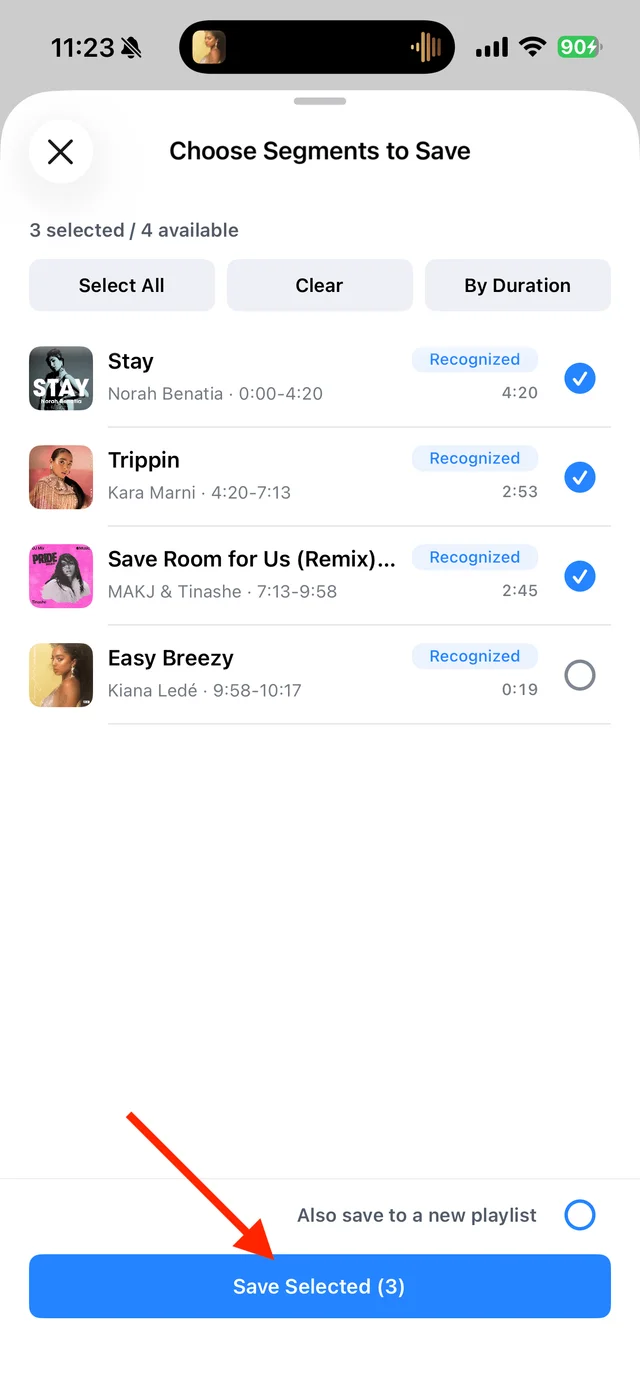
Select the tracks you want to keep and save them
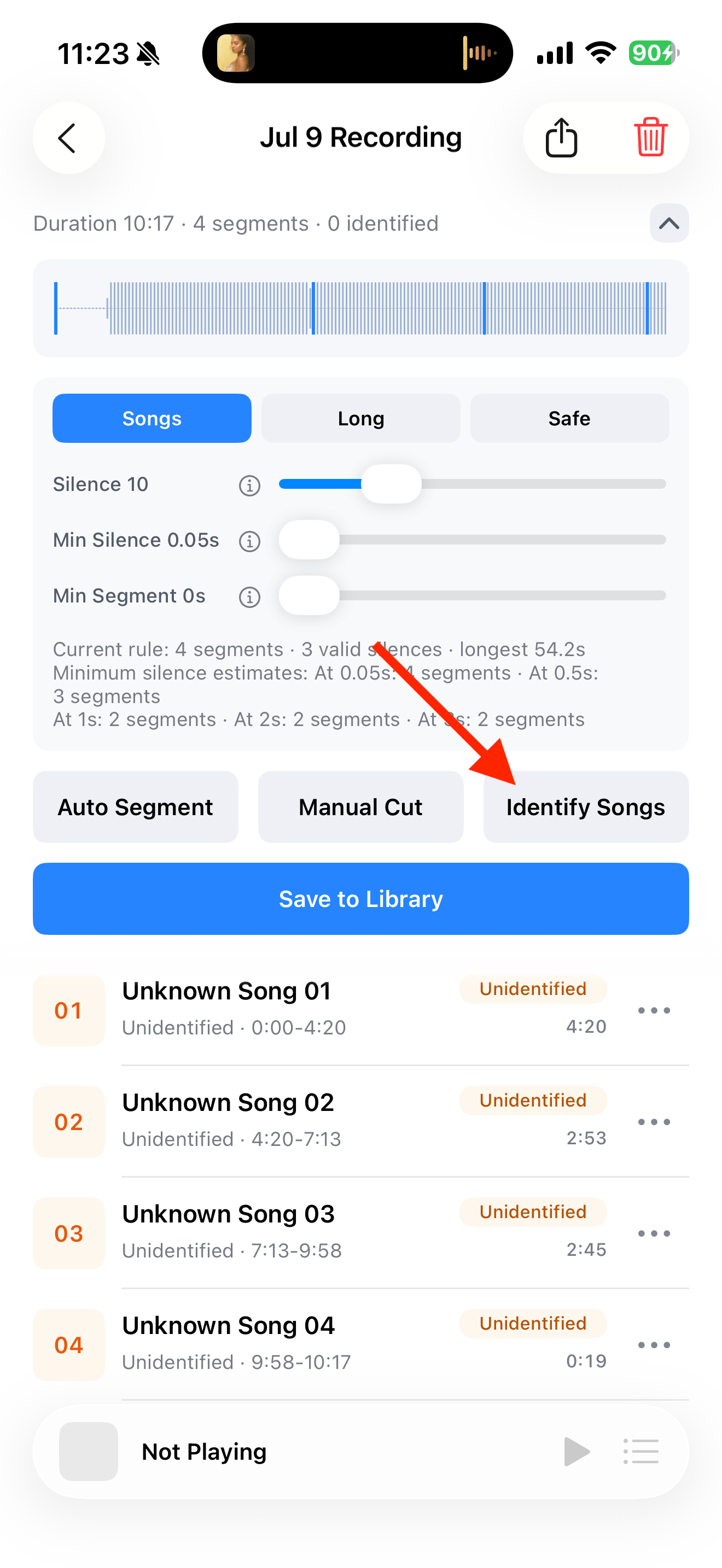
Common questions
Can I undo from the same prompt after closing it?
Use “Undo Merge” while the results prompt is open. After closing it, adjust the boundaries with “Manual Cut”.
Does this delete every duplicate song in my Library?
No. It merges consecutive segments within the same recording. It does not remove duplicates across files or the whole Library.