
Quick answer
Open the track’s “Details and Source” and choose “Resegment and Identify”. After editing, choose “Keep Original and Save” until you have checked the new tracks.
Step by step
3 stepsOpen the saved track
Find the playable track in your Library, open its “⋯” menu, and go to “Details and Source”.

Find songs, playlists, and recordings in the Library Adjust the segments
Choose “Resegment and Identify”. Use automatic segmentation or manual cuts, then identify songs or name spoken passages yourself.
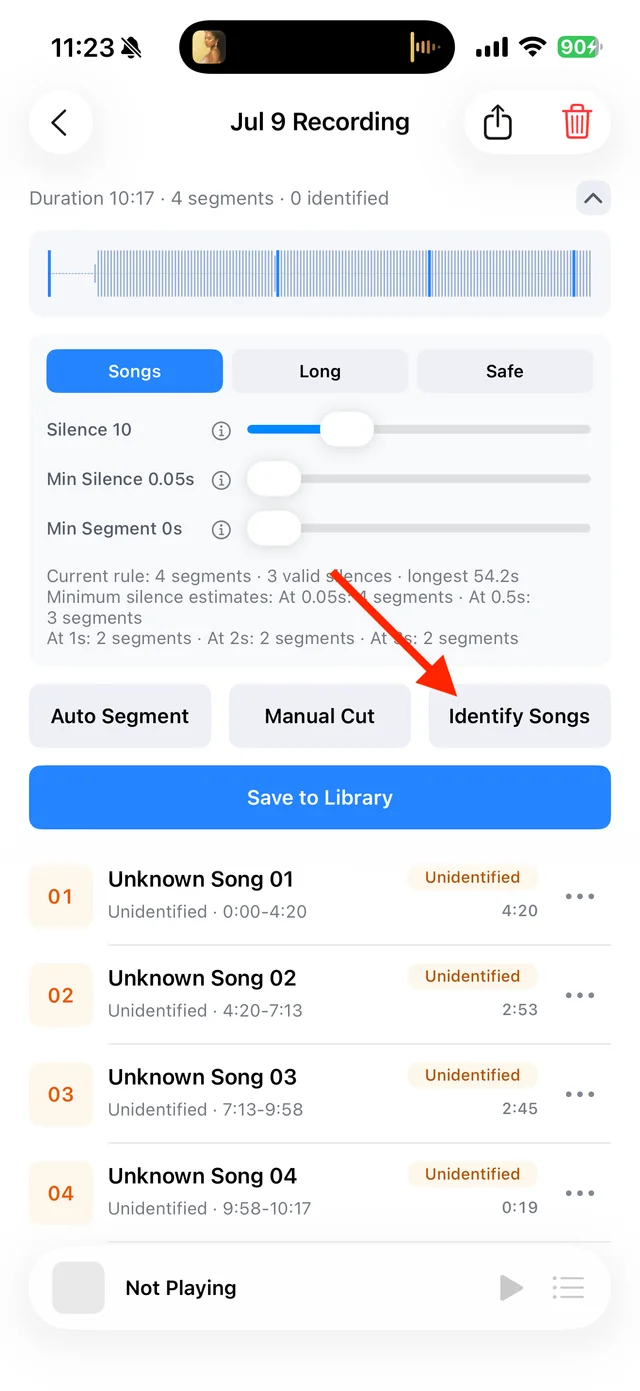
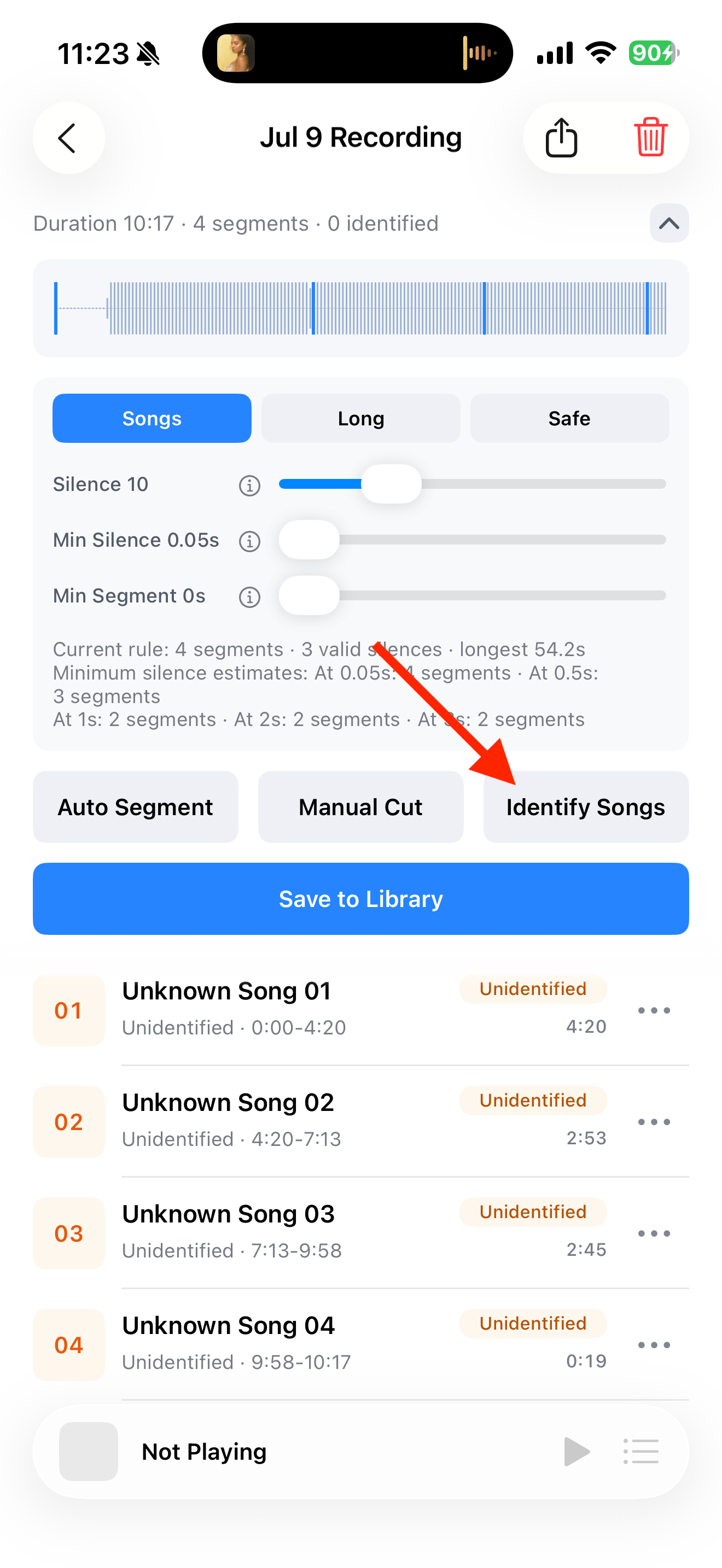
Split, identify, and save audio on the recording page Keep the original while checking
Open “Save and Replace Original” and choose “Keep Original and Save”. Listen to the new tracks before deciding whether to remove the original.
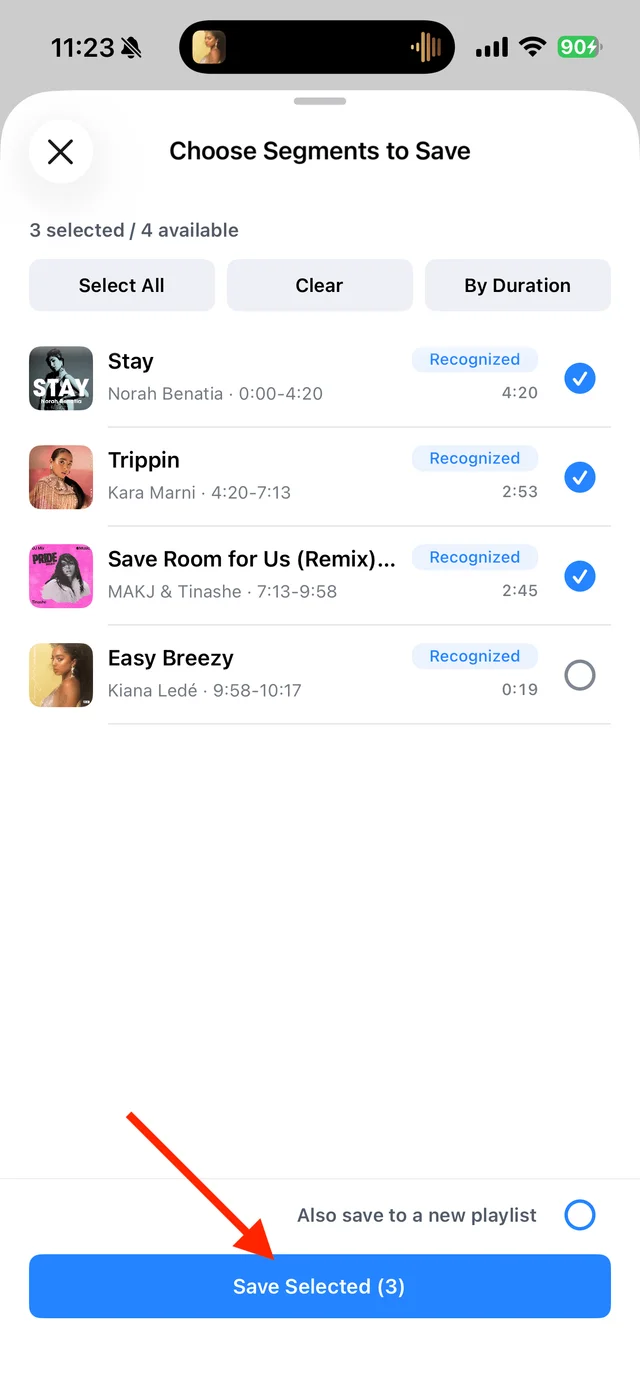
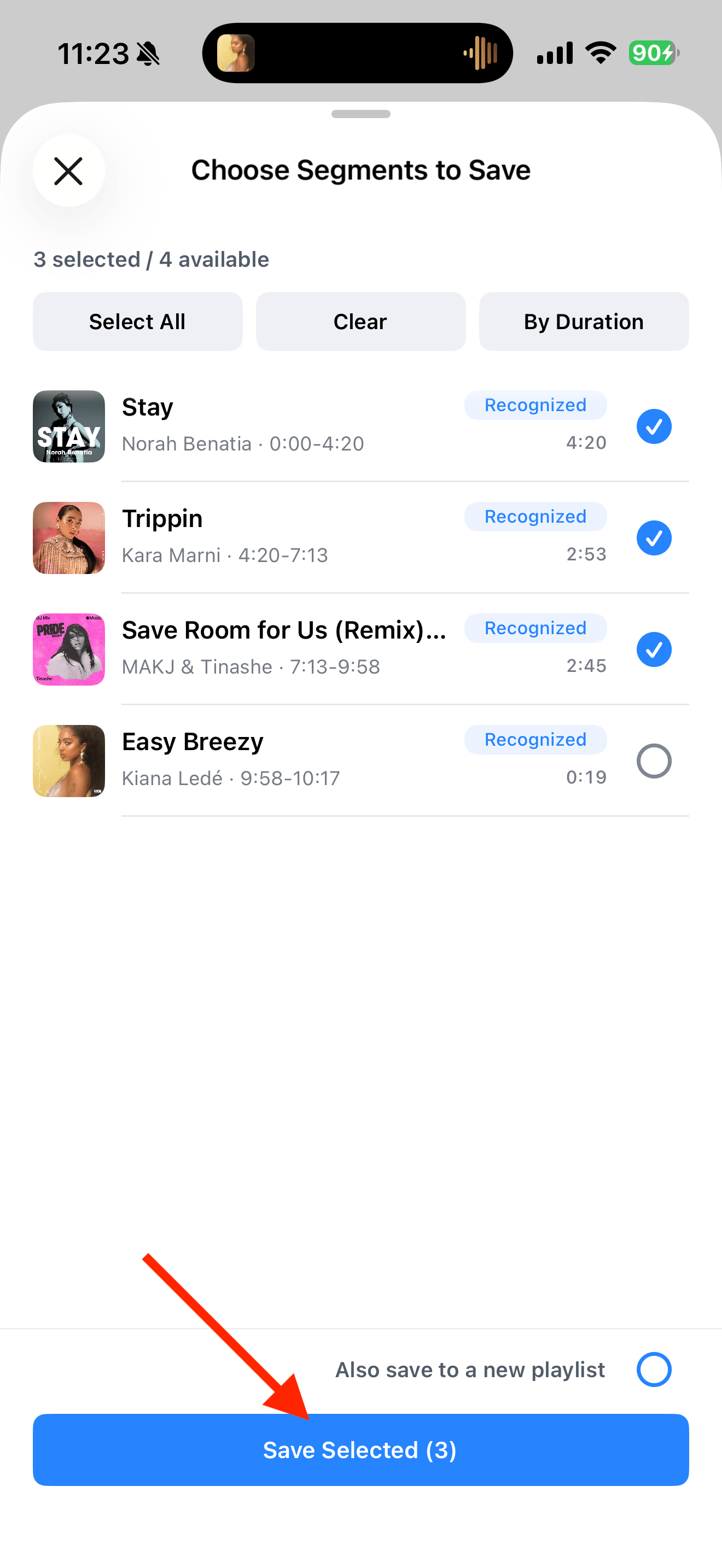
Select the tracks you want to keep and save them

Common questions
Do I need to delete the original first?
No. Keeping the original lets you compare it with the new segments before removing anything.
Can resegmenting recover missing audio?
No. It only changes the boundaries of audio already present in the saved track.