
Quick answer
Tap “Save to Library”, select the segments you want, and tap “Save Selected”. Use “Recognized Only” or “By Duration” to narrow the selection.
Step by step
3 stepsReview the segments
Check that songs or useful passages are separate from ads and unwanted sound. Add or move cuts where needed.
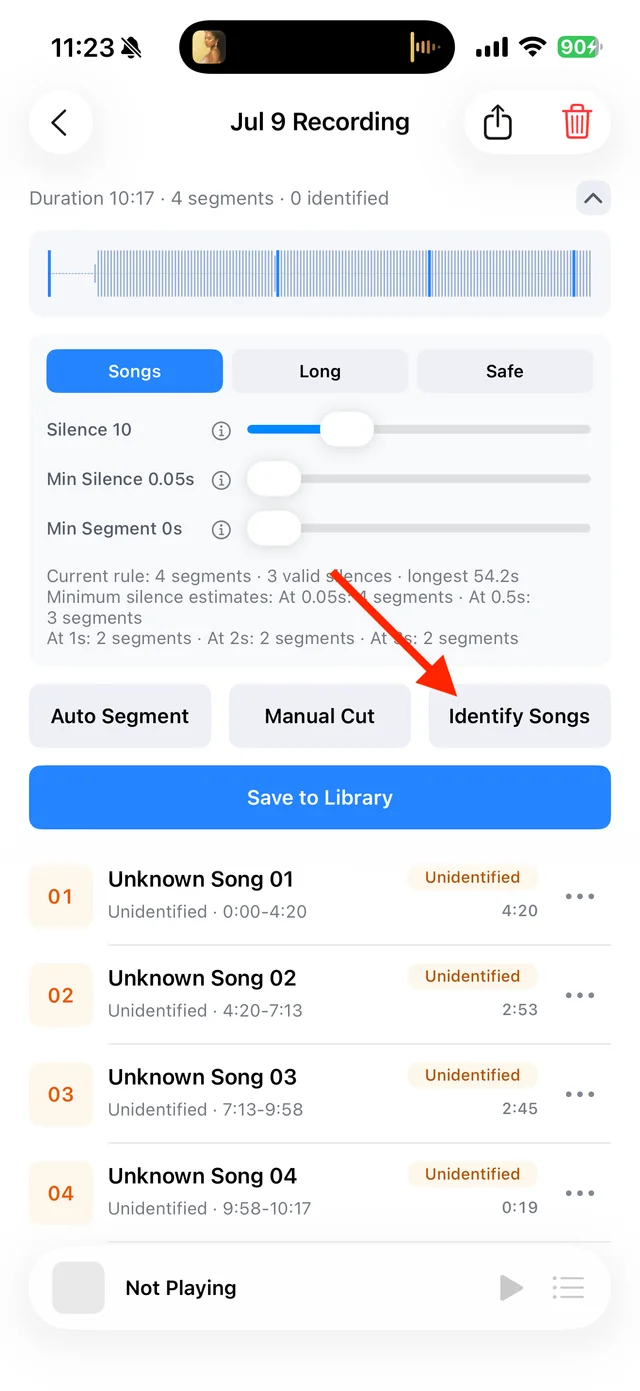
Split, identify, and save audio on the recording page Select the useful audio
Choose segments manually, use “Recognized Only”, or set “By Duration” and apply the filter. Review the selection before saving.
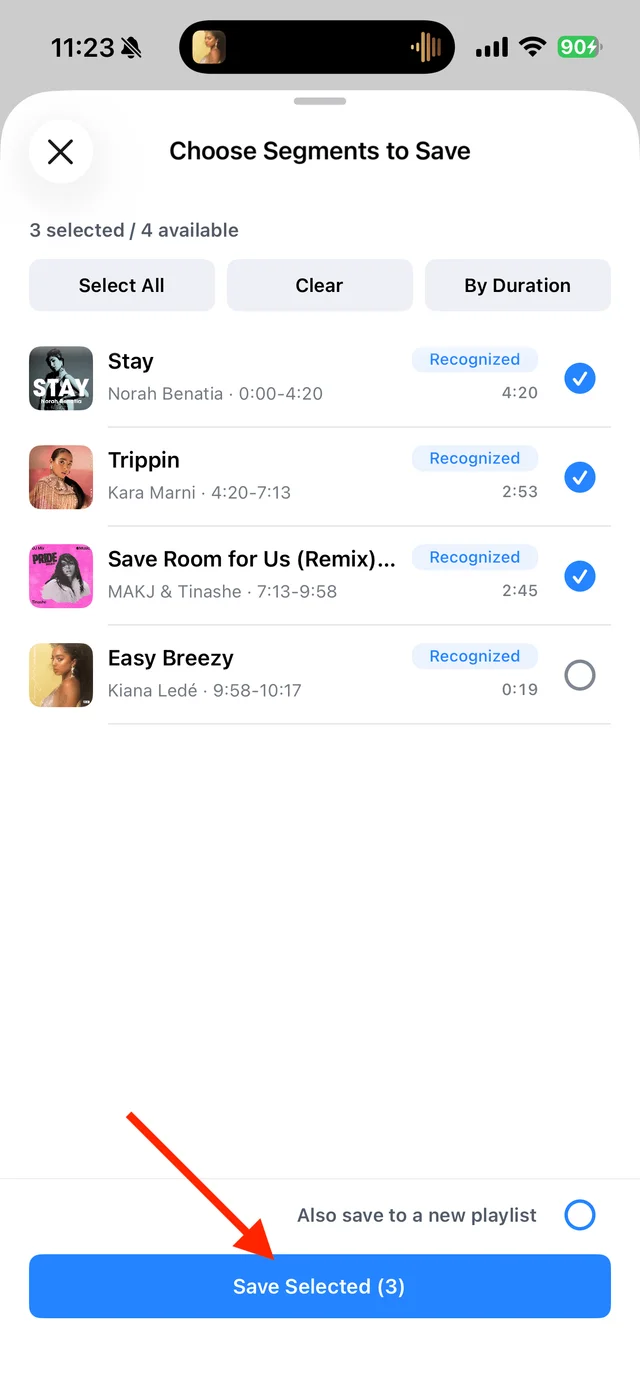
Select the tracks you want to keep and save them Save and verify
Check the selected count, then tap “Save Selected”. Play the saved tracks in your Library and keep the original if it contains other audio you may need.

Find songs, playlists, and recordings in the Library

Common questions
Will “Recognized Only” include spoken audio and unknown songs?
Not necessarily. Add interviews, original music, and other unrecognized clips to the selection yourself.
Are unselected segments deleted?
They remain in the original recording. Do not delete that recording until you have saved everything you need.