
Quick answer
Expand the segmentation settings, choose “Songs”, “Long”, or “Safe”, then tap “Resegment”. Listen to the results and adjust one setting at a time.
Step by step
3 stepsChoose a suitable preset
Start with “Songs” for music, “Long” for longer audio, or “Safe” for fewer cuts. Check the estimated number of segments.
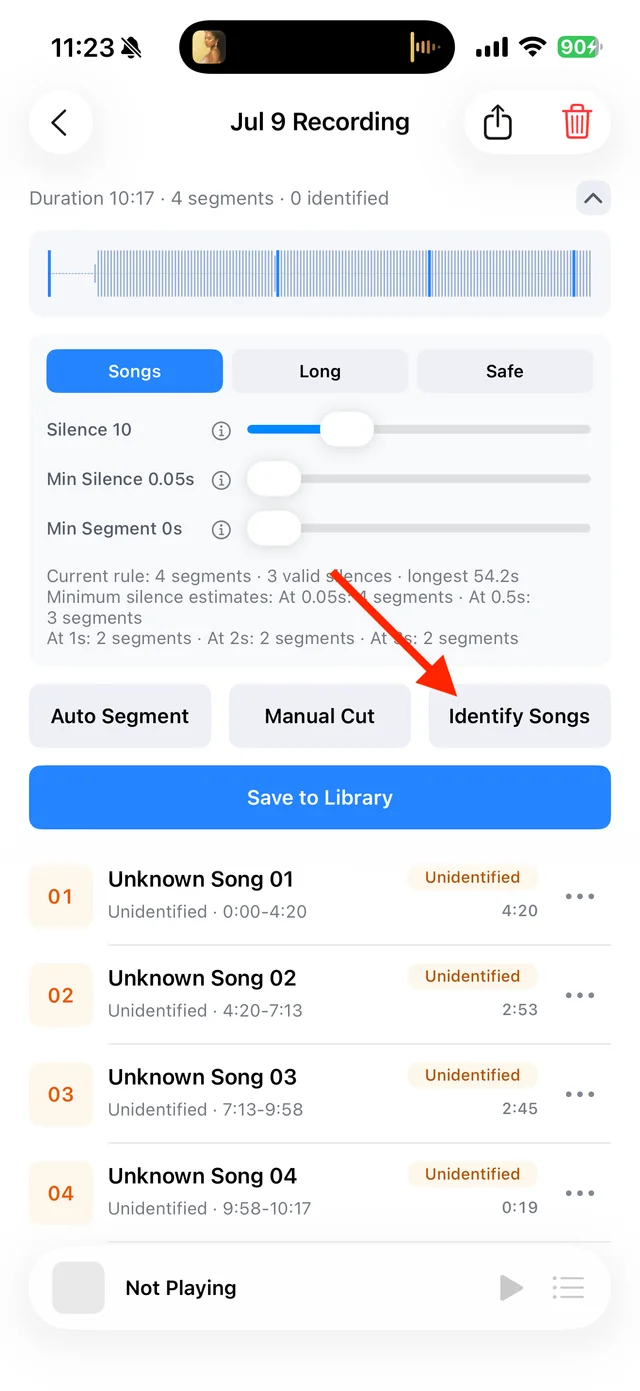
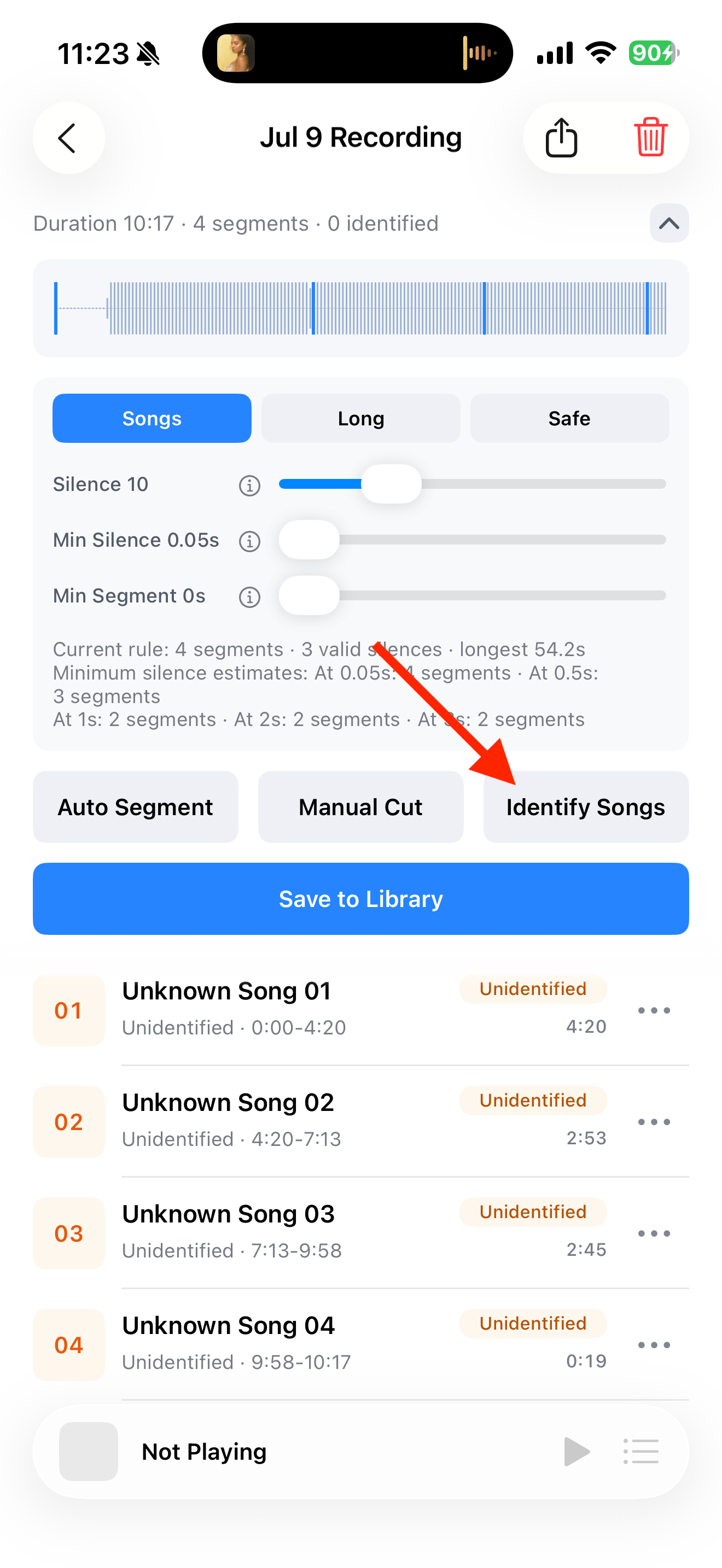
Split, identify, and save audio on the recording page Adjust the silence settings
For too many cuts, increase “Minimum Silence” or lower “Silence Threshold”. For too few cuts, adjust gently in the opposite direction.
Apply and listen
Tap “Resegment” and check the boundaries. “Minimum Segment” controls whether very short clips are kept; it does not make every segment the same length.
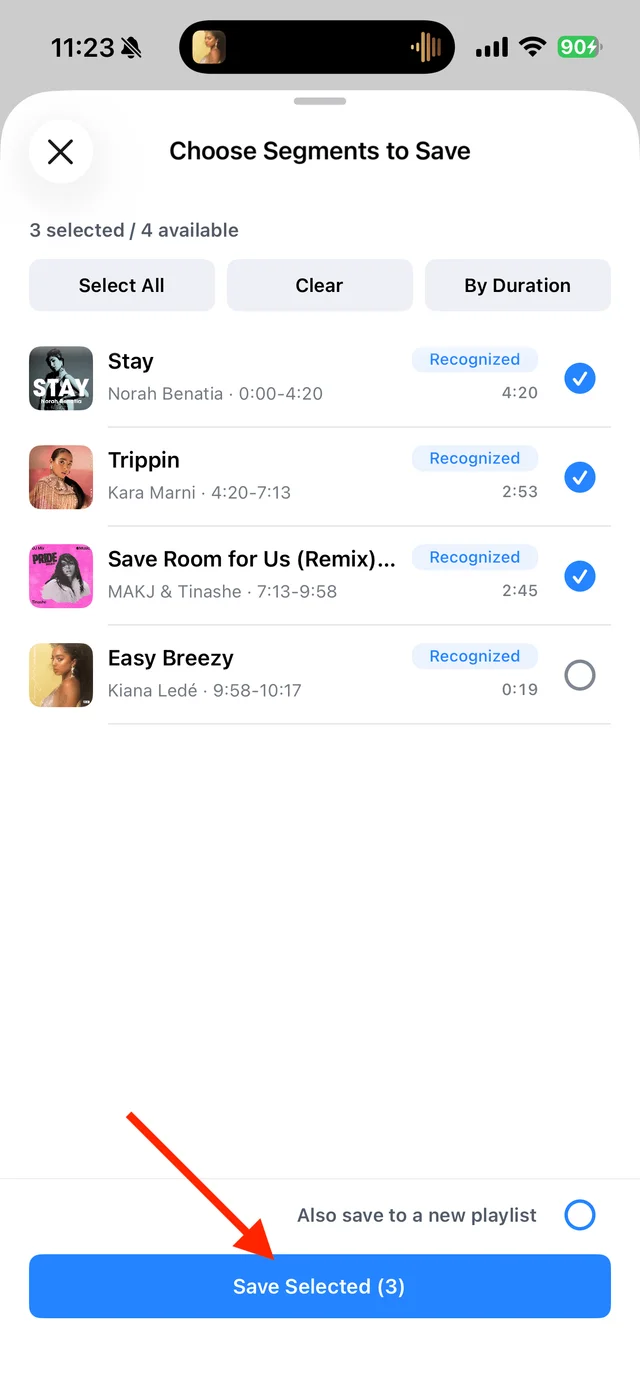
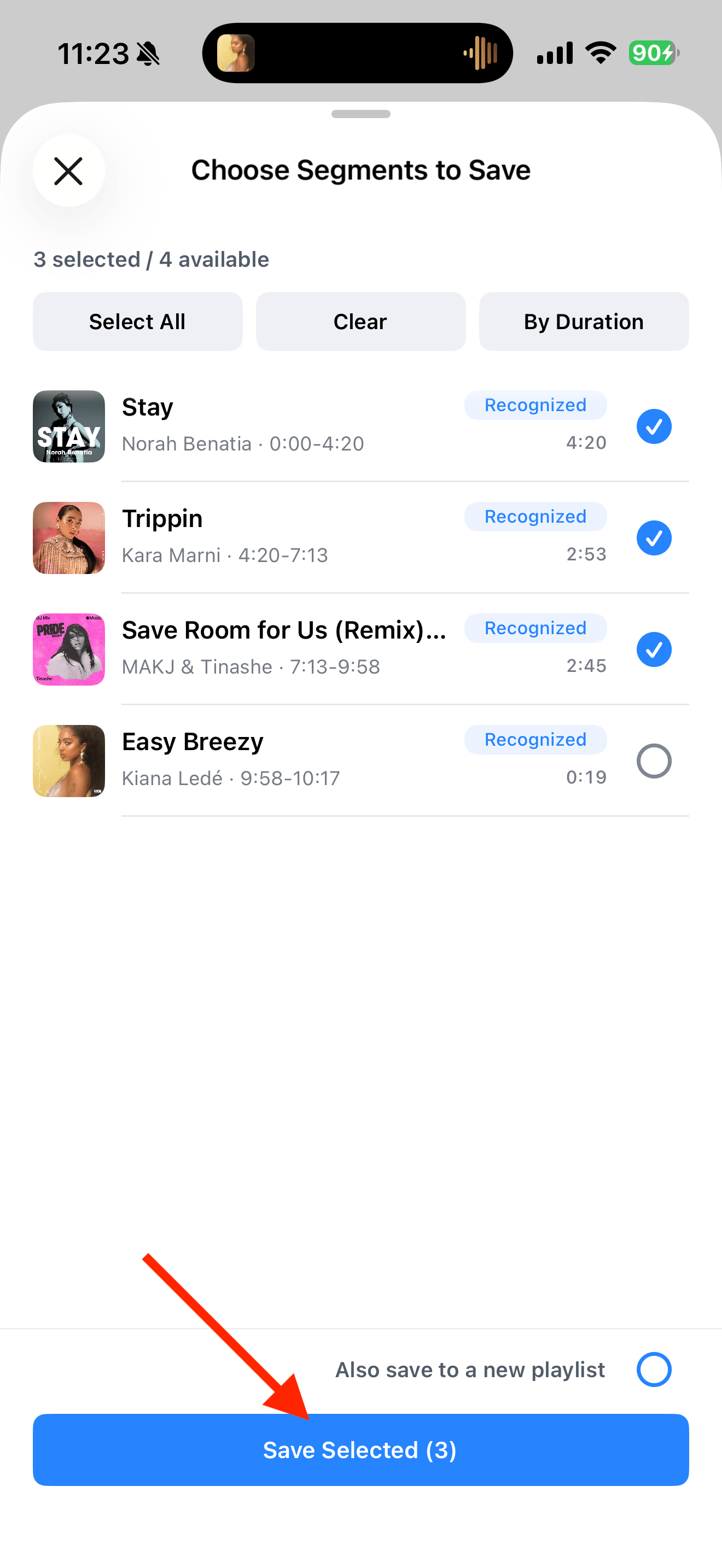
Select the tracks you want to keep and save them
Common questions
Is there one setting that works for every recording?
No. Quiet gaps, applause, background noise, and continuous mixes need different settings. Start with a preset and check the result.
Why will a seamless mix not split automatically?
There may be no quiet gaps to detect. Use manual cuts at the transitions you want.