
Quick answer
Open “Manual Cut”, clear the cuts, and save. Give the full recording a name, save it to the Library, and enable “Resume Playback”.
Step by step
3 stepsOpen the full recording
Find it under recordings in the Library, or import the original audio file. Check that it contains the complete session.
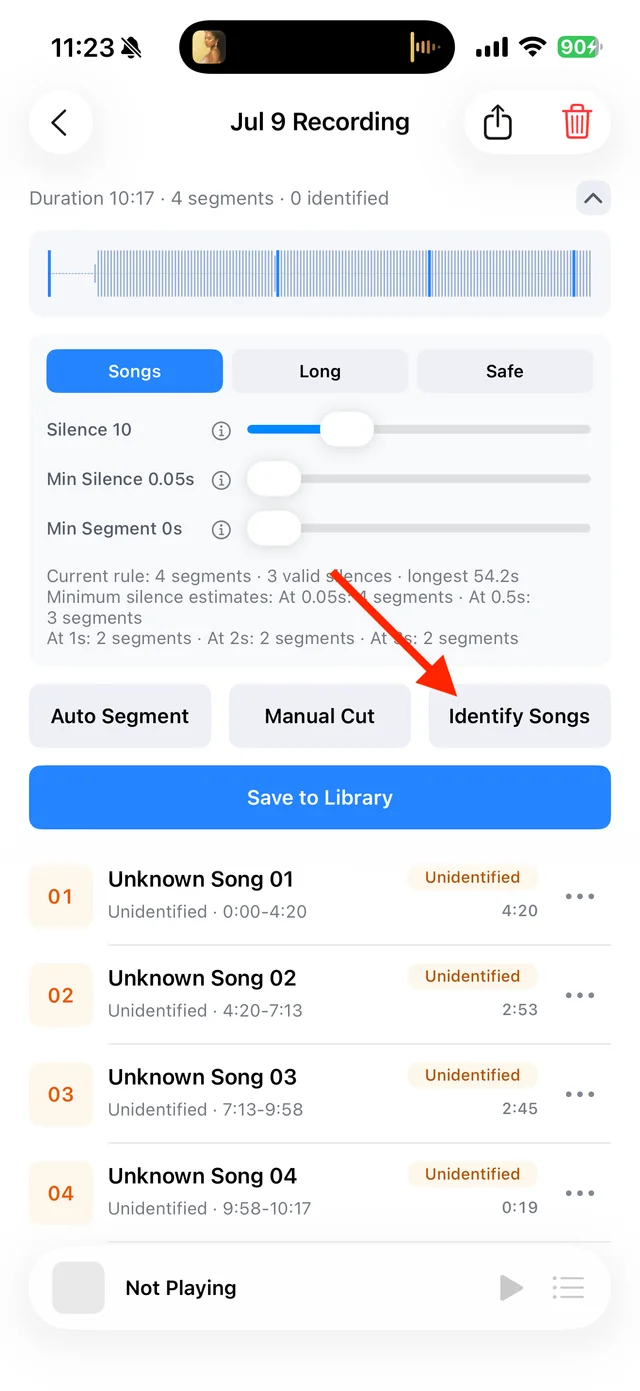
Split, identify, and save audio on the recording page Clear the cuts
Open “Manual Cut” and choose “Clear”. Note any cuts you may want to reuse, confirm the action, then save.
Save a continuous track
Name the recording and save it to your Library. Enable “Resume Playback” to continue where you left off.
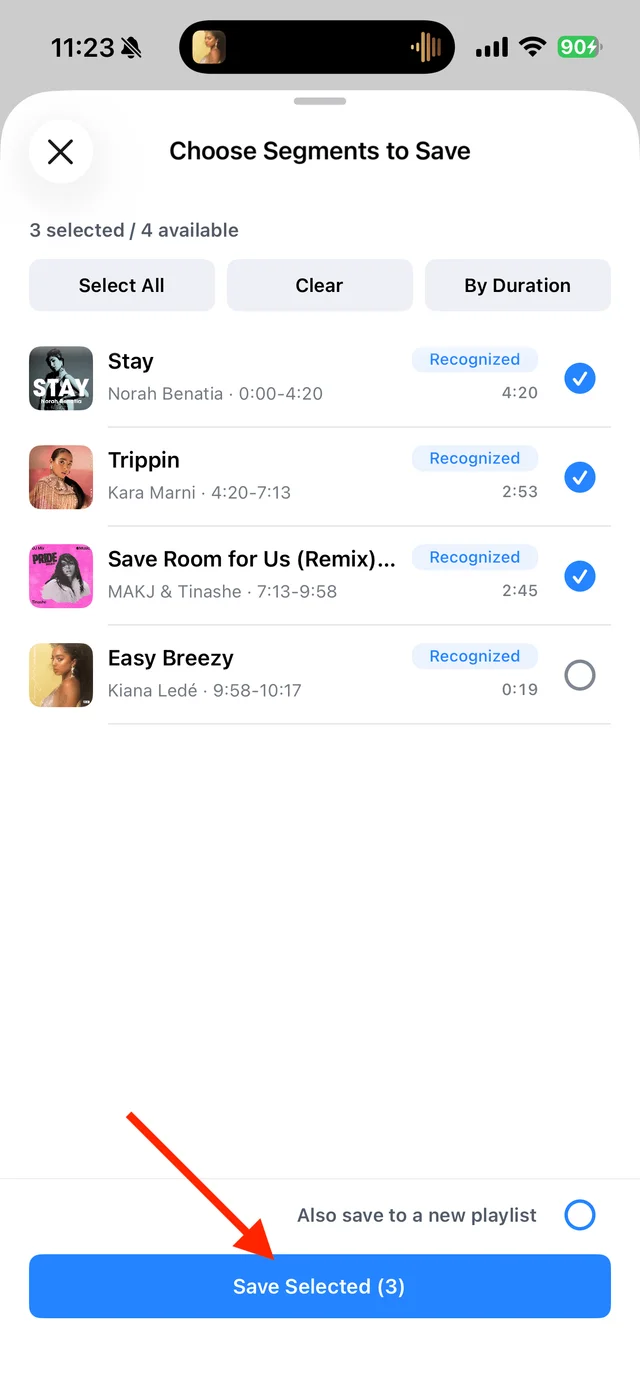
Select the tracks you want to keep and save them
Common questions
Does clearing cuts delete the audio?
No. It removes the segment boundaries so the recording can be saved as one continuous track.
Will this also join existing Library tracks?
No. Previously saved tracks remain separate. Save the complete recording as a new track.