
Quick answer
Open “Settings” → “Playback Settings” → “Default Playback Speed”. Tracks and playlists with their own speed settings take priority over this default.
Step by step
3 stepsChoose the scope you need
Change the global default only if you want it to apply broadly. For one lesson, choose “This Audio” in that track’s playback settings.

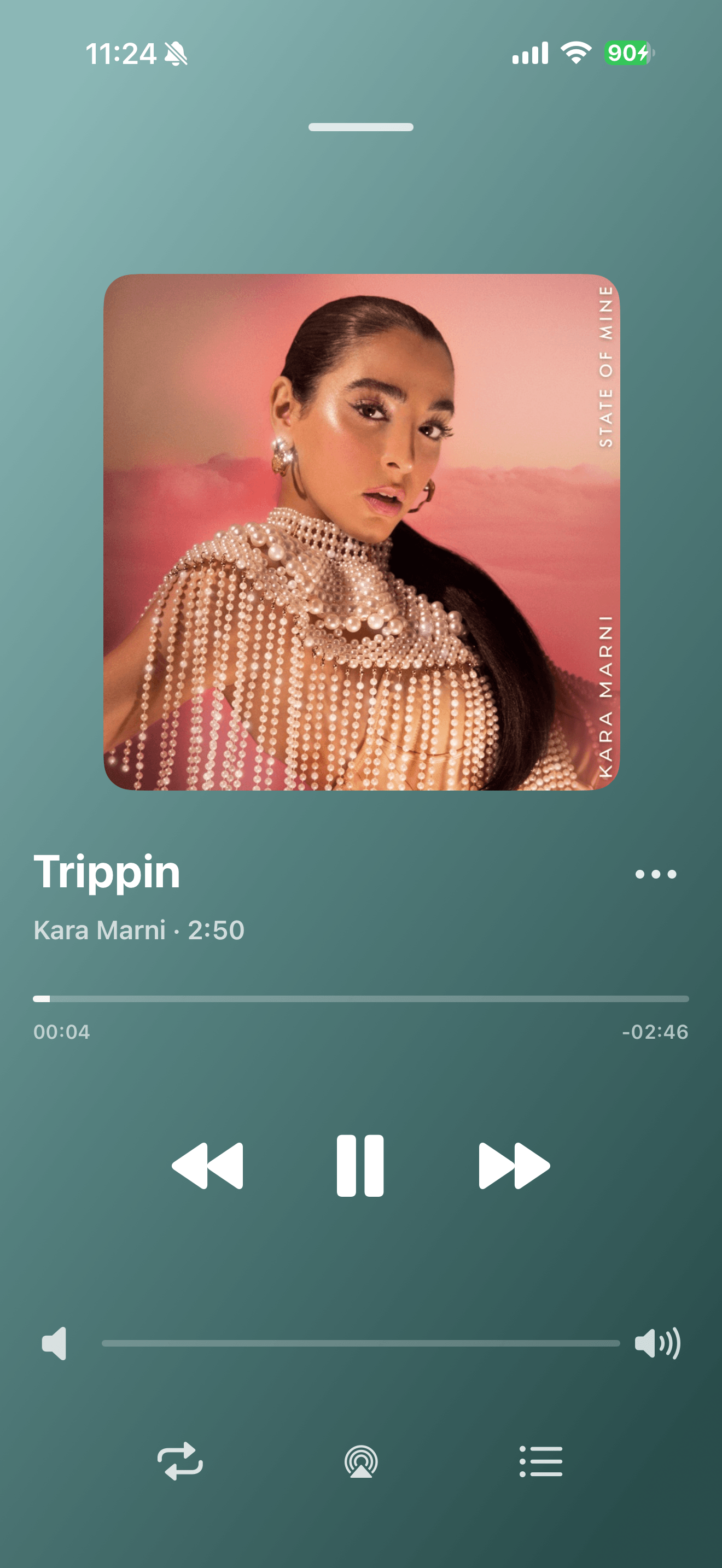
Playback progress, volume, and the player menu Set the default speed
Open “Settings” → “Playback Settings” → “Default Playback Speed” and choose a speed. Music usually works best at 1×.
Check any overrides
If a track still uses another speed, check its own settings and those of its playlist. Remove a fixed speed to let it follow the default.
Common questions
Which speed setting takes priority?
The track’s own setting comes first, then the current playlist, then the global default.
Does changing speed alter the audio file?
No. It changes playback without overwriting the original audio.