
Quick answer
Open the playlist’s menu and set “Playback Speed” and “Resume Playback”. Start playback from that playlist to use its settings; a track’s own settings still take priority.
Step by step
3 stepsOpen the playlist
Go to “Library” → “Playlists”, open the playlist, and tap the menu at the top right.

Find songs, playlists, and recordings in the Library Set speed and resume separately
Choose a suitable “Playback Speed” and set “Resume Playback” as needed. Save each setting.
Play from this playlist
Start a track within the playlist and check the result. If one track behaves differently, review its own speed or resume setting.
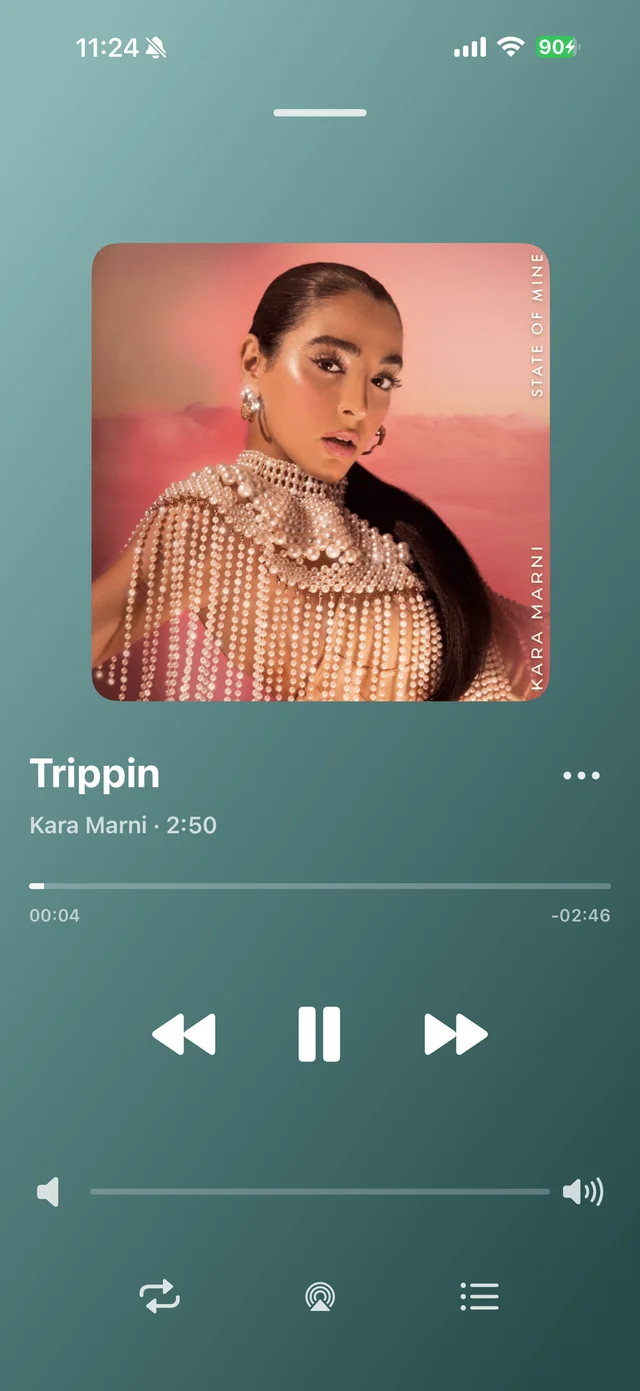
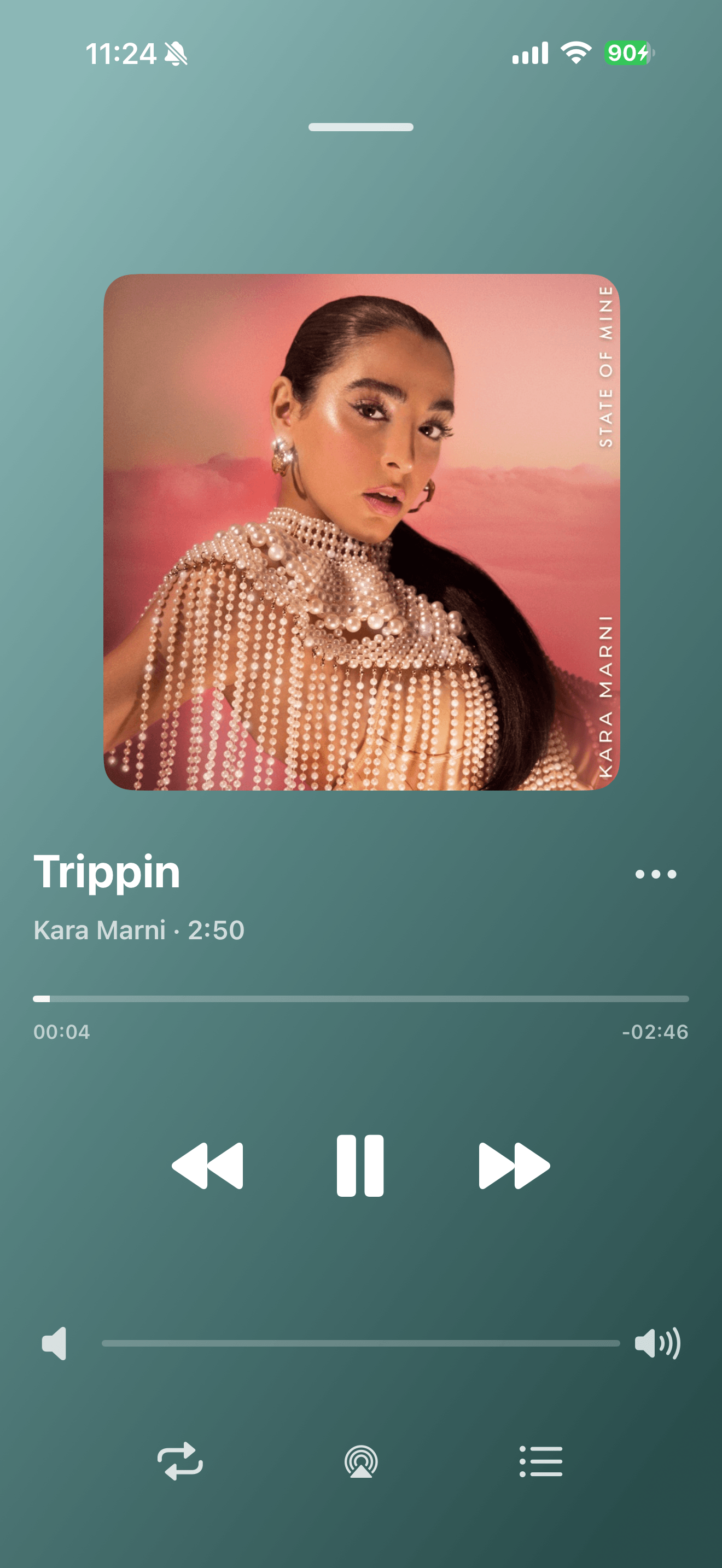
Playback progress, volume, and the player menu

Common questions
Do these settings apply when I open a song elsewhere?
Playlist settings depend on the playback source. Start from that playlist when you want to use its settings.
Can the playlist follow the global defaults again?
Yes. Remove its fixed speed or resume setting so it follows the default.