
Quick answer
Use “Manual Cut” to mark both ends of an ad, then leave that segment out when saving. An ad mixed over the music cannot be separated this way.
Step by step
3 stepsFind the unwanted passage
Listen to the start and end of the ad. Check whether it is a separate passage or overlaps the audio you want to keep.
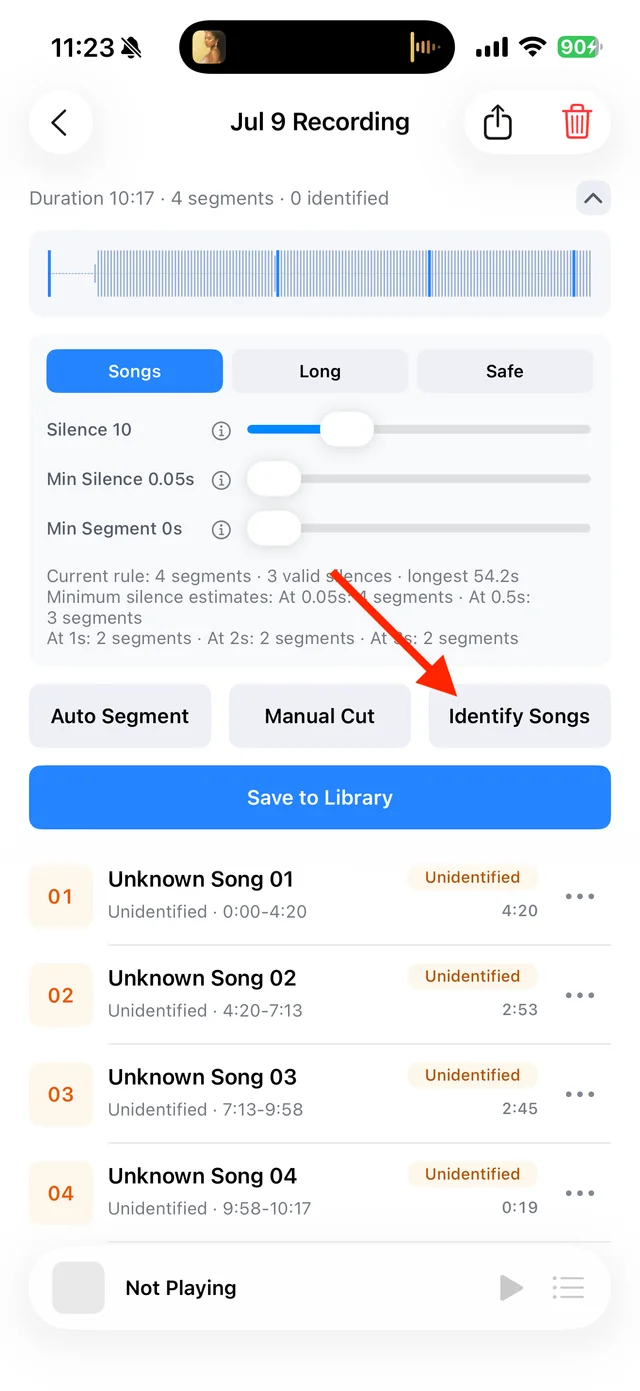
Split, identify, and save audio on the recording page Cut around the ad
Add a cut at each boundary, save the edits, and listen to a few seconds on either side.
Save the useful segments
In “Save to Library”, leave the ad unselected. Put the remaining segments in playback order if needed.
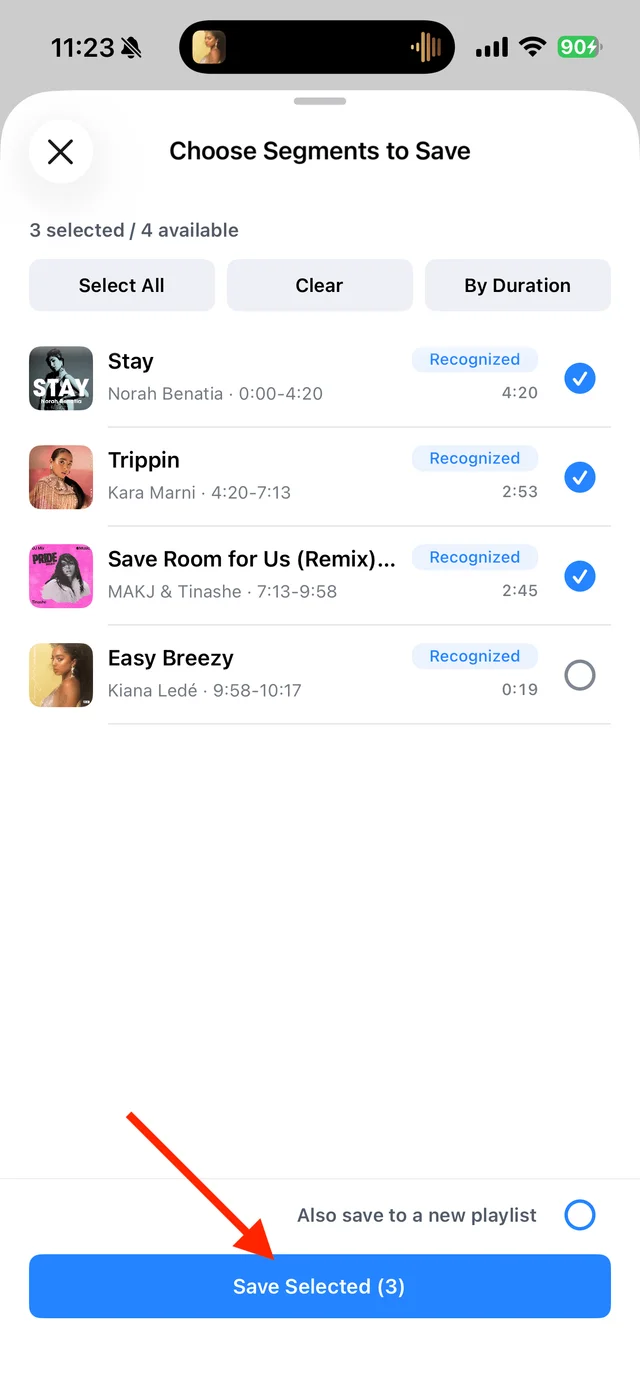
Select the tracks you want to keep and save them
Common questions
Can this remove a voice speaking over a song?
No. Cuts cannot separate overlapping sounds. Record again from a source without the voice-over.
Does TuneTrace automatically detect every ad?
No. Listen to the recording and select the segments you want to keep.